AI Product Photoshoot for Fashion Ecommerce
Upload a product photo, choose who wears it, and get a finished on-model photo back. This guide covers how an AI product photoshoot really works, how to set it up for your store, and why some results miss the mark.
Why Use an AI Product Photoshoot for Ecommerce Product Photos?
The flat lay you shot on your kitchen counter this morning becomes a polished model shot, with no talent to hire and no studio to rent. Most brands feel the difference in their first week. Each image costs so little that you stop rationing them, and each one arrives so fast that a new product can launch the same week it reaches your warehouse. That is the real promise of AI product photography: every product gets a proper shoot, not just the bestsellers.
Cut your photoshoot costs
Models, photographers, studio rental and retouching add up fast, and every new collection means paying for all of it again. A Templix photoshoot costs a few coins per image.
From weeks to under a minute
Count the booking, the shoot day and the retouching, and a traditional shoot takes weeks for each drop. On Templix, a product photo becomes a publish-ready on-model image in under a minute.
Any model, any market
Show the same piece on a different look, body type or age without a casting call, and tailor your photos to whichever market you are selling in.
Grows with your catalog
New products no longer mean new shoots. Five hundred products become five hundred generations, a queue you work through on your own schedule instead of a production calendar.
Virtual Try-On for Online Shopping
Shoppers can't try clothes on through a screen. Most sizing questions and a good share of returns start right there, with someone guessing fit from a photo of a shirt lying flat. Virtual try-on for ecommerce narrows that gap by giving every product a real on-model photo, or several, on your Shopify, Amazon or Etsy listings.
It also reaches the long tail of your catalog: the extra colorways, the limited runs and the slow movers that never justified a shoot of their own. Show one piece on several body types and ages and more shoppers find a model who looks like them. You can even use a customer's own full-body photo as the model, about as personal as an on-model product photo can get.
| Where the image goes | What to generate | Ratio | Resolution |
|---|---|---|---|
| Product page hero | The product on a model, clean studio background | 4:53:4 | 2K |
| Category pages and marketplace listings | Identical framing across every product | 1:1 | 1K |
| Instagram feed and lookbooks | The product styled in a lifestyle scene | 4:5 | 2K |
| Stories, Reels and TikTok | A full-length shot with room for captions | 9:16 | 2K |
| Homepage and campaign banners | A wide scene with open space for your headline | 16:9 | 4K |
The resolution column applies to Nano Banana Pro and Nano Banana 2 Edit, which both render at 1K, 2K and 4K. GPT Image 2 has a Quality setting instead.
- AI Clothes Changer swaps the outfit on a photo you already have, leaving the person, the pose and the background as they are.
- Motion Control turns an on-model photo into a short video clip, so shoppers can see how the piece moves.
How Does an AI Product Photoshoot Work?
Two photos go in and a third comes out. The AI studies your product closely enough to know that a denim jacket holds its shape and a satin slip dress doesn't, works out how that exact piece would fall on the body in your model photo, then renders the entire image from scratch. Nothing is cut out and pasted on. Every fold, shadow and highlight is newly generated, which is why the fit looks believable on every body type.
A generation needs just two things: the products and the person wearing them. Every other setting is optional.
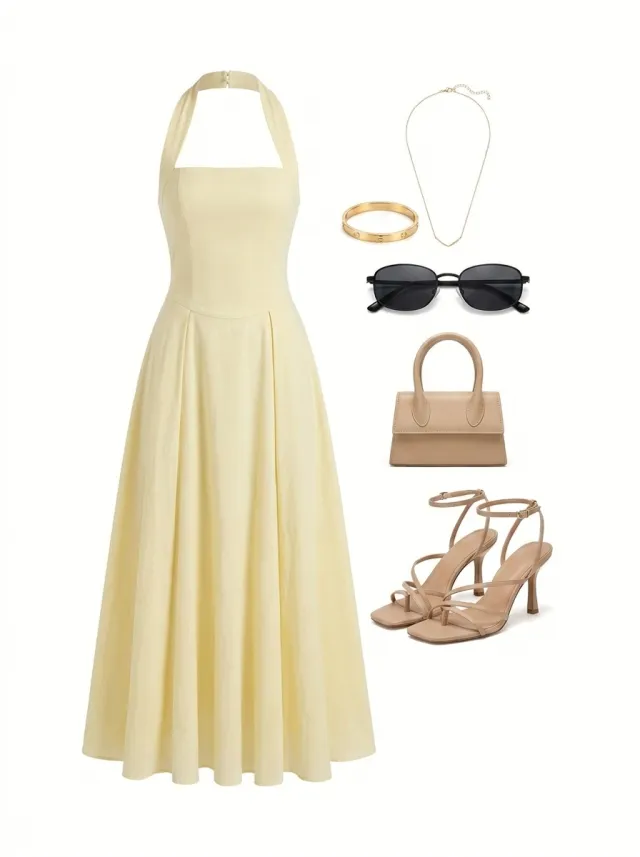
Upload your products
Add up to 5 product images per generation. Flat lays, ghost mannequin shots and existing on-model photos all work, so you can go from flat lay to model in one step. Stack a top, pants, shoes and a bag to build a full outfit at once.
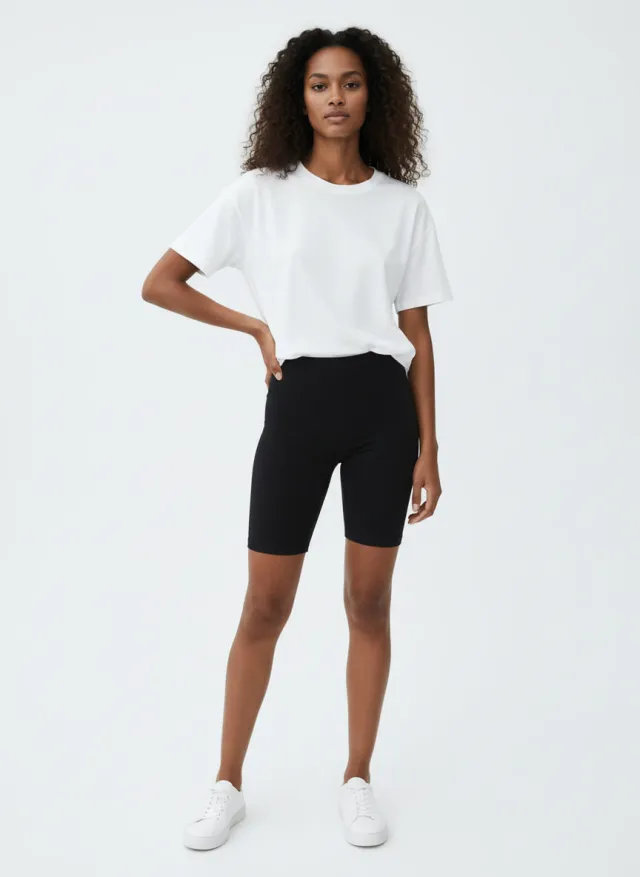
Choose your model
Pick one of the built-in AI fashion models, which cover a range of looks, body types and ages, or upload a photo of your own. If you upload, use a full-body shot of one person facing the camera. The clearer the photo, the better the result.
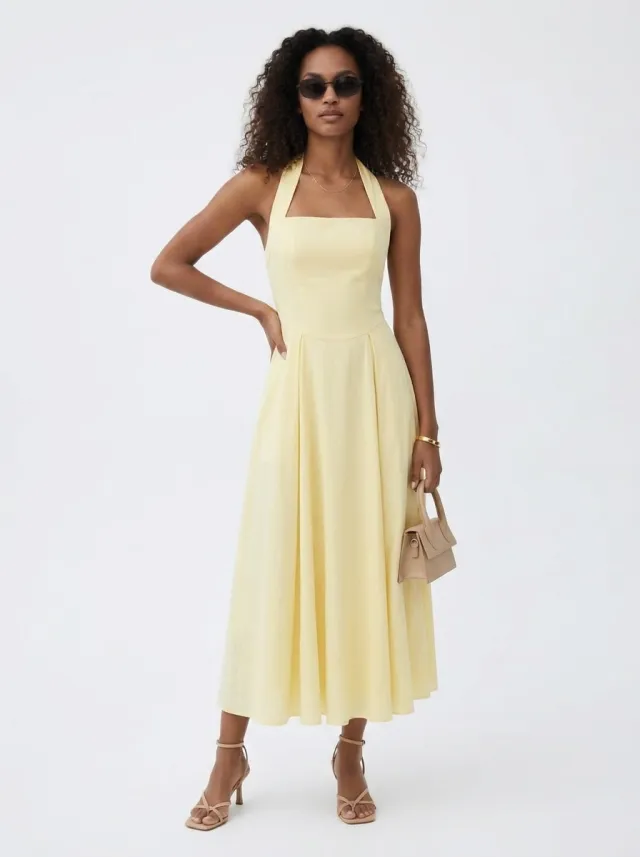
Pick your settings and generate
Choose the AI model, the resolution and the aspect ratio. Add a prompt if you want to direct the scene, then press Run. The button shows the coin cost before you commit, and your photo appears in History within seconds.
Before and After
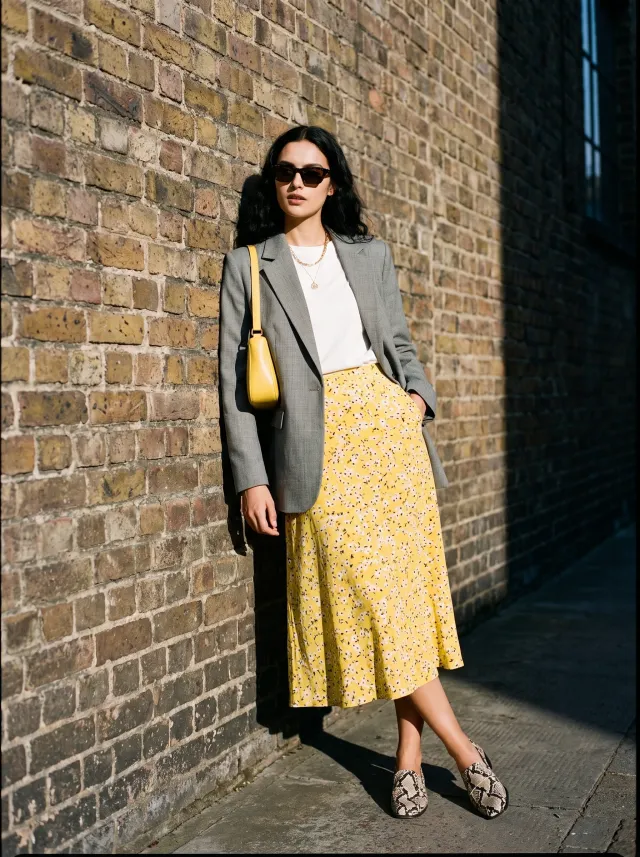
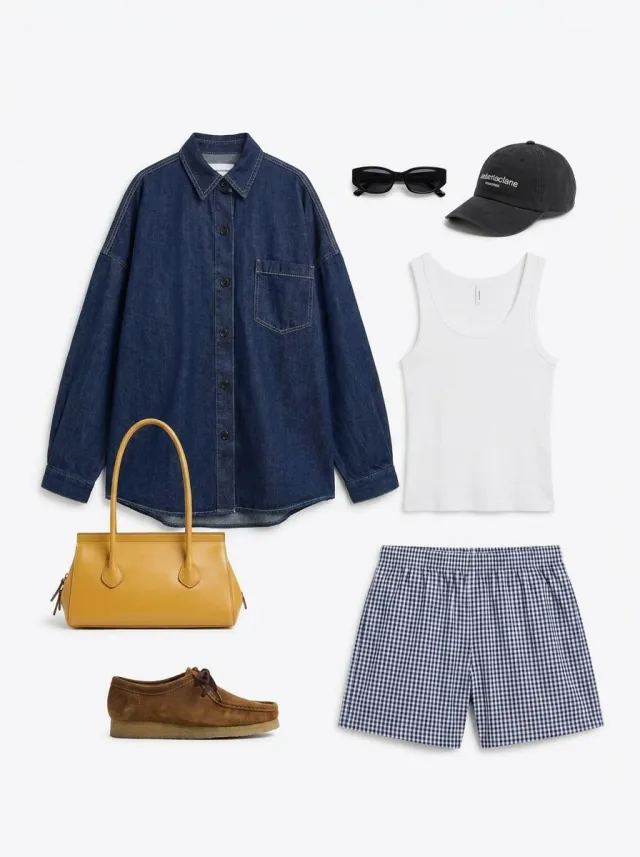
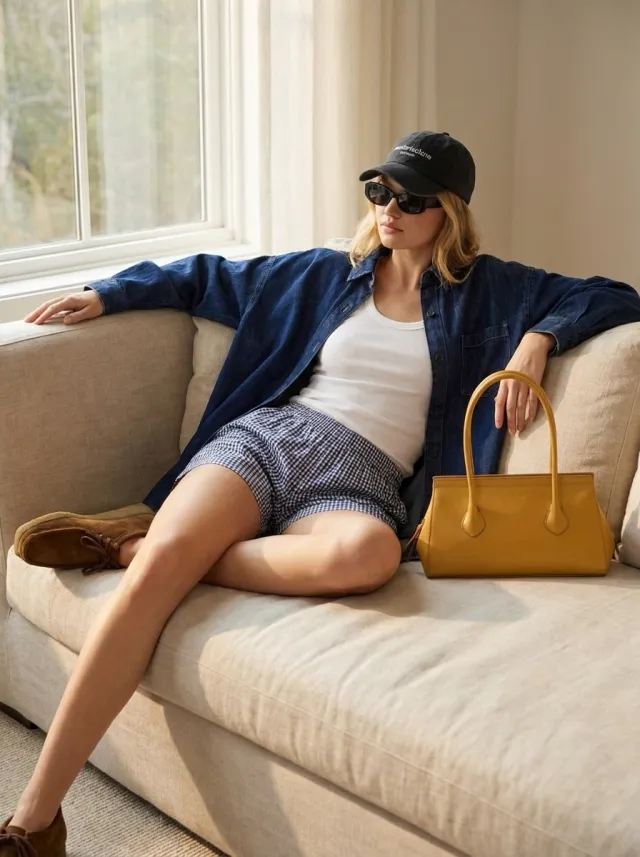
Every pair below started as a single product photo. No model, no set, no shoot day. The image on the right is exactly what came back from one generation.
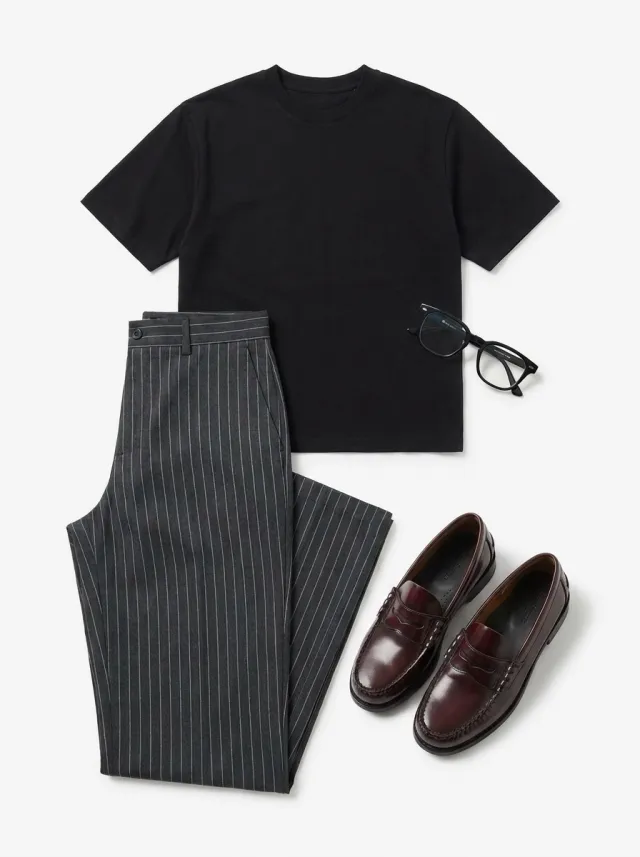
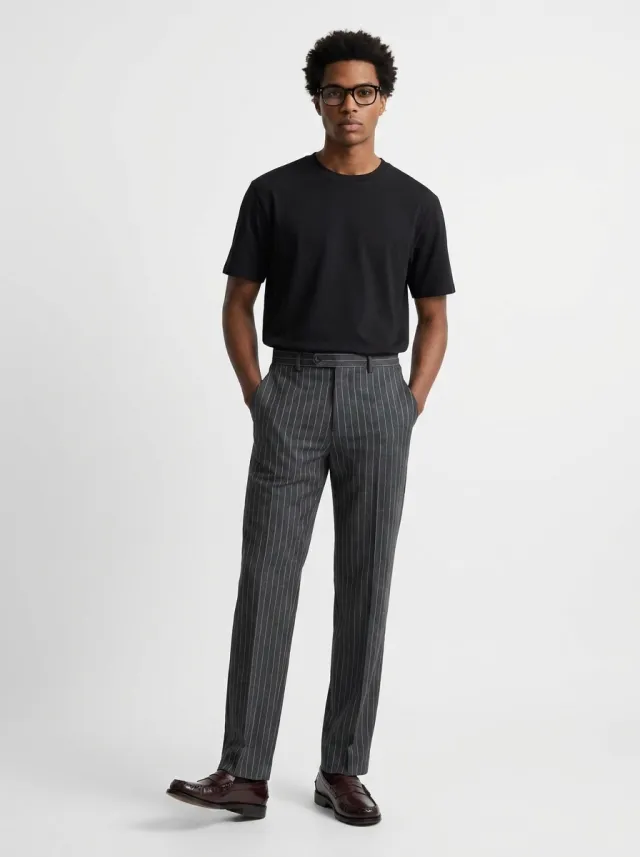
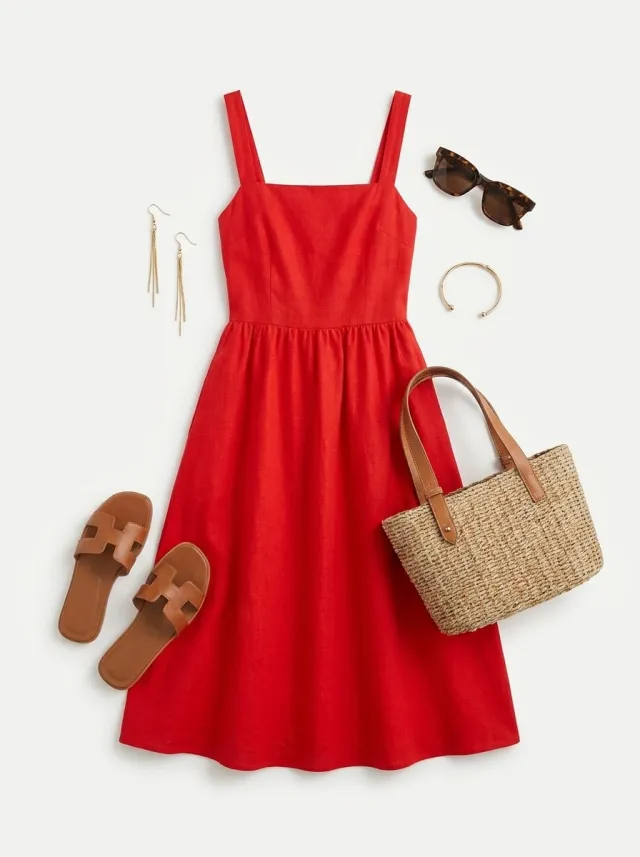
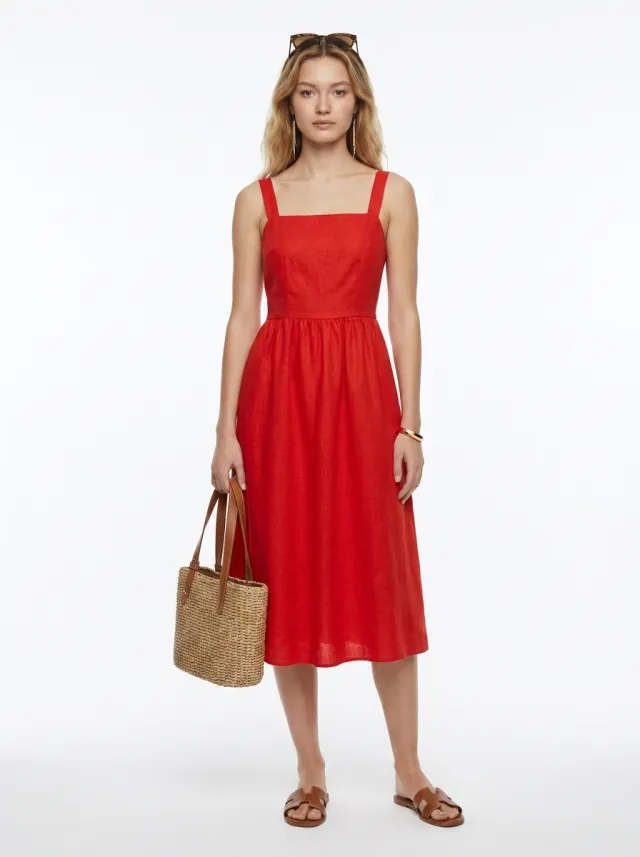
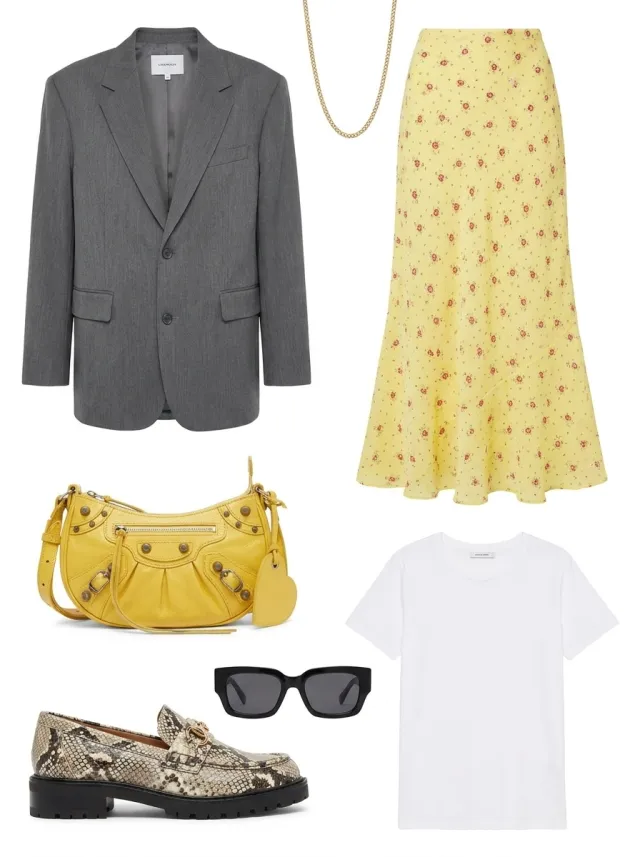
What Can You Photograph?
You can style a complete outfit in a single photoshoot. Each generation takes up to 5 pieces, and you can mix categories however you like.
Tops
T-shirts, button-downs, blouses and sweaters. A flat lay on a plain background keeps prints and necklines crisp.
Pants and denim
Jeans, pants, skirts and shorts. Lay them flat and straight so the cut and the leg shape come through.
Dresses
Everything from sundresses to evening gowns. Ghost mannequin shots work best here because they already show how the silhouette falls.
Outerwear
Coats, jackets, puffers and blazers. Shoot them open or closed, exactly the way you want them worn.
Shoes
Sneakers, heels, loafers and boots. Upload them as their own image alongside the rest of the outfit.
Accessories
Handbags, hats, sunglasses and jewelry. Add them to the same generation as the clothes and the AI styles the whole look together.
AI Wedding Dress Photoshoot
A single gown can combine a cathedral train, a veil, hand beading, lace appliqué and several fabric weights at once. That makes bridal the hardest category to photograph well and the most expensive to get wrong. Many bridal boutiques also carry stock they can't afford to sample, ship or put in front of a camera. An AI wedding dress photoshoot puts every gown in your collection on a model while the inventory stays safely on the rack.
Technically, a wedding dress is just another product: upload the gown, choose a model, generate. What changes is how much the source photo matters. Volume is the part the AI has to infer, so a gown shot on a hanger or a mannequin beats one folded on a table by a wide margin. From that photo it can see where the silhouette breaks, how the skirt flares from the waist and how far the train really reaches.
Shoot the gown with its shape
Hang the dress or put it on a dress form. That is how the AI reads the silhouette, the waistline and the true length of the train.
Upload the veil and accessories separately
Add the veil, headpiece and shoes as their own images in the same generation, up to 5 pieces in total, and the AI styles the complete bridal look.
Set the venue in your prompt
Describe the setting, for example "a white chapel aisle in morning light" or "a vineyard ceremony at sunset". The gown stays exactly as uploaded while the scene changes around it.
Lace, beading and embroidery live or die on resolution. Run bridal photos on Nano Banana Pro at 2K or 4K so every detail holds when a bride zooms in, then send the image to Motion Control for a short clip of the gown in motion.
Which AI Models Power the Photoshoot?
The model picker decides which engine renders your photo. AI Product Photoshoot offers three, and they differ in detail, in their options and in how many coins a generation costs.
Nano Banana Pro
Google's flagship image model, rendering at 1K, 2K or 4K. It keeps fabric texture, stitching and print detail faithful. Use it for anything headed to a product page, an ad or a campaign.
Nano Banana 2 Edit
Google's Nano Banana 2 for editing, rendering at up to 4K with the widest choice of aspect ratios, including Auto.
GPT Image 2
OpenAI's image model. Instead of a resolution you choose a quality level: low, medium or high.
The workflow most sellers settle on: draft at a lower setting until the outfit and the scene look right, then rerun the winner on Nano Banana Pro at a higher resolution.
How Does AI Product Photography Render Fabric Texture and Wrinkles?
A denim jacket comes back with stiff, structured creases. A satin slip comes back with soft folds that follow the body. The AI works this out from your product photo alone, reading the weave and the weight, then rendering folds that suit the material in the pose you chose. Ribbing, knit texture, stitching and print alignment are rebuilt at the new scale and angle, and the shadows the garment casts on the body are matched to the light in the scene.
How much of that comes through depends on your upload. A sharp, evenly lit product photo gives the AI more texture to work from, which is why the same piece can look flat from one source image and convincing from another.
- Shoot the product in even light. Harsh shadows in your photo get read as part of the fabric.
- Render final images on Nano Banana Pro at 2K or 4K when shoppers will zoom in on weave and stitching.
- For prints and logos, fill the frame with the product so the pattern is reproduced instead of guessed.
Choosing an Aspect Ratio
The aspect ratio sets the shape of the finished image. Choose it before you generate, because cropping afterward cuts into the model.
Auto
Matches the original framing of your model photo.
1:1
Product cards, Amazon and Etsy listings, and marketplace grids.
4:5
Instagram feed posts and lookbooks.
9:16
Stories, Reels and TikTok.
16:9
Website banners and homepage hero sections.
The Ratio menu shows what the selected AI model supports.
Picking a Resolution
Resolution sets the pixel size of the finished image. Higher resolutions cost more coins, so match the setting to where the image is going instead of always choosing the maximum.
1K
Drafts, social posts and quick iterations. Sharp enough for most on-screen use.
2K
Product pages and ads, where shoppers zoom in on fabric and detail.
4K
Print, billboards and campaign hero shots that need every pixel. Already have a smaller image? Take it to 4K with the AI Image Upscaler.
How Do You Change the Background?
The Background field sets where your photoshoot takes place. It is optional, and leaving it empty gives you a clean, light studio backdrop. Choose one of the 28 built-in backgrounds and the AI rebuilds the scene around the model while your product stays exactly as uploaded.
Studio backdrops
Seamless White, Warm Sand, Pastel, Editorial Grey and Colored Gel. The safe pick for product pages and marketplace grids, where a clean sweep makes every product look like it came from the same shoot.
Architecture and interiors
Terracotta Wall, Gallery, Arched Corridor, Brutalist, Concrete Steps, Glass Facade, Marble Hall and Desert Modernism. Hard light and strong lines that flatter tailoring and outerwear.
Outdoor and resort
Poolside, Palm Garden, Citrus Grove, Greenhouse, Boardwalk, Midday Beach, Marina and Santorini. Warm daylight for swimwear, linen and anything in a summer drop.
City
Industrial Alley, Subway Platform, Rooftop City, London Townhouse, Paris Street, Milan Arcade and New York Streets. Street style settings for campaign imagery and social content.
Every background shows a thumbnail, so you can preview the light before you spend coins. For a location that is not on the list, leave the field empty and describe it in your prompt. To move a finished photo into a new scene later, use the AI Background Changer.
Writing Prompts
The prompt is optional. Leave it blank with no background selected, and the model wears your products on a clean, light studio backdrop, in the pose from your model photo. Write one when you want to direct the shoot: the location, the lighting, the pose and the photography style.
The prompt controls everything around the product. Your product stays true to what you uploaded, so use the prompt to describe the world you want it photographed in.
"Dress the model in the uploaded camel wool trench coat. She is crossing a quiet Brooklyn street lined with brownstones on a crisp fall morning. Street style fashion photography, soft natural light, realistic fabric texture."
- Name the product you uploaded so the AI anchors on it, for example "the uploaded navy blazer".
- Describe the scene: the location, the background and the time of day.
- Set the lighting: "natural daylight", "soft studio lighting" or "golden hour".
- Add a style: "editorial fashion photography" or "ecommerce catalog shot".
Common Mistakes to Avoid
When a result disappoints, the input photos are almost always the reason. These are the patterns we see most often, with the fix for each.
Use a cropped or group photo as the model
Headshots, waist-up crops and group photos leave the AI guessing who is wearing the product and how it should sit.
Use a full-body photo of one person
One person, visible head to toe, facing the camera. That gives the AI a complete silhouette to fit the product against.
Upload blurry or cluttered product photos
Low-resolution photos, busy backgrounds and folded garments hide the details the AI needs, and the texture and cut get lost with them.
Use sharp photos on a clean background
A well-lit flat lay or ghost mannequin shot on a plain background carries the fabric, the print and the stitching into the result. If your background is busy, clean it up first with the AI Background Remover.
- Want a different background? Pick one in the Background field, or describe it in your prompt if nothing on the list is close. Change neither and you get a clean studio backdrop.
- Details looking soft? Rerun on Nano Banana Pro at 2K or higher.
- Layering several pieces? Upload each piece as its own image instead of one combined photo.
Can You Create Product Photos in Bulk?
Yes, once you know how a generation is counted. One generation creates one image from up to 5 product photos, and the AI styles them into a single outfit on a single model. One generation, one outfit.
Covering a full catalog is a matter of queueing. There is no spreadsheet import, but you can keep 4 generations running at the same time, and each result lands in History as soon as it is ready, so you can set up the next products while earlier ones render.
What to Do With Your Results
A photoshoot image is usually a starting point. Everything in your History can go straight into the rest of Templix.
- AI Image Upscaler takes your result up to 4K for print and campaign use.
- AI Background Changer swaps the scene without running the photoshoot again.
- Motion Control animates your on-model photo into a short fashion clip.
- AI Video Generator turns your result into a cinematic product video.
- UGC Studio builds a ready-to-post UGC-style video around your product and model.
- Ad Studio turns your new photos into ad creatives for Meta, TikTok and Google.
Flat Lay, Ghost Mannequin, On-Model: What's the Difference?
Flat lay
A product photographed from above on a flat surface. The simplest input there is, and a phone photo on a clean background is enough.
Ghost mannequin
A product shot on a mannequin that is removed in editing, leaving the 3D shape behind. A strong input, because it already shows how the piece holds its form.
On-model photo
A product worn by a person. It is what an AI product photoshoot creates, and it also works as an input when you want to restyle a product photo you already have.
Frequently Asked Questions
How many coins does an AI product photoshoot cost?
It depends on the AI model and resolution you choose. The Run button shows the exact coin cost before you press it and updates as you change those settings, so there are no surprises. New accounts start with free coins, no credit card required.
Can I use my own model photos?
Yes. Upload a full-body photo of one person facing the camera, or choose one of the built-in AI fashion models. Clear, evenly lit photos give the best results. Headshots and group shots work poorly because the AI can't see the full silhouette it needs to fit the product against.
What product photos work best?
Flat lays, ghost mannequin shots and existing on-model photos all work. Use a sharp image on a plain background so the AI can read the fabric, the cut and the stitching. A garment folded on a table hides its shape, and that is the most common reason a result looks off.
Do I need professional photos, or is my phone camera enough?
Your phone is enough. Lay the product flat in even light on a plain background and the AI has everything it needs. No DSLR, no studio, no lighting kit. What matters is sharpness and even light, since harsh shadows get read as part of the fabric.
Can I style multiple products in one image?
Yes. Add up to 5 product images in a single generation, and the AI styles a top, pants, shoes and accessories into one complete outfit on one model. Upload each piece as its own image rather than one combined photo so the AI can read them separately.
Can I get on-model product photos without a photographer?
Yes, that is the whole point of AI Product Photoshoot. A product photo you already have, even one from your phone, plus a built-in AI model is all a generation needs. No studio booking, no model casting, no lighting kit, no retouching. A new product can go live the day it arrives instead of waiting for the next shoot.
Do I need to download an app?
No. AI Product Photoshoot runs in your browser on desktop and mobile, so there is nothing to install. Open the tool, upload your product and model photos, and every result is saved to your History on whichever device you signed in from.
Does the AI change the model's face, hair or pose?
The model's face, hair, skin tone and body shape stay exactly as they were, and the AI re-renders the product's texture, wrinkles and shadows to match. The pose stays too unless you direct a new one in the prompt. The background comes from your choice: pick one of the 28 built-in backgrounds, describe a scene in the prompt, or leave both empty for a clean studio backdrop. To change the outfit on a photo you already have, use the AI Clothes Changer.
Can I create product photos for my whole catalog at once?
Each generation produces one on-model image from up to 5 product images, styled into a single outfit. There is no spreadsheet import or bulk uploader, so a catalog is covered by queueing generations. You can keep 4 running at the same time, and each result appears in History as it finishes while you set up the next ones.
Which AI models does Templix use for product photoshoots?
AI Product Photoshoot runs on Nano Banana Pro, Nano Banana 2 Edit and GPT Image 2. You choose one from the model picker before each generation. See the full list of models on Templix on the AI Models page.
Can I use the images commercially, in ads and on product pages?
Yes. Every image you generate is yours to use on product pages, Shopify, Amazon and Etsy listings, social media, paid ads, lookbooks and print, with no extra licensing step. The built-in AI models are not real people, so there are no model releases or usage windows to track. If you upload a photo of a real person as your model, the usual permissions for that person apply.
Why does my product look slightly different in the result?
The AI rebuilds how the fabric drapes and sits on a real body, which can change how a piece reads next to a flat photo of it. A sharper product image gives it more to work with. If details still look soft, rerun on Nano Banana Pro at 2K or 4K, which reproduces texture, stitching and print far more closely.
Ready to See Your Products on a Model?
Sign up free and run your first AI product photoshoot in under a minute.