Create AI videos and images in Claude
Connect Templix to Claude, Cursor or any MCP app. Generate, retouch and animate with Templix’s models in one conversation, and get the finished files back in the chat.
Make launch visuals for my new product line: two product shots and a 5-second video.
Used Templix: quote-generation
Used Templix: generate (3 jobs)
Here’s your launch set. The shots use Nano Banana Pro and the clip uses Kling 2.5 Turbo. I quoted the coins before starting, as you asked.


Reply…
Connect in under a minute
Pick your app. No API key: you sign in with your Templix account.
- Open Claude (web or desktop) and go to Settings → Plugins.
- Click Add, choose a custom connector, name it Templix and paste the server URL.
- Click Connect, sign in to Templix and approve the connection.
- In a chat, open + → Plugins → Templix to pick a workflow, or just ask "Use Templix to…".
Server URL
https://api.templix.app/mcpFrom one prompt to finished work
Ready-made, multi-step workflows your assistant runs for you. Every clip and image here was made with Templix’s own models. Open one to see the exact prompt.
Create with Templix MCP
The same tools as templix.app, one sentence away in your AI app.
Video generation
Describe a scene or hand over a still, and Templix renders it with the video model you pick: text-to-video or image-to-video, with sound.
46 models, one connection
Ask for one by name, or let your assistant pick. This is the live list the server offers.
 Seedance 2.5video
 Seedance 2.0video
 Kling 4.0video
 Kling 4.0 Flashvideo
 Kling 3.0video
 Wan 3.0video
 Wan 3.0 Primevideo
 Gemini Omni Flash 1.0video
 Google Veo 3.1video
 Gemini Omni Flash 1.1video
 Happy Horse Provideo
 LUMA RAY2video
 Minimax Hailuo 2.3video
 Seedance 2.0 Minivideo
 Seedance 2.0 Fastvideo
 Kling 2.6video
 Gemini Omni Flash 1.2video
 Grok Imaginevideo
 Wan 2.6video
 Wan 2.5video
 Kling 2.1 Mastervideo
 Kling 2.1video
 Kling 2.5 Turbovideo
 Kling 3.0 Turbovideo
 Kling O1 Videovideo
 Seedance Provideo
 Seedance Fastvideo
 Seedance 1.5 Provideo
 Wan 2.2video
 Veo 3video
 Veo 3 Fastvideo
 Minimax Hailuo 2.3 Fastvideo
Why connect Templix to your AI
No API key
Sign in with your Templix account in the browser. Your assistant never sees your password.
Quoted before it runs
Every paid step shows its price in coins first, and nothing starts until you say yes.
Same coins, same prices
One balance for templix.app and every connected app, at exactly the website prices.
Refunds on failure
If a job fails, its coins go back automatically, and retries are never charged twice.
Every model, one connection
Image and video models, photo tools, Try-On, UGC ads and shorts behind a single server URL.
Results in the chat
Jobs run in the background and the finished image or video comes back as a link in the conversation.
One creative studio for every team
Launch campaigns from a single chat
Go from a product photo to launch visuals, a product video and a UGC ad without briefing three tools.
- Launch packs from one photo
- Consistent look across every asset
- Costs agreed before anything runs
Try this prompt
Use Templix /product-launch-pack for my new serum [paste your photo link].
Edit, refine and reimagine
Photo and video tools your assistant can run on the pictures you already have.
Product stagingPlace a product in a styled scene.Ghost mannequinHollow-form clothing shots without a mannequin. BeautifierRetouch reflections, dust and highlights.
 Flat layClean top-down outfit layouts.
 IroningRemove wrinkles from clothing photos.
 AI fashion modelsCatalogue shots on a model, no shoot.
 Virtual Try-OnYour garments on any model.Animate a photoBring a still image to life.UGC StudioOne authentic, creator-style video or photo.
 Photo collageTile 2 to 6 photos into one image.
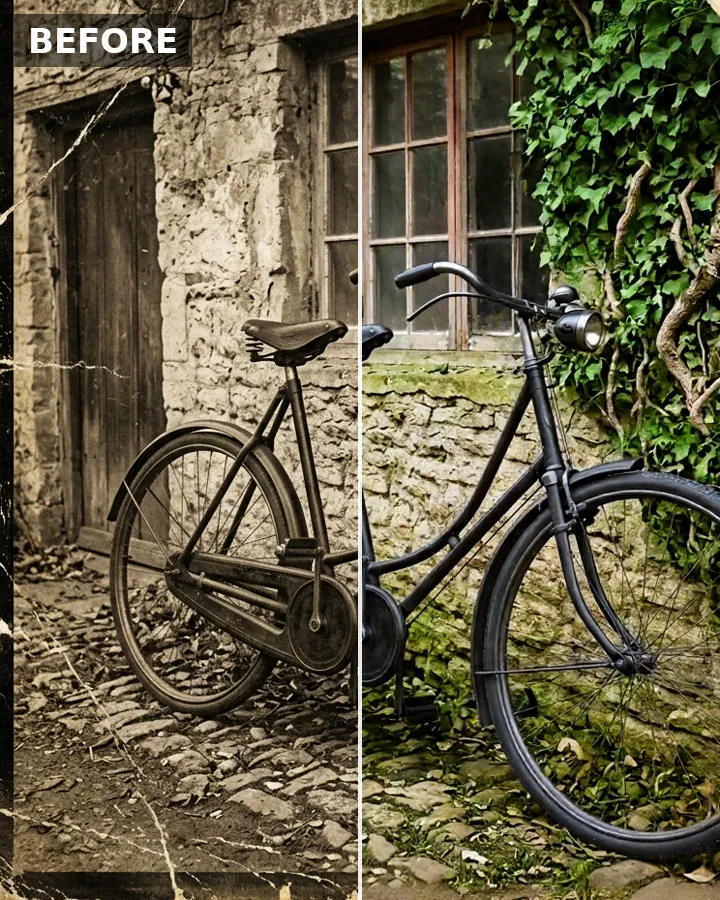 Background removerCut out the subject cleanly.
Frequently asked questions
Connecting, pricing, your files and the models: what people ask before they connect.
Do I need an API key?
No. You sign in with your normal Templix account when you connect, the same way you log in on templix.app.
Does it cost anything?
Connecting is free. Anything you create through an AI app uses your Templix coins at the same prices as on templix.app, and the assistant tells you the cost before it starts.
What happens if a generation fails?
Its coins go back to your balance automatically, even if you never check on it. Successful results are never charged twice, even if your assistant retries.
Which AI apps work?
Claude, Claude Code, Cursor and Gemini CLI. Any other app that supports remote MCP servers with OAuth sign-in works too: add a new MCP server and paste the server URL.
Is my account safe?
The AI app never sees your password. It gets a key that only works for Templix tools, and you can disconnect it at any time from Profile → Connected Apps.
What is MCP?
The Model Context Protocol is an open standard that lets AI assistants use tools from other apps. Connecting Templix gives your assistant Templix tools.
What can I create?
Images and videos from a prompt or reference photos, product photo edits, Try-On and fashion model shots, UGC ads, and captioned shorts from long videos. You can also search reel templates and check your coins.
Can I choose the AI model?
Yes. Ask for a model by name, or ask your assistant to list them. The list of models above is the live list the server offers.
Can I use my own photos?
Yes. Share a public https link to a JPEG, PNG or WebP image up to 10 MB, and up to 6 per request. Templix downloads it safely and stores a private copy for the job.
How do I get the finished results?
Jobs run in the background. Your assistant checks on them and gives you a link to the finished image or video as soon as it is ready.
What are workflows?
Ready-made multi-step recipes, like a product launch pack or a short film scene. In apps that support MCP prompts they appear as commands; elsewhere, just ask for one by name.
How long does it take?
Images usually take seconds to a minute. Videos, ads and shorts take a few minutes, depending on the model and the length.
Still have a question?
We’ll help you connect Templix to your AI app.
Connect once. Create from any chat.
Connecting is free. What you make uses your Templix coins at website prices, quoted first and refunded if a job fails.