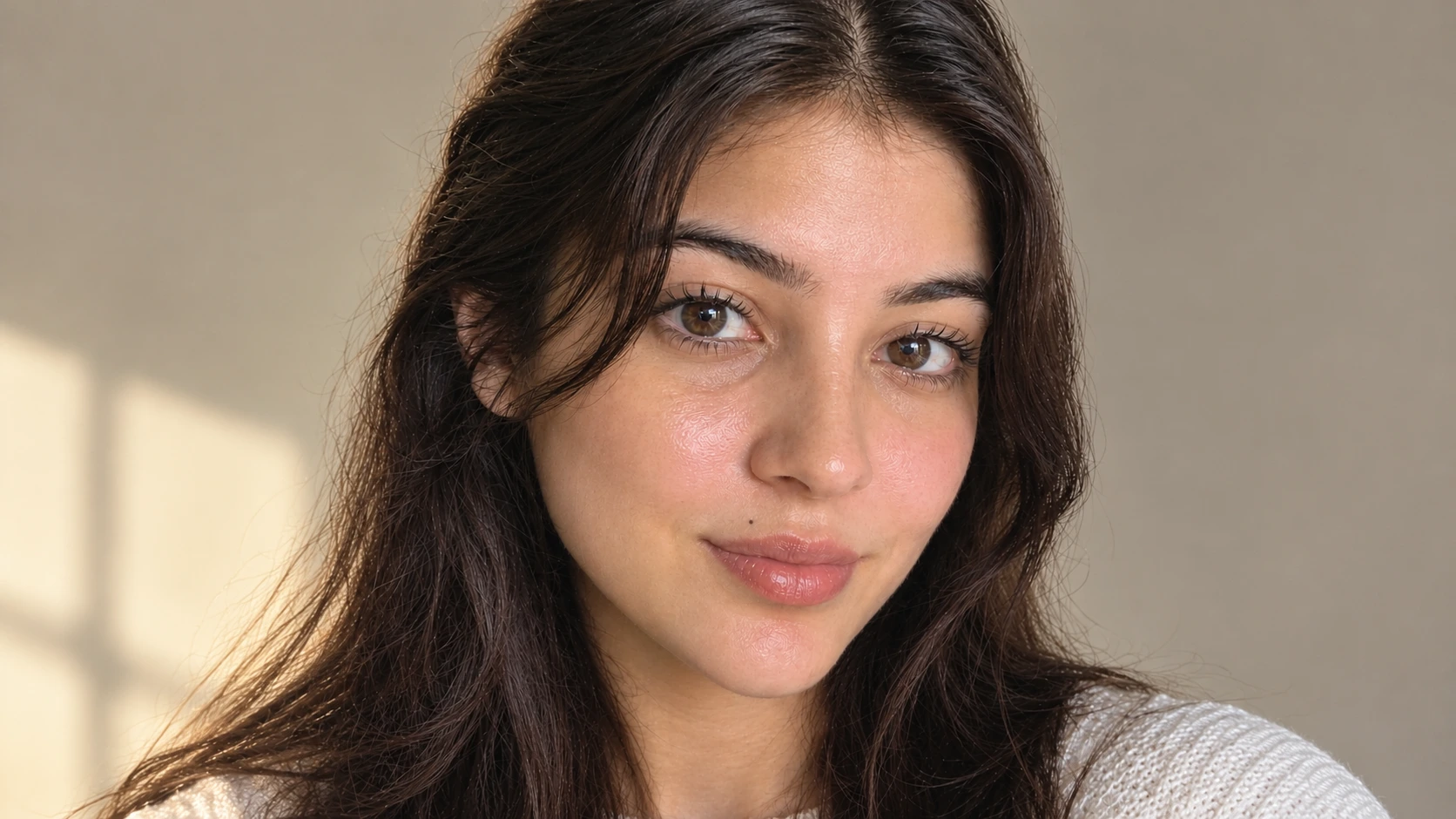
Key Takeaways
Realistic AI skin needs three things in the prompt: real texture language (pores, peach fuzz, soft shine), accurate tone and undertone, and natural light direction. Skip any one of these and the output looks plastic.
Edit prompts (prompts starting with "Keep the uploaded face exactly as it is") run on your own photo and preserve your real features, so the output is still recognisably you.
Nano Banana Pro produces the strongest skin texture rendering across most prompts in this guide, with GPT Image 2.5 and Flux 2 Pro as strong alternates for different lighting conditions.
All 15 prompts in this guide run on Templix with free starter coins, no credit card required.
Why Most AI Skin Looks Fake (and How to Fix It)
Most AI portrait generators default to glossy, poreless, Instagram-filter skin because that is what their training data optimised for. Real skin has pores, fine hair, uneven tone, slight redness around the nose, and visible texture in strong light. The prompts in this guide are written to explicitly name the texture features you want preserved, so the model stops smoothing them away.
The pattern that works across every image model: write a short texture line, a short tone line, and a short light line, in that order. Each line names one specific thing, not vague descriptions. "Visible pores on cheeks and forehead" produces real texture; "nice skin" does not. "Soft daylight from camera left" produces natural shadow mapping; "good lighting" does not. The model is pattern-matching against training data every time, so the clearer the pattern you give it, the closer the output lands to what you actually want.
A second pattern that matters: separate prompts for generating a fresh portrait from prompts for editing your own photo. The prompts in this guide that start with "Keep the uploaded face exactly as it is" are edit prompts, and they only work when you upload a source photo and run them through the image-to-image workflow. Paste them into a plain text-to-image slot and the model generates a random new face instead of preserving yours.
This guide covers 15 ready-to-paste prompts across six specific skin production categories: realistic texture close-ups, face cleanup edits on your own photo, glow prompts, skin tone adjustments, high-end retouch, and natural aesthetic looks. Every prompt runs on Templix through Nano Banana Pro as the primary photoreal model, with alternate model recommendations noted where another image model (GPT Image 2.5, Flux 2 Pro, Seedream 5, or Ideogram v3) produces measurably stronger output for that specific prompt category. The Templix side-by-side comparison feature lets you test the same prompt across two models at once, so you can see which model matches your style before committing coins to a bulk run.
Realistic Skin Texture Prompts
Four prompts for generating fresh portraits with authentic skin texture. Use these when you need a new portrait for a mockup, a social post, a magazine style spread, or any case where the subject does not need to be a specific real person. Each prompt below names the age, specific texture features, and light direction so the model has no room to default back to filtered output.
1. Hyper-Realistic Skin Close-Up with Pores
"Hyper-realistic close-up portrait of a 28-year-old woman with
visible pores on the cheeks, nose, and forehead. Natural skin
texture with slight redness around the nostrils and soft peach
fuzz along the jawline. Clean neutral background. Soft diffused
daylight from camera left creating gentle shadow on the right side
of the face. Sharp focus on skin texture. 50mm lens perspective.
Portrait 4:5 aspect ratio."
Recommended model: Nano Banana Pro for native photoreal skin rendering, or Flux 2 Pro for alternate texture style.
2. Freckles and Natural Marks
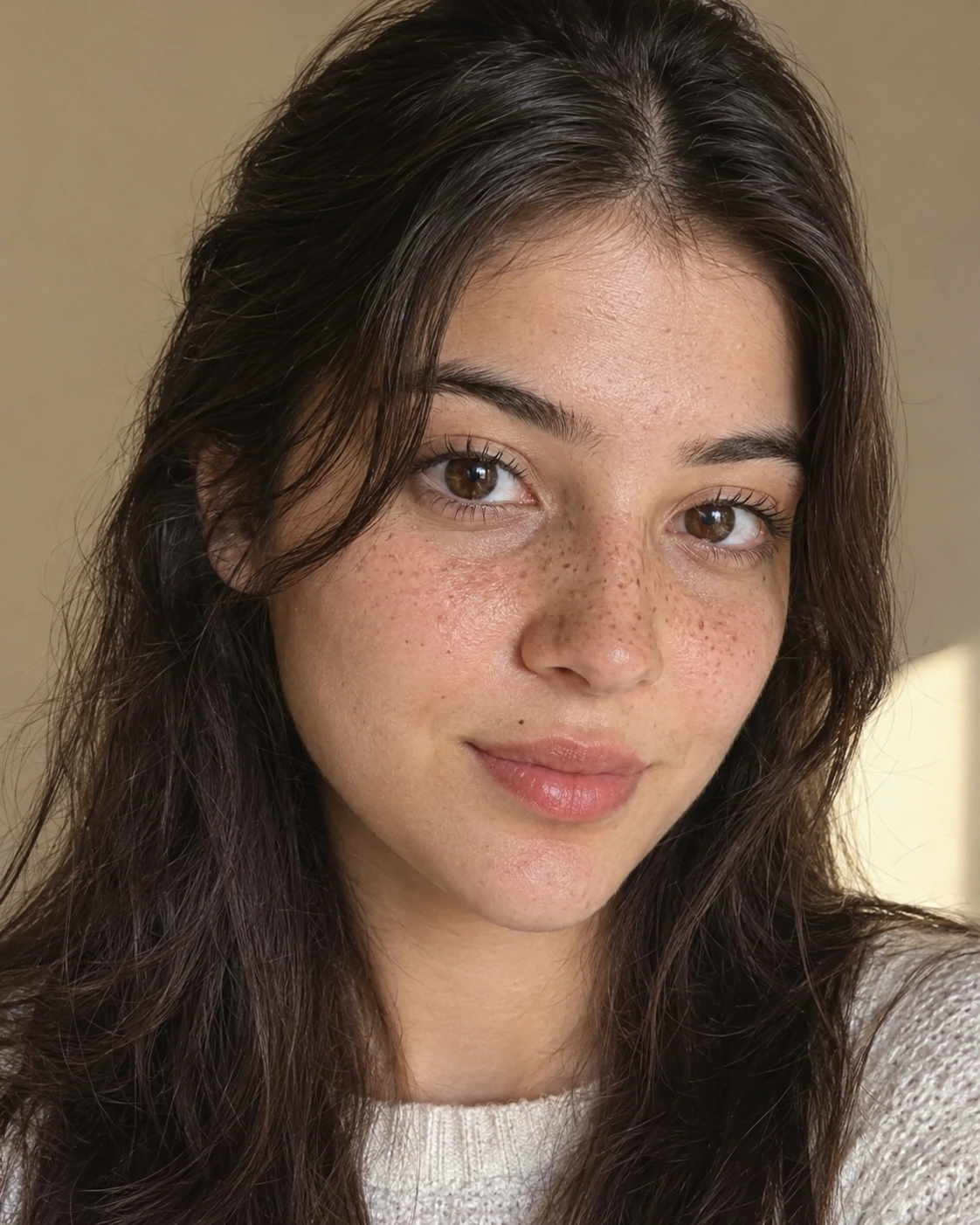
AI portrait of a woman with natural freckles and a beauty mark, generated with Nano Banana Pro on Templix
"Portrait of a young woman with natural freckles across the nose
bridge and upper cheeks, one small beauty mark near the lip, and
visible pores on the forehead and chin. Soft natural daylight from
camera right. Warm neutral background. Sharp focus on skin detail
with no smoothing. Close-up composition from shoulders up. Portrait
4:5 aspect ratio."
Recommended model: Nano Banana Pro for freckle rendering accuracy.
3. Peach Fuzz Macro Shot
"Extreme macro close-up of a cheek showing fine peach fuzz hair
catching soft side light. Visible pores and skin micro-texture.
Subtle natural redness. Soft diffused window light from camera
right. Sharp focus on the fine hair with shallow depth of field.
Square 1:1 aspect ratio suitable for texture reference."
Recommended model: Nano Banana Pro for macro skin detail work.
4. Mature Skin with Fine Lines
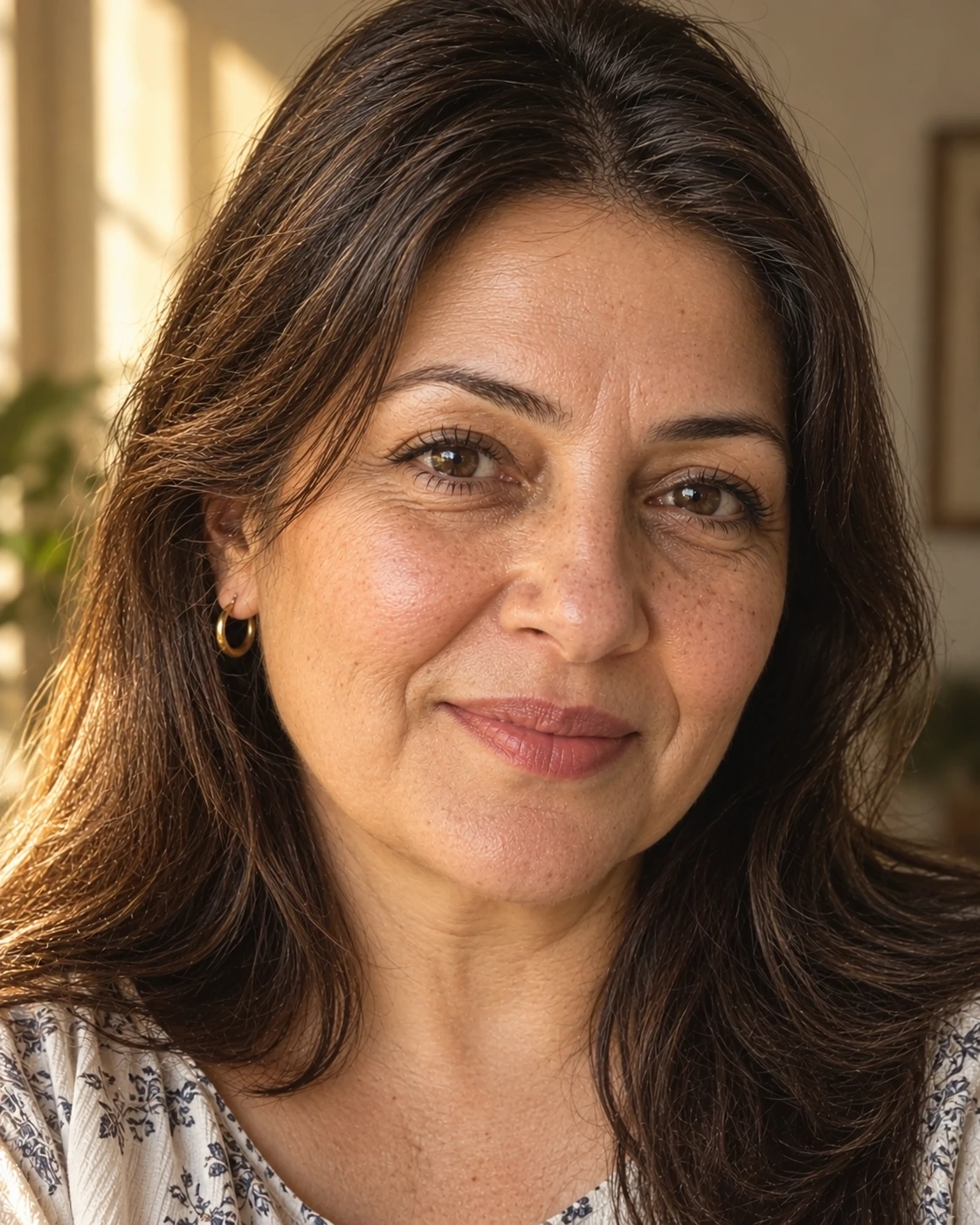
AI portrait of a mature woman with natural fine lines and warm skin texture, generated on Templix
"Portrait of a 55-year-old woman with natural fine lines around
the eyes and mouth, soft laugh lines, visible pores, and warm
natural skin texture. Warm window light from camera left creating
soft golden tones on the face. Sharp focus on skin detail.
Close-up composition from chest up. Portrait 4:5 aspect ratio."
Recommended model: Nano Banana Pro for strong rendering of mature skin texture without over-smoothing.
Face Clean and Clear Skin Prompts for Your Photo
Three edit prompts that run on your own uploaded photo and clean up skin while keeping your real features. These are the prompts to use when you need the output to look like the same photo on a better day: cleaner skin, more even tone, better light, but recognisably you. Every prompt below opens with "Keep the uploaded face exactly as it is in the source photo" so the model treats your photo as the reference anchor instead of generating a new face from scratch. Run them through the Templix image-to-image workflow with your source photo uploaded first.
5. Clean Up a Face Photo
"Keep the uploaded face exactly as it is with all original features
preserved. Reduce visible redness around the nose and cheeks and
even out the overall skin tone across the face. Keep all pores,
natural texture, and fine hair visible. Keep the hairline, eyes,
nose, and mouth exactly as in the source photo. Maintain the
original lighting direction and skin undertone. Portrait 4:5
aspect ratio."
Recommended model: Nano Banana Pro for strong face preservation during edits.
6. Clear Skin with Softened Blemishes
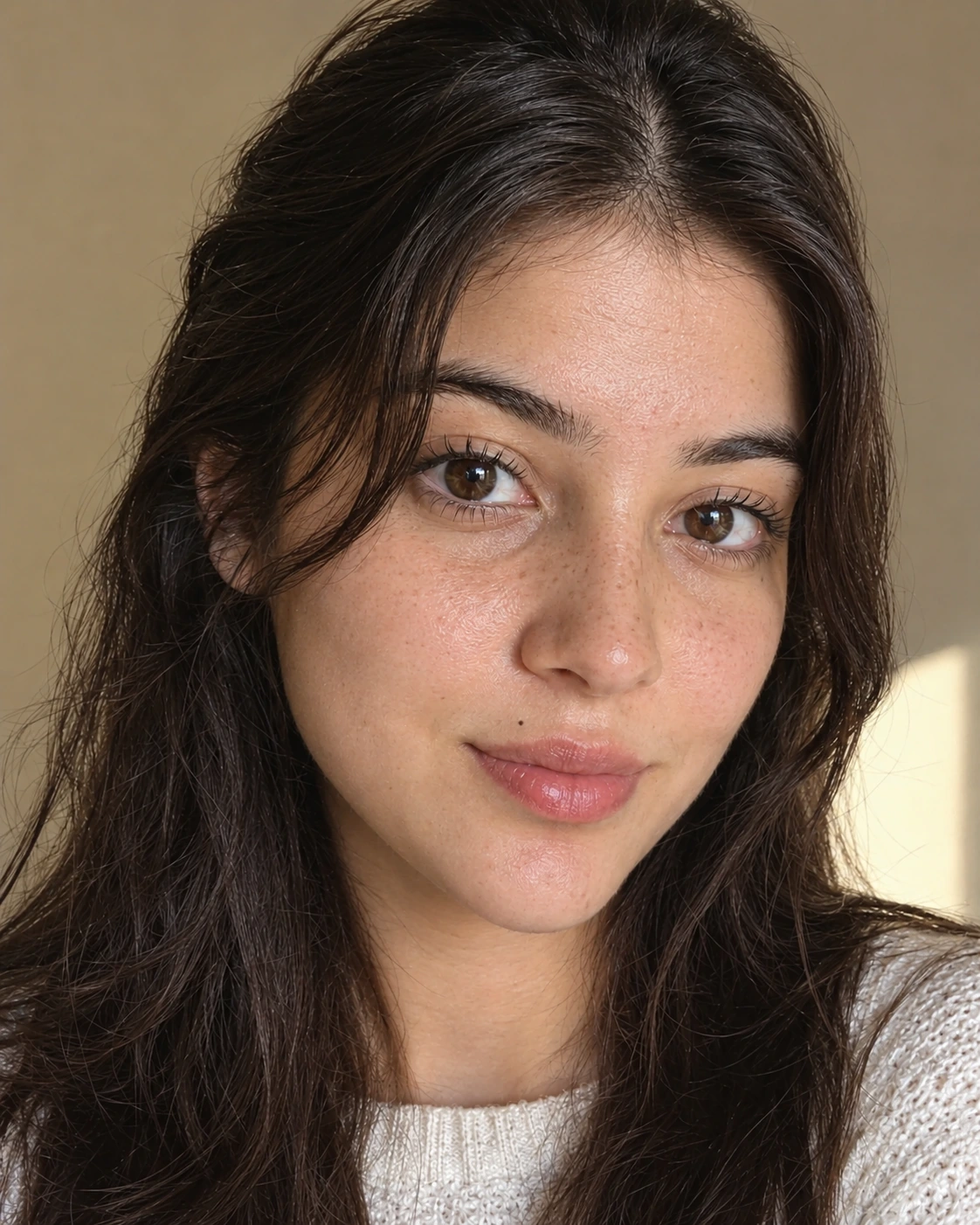
AI skin edit softening visible spots and blemishes while keeping pores and texture, generated on Templix
"Keep the uploaded face exactly as it is in the source photo.
Softly reduce visible spots, dark marks, and small blemishes
while keeping all pores, natural texture, and the real skin shine
visible. Preserve the full face shape, hairline, eyes, nose, and
mouth exactly as uploaded. Keep the original skin tone and
lighting. Portrait 4:5 aspect ratio."
Recommended model: Nano Banana Pro for edit workflow with native texture preservation.
7. Brighten a Dull Face Photo
"Keep the uploaded face exactly as in the source photo. Add soft
natural daylight brightness and clarity to the overall image
without changing the real skin tone or features. Keep all pores,
fine hair, and natural texture visible. Preserve the eyes, nose,
mouth, and hairline exactly as uploaded. The result should look
like the same photo taken in better daylight. Portrait 4:5 aspect
ratio."
Recommended model: GPT Image 2.5 for strong preservation of original face during lighting edits.
Glowing Skin Prompts
Two prompts for adding natural, healthy glow without the plastic shine look. The key distinction in both prompts is the phrase "healthy moisturised skin, not shine or filter," which is what stops the model from defaulting to the cheap glossy-filter look that most generic glow prompts produce. One prompt generates a fresh portrait with glow built in, the other adds the same glow effect to a photo you upload.
8. Dewy Glow with Soft Focus
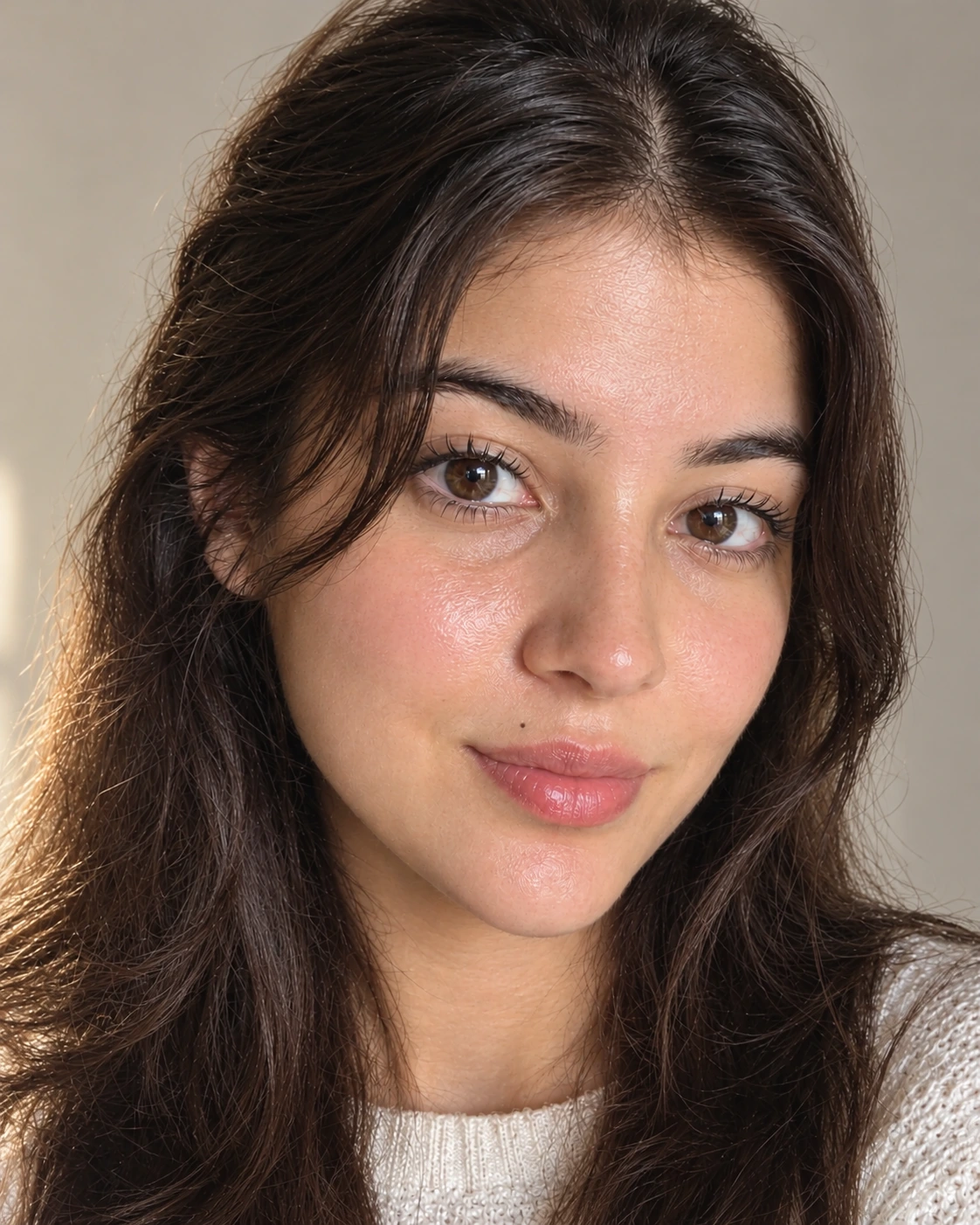
AI portrait of a woman with dewy glowing skin and soft focus, generated with Nano Banana Pro on Templix
"Portrait of a woman with fresh dewy skin, natural moisturised
glow on the cheeks and nose bridge, visible pores, and soft
peach fuzz. Soft natural daylight from camera left. Shallow depth
of field with sharp focus on the eyes. Clean neutral background.
Warm skin undertone. Close-up composition from shoulders up.
Portrait 4:5 aspect ratio."
Recommended model: Nano Banana Pro for photoreal dewy skin rendering.
9. Face Glow for Your Own Photo
"Keep the uploaded face exactly as in the source photo. Add a
subtle natural glow to the cheeks, nose bridge, and forehead that
looks like healthy moisturised skin, not shine or filter. Keep
all pores, fine hair, texture, and the real skin tone visible.
Preserve all features (eyes, nose, mouth, hairline, face shape)
exactly as uploaded. Portrait 4:5 aspect ratio."
Recommended model: Nano Banana Pro for strong edit preservation while adding natural glow.
Skin Tone Prompts
Three prompts for adjusting skin tone, fixing uneven lighting damage, and matching undertones. These prompts are useful for creators building portrait sets across different models, for fixing photos shot under yellow kitchen lighting or harsh midday sun, and for brand creative work where every portrait needs a consistent undertone across the set. The important technique in all three is applying the tone shift evenly across every visible skin area (face, neck, hands) so the result does not look like a face mask pasted on top of a different body.
10. Change Skin Tone and Keep Your Face
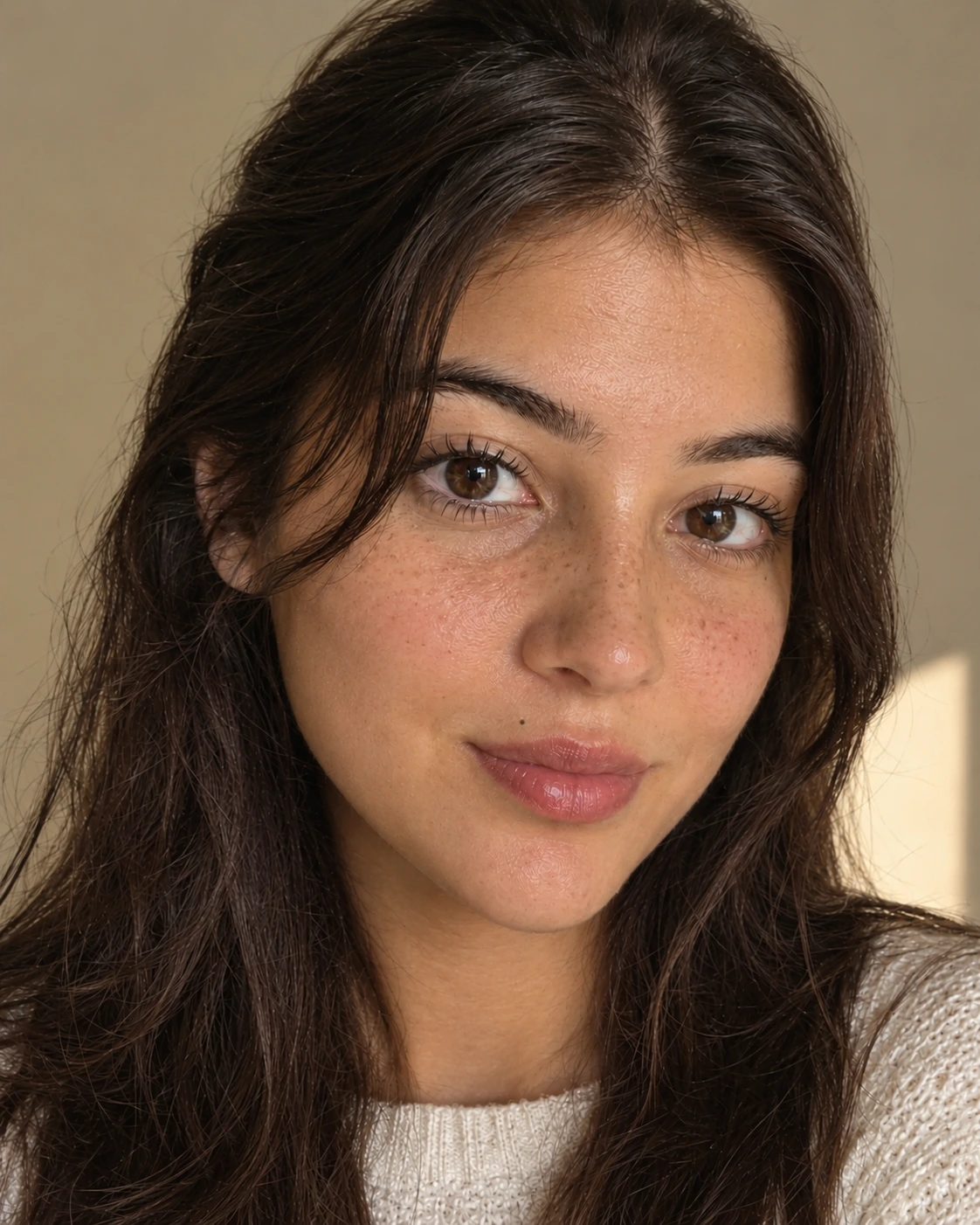
AI skin tone change edit shifting to warm olive tone while preserving facial features, generated on Templix
"Keep the uploaded face exactly as in the source photo with all
features preserved. Shift the overall skin tone to a warm olive
tone evenly across the face, neck, and visible hands. Keep the
real pores, texture, fine hair, and natural shine visible.
Preserve the eyes, nose, mouth, hairline, and face shape exactly
as uploaded. Match the undertone consistently across all skin
areas. Portrait 4:5 aspect ratio."
Recommended model: Nano Banana Pro for consistent tone application while preserving face.
11. Fix Uneven Skin Tone from Bad Lighting
"Keep the uploaded face exactly as in the source photo. Correct
the uneven skin tone caused by harsh or yellow lighting so the
tone is consistent across the forehead, cheeks, chin, and neck.
Remove colour cast while keeping all pores, texture, and fine
hair visible. Preserve all features exactly as uploaded. Natural
daylight white balance. Portrait 4:5 aspect ratio."
Recommended model: GPT Image 2.5 for accurate colour correction with face preservation.
12. Match a Warm or Cool Undertone
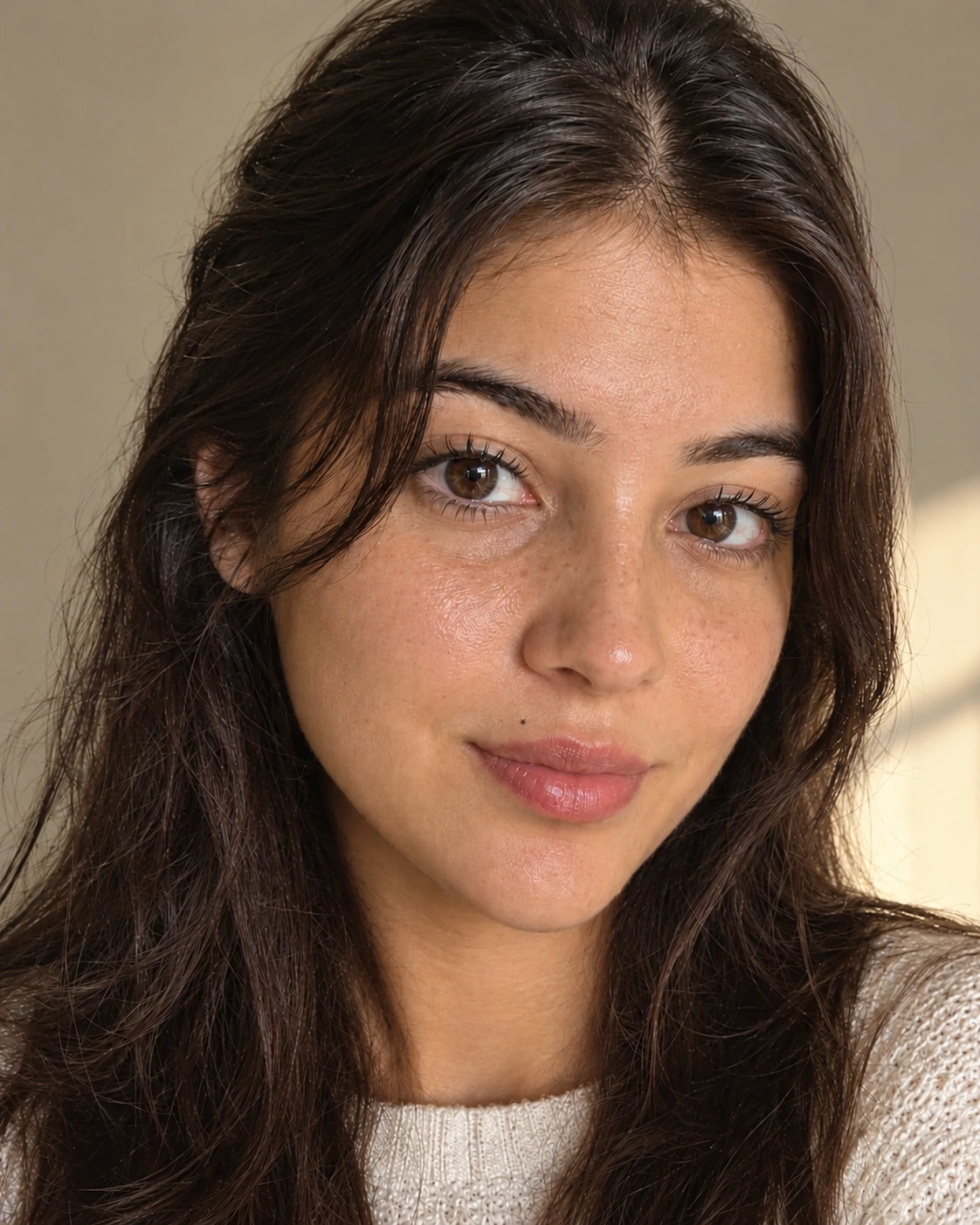
AI portrait of a woman with warm golden undertone and visible pores, generated on Templix
"Portrait of a woman with a warm golden undertone across all skin
areas, visible pores, soft peach fuzz, and natural fine texture.
Soft window daylight from camera right. Clean neutral background.
Sharp focus on skin detail with consistent warm undertone across
face and neck. Close-up composition from shoulders up. Portrait
4:5 aspect ratio."
Recommended model: Nano Banana Pro for strong undertone consistency across skin surfaces.
Smooth Skin and Retouch Prompts
One high-end retouch prompt for professional-looking results on your own photo. This is the single prompt pattern that most closely matches what a professional skin retoucher does in Photoshop: reduce visible redness, soften blemishes, add subtle highlight on cheekbones and nose bridge, while explicitly preserving the texture layer underneath. The failure mode most AI retouch output hits is smoothing the texture layer away along with the blemishes, which is what makes the result look plastic. The prompt below is written to prevent that.
13. High-End Skin Retouch
"Keep the uploaded face exactly as in the source photo. Apply
high-end professional skin retouch: soften uneven redness, reduce
visible blemishes, add gentle natural glow on cheekbones and nose
bridge, while keeping all pores, fine hair, and real skin texture
visible. Preserve the eyes, nose, mouth, hairline, and face shape
exactly as uploaded. Keep the original lighting direction and
skin undertone. Portrait 4:5 aspect ratio."
Recommended model: Nano Banana Pro for high-end retouch workflows with texture preservation.
Natural, Sun-Kissed and Aesthetic Skin Prompts
Two prompts for natural outdoor skin looks. These prompts shift the lighting setup from controlled indoor daylight to outdoor sun, which changes how texture and tone render. The sun-kissed golden hour prompt in particular is popular for lifestyle, travel, and beauty creative, because warm golden light hides minor skin imperfections naturally without the model having to smooth them away.
14. Natural Skin, No-Makeup Look

AI outdoor portrait of a woman with natural no-makeup radiant skin, generated on Templix
"Portrait of a woman with no makeup, natural radiant skin, visible
pores, light freckles across the nose, soft peach fuzz, and
natural redness in the cheeks. Outdoor soft natural daylight
from camera left. Shallow depth of field with sharp focus on the
eyes. Clean outdoor background with soft bokeh. Portrait 4:5
aspect ratio."
Recommended model: Nano Banana Pro for natural skin rendering without filter effect.
15. Sun-Kissed Skin at Golden Hour
"Portrait of a woman with sun-kissed skin showing warm golden tones
across the cheeks, nose bridge, and shoulders. Visible pores,
natural texture, and soft peach fuzz. Warm golden hour sunlight
from camera right creating soft natural highlights on the face.
Beach background with soft bokeh. Close-up composition from
shoulders up. Portrait 4:5 aspect ratio."
Recommended model: Nano Banana Pro for warm golden-hour skin rendering, or Flux 2 Pro for alternate warm-tone style.
Which Templix Model to Pick for Skin Prompts
Templix lets you run every prompt in this guide across five image models, and the right choice depends on the specific skin work you are doing. Here is the practical breakdown for skin prompts across the catalog.
Nano Banana Pro is the default across most prompts in this guide. It handles photoreal skin texture rendering natively, preserves faces strongly on edit prompts (so prompts starting with "Keep the uploaded face exactly as it is" actually keep the face), and produces consistent output across both generated portraits and user-photo edits. It is the right first pick for prompts 1 through 4, 8, 10, 12, 13, 14, and 15.
GPT Image 2.5 is the strong alternate for colour correction and lighting-based edits. For prompts 7 and 11 in this guide, where the task is correcting a lighting or colour cast problem on the user's uploaded photo while keeping skin texture intact, GPT Image 2.5 often produces cleaner output than Nano Banana Pro because of its stronger colour accuracy on edit workflows.
Flux 2 Pro is the alternate photoreal style for warm-tone and golden-hour outputs. Some creators prefer its rendering style for lifestyle and beauty creative where the output needs a more cinematic look than the clean editorial finish Nano Banana Pro produces. Flux 2 Pro is worth testing for prompts 2, 4, 14, and 15 as the second output in a side-by-side comparison.
Seedream 5 and Ideogram v3 are the specialists. Seedream 5 produces fast iterations at balanced cost for creators testing multiple variations of the same prompt. Ideogram v3 is the specialist for cases where the portrait sits next to in-image text (lookbook pages, editorial covers, campaign creative with headline overlays). For plain skin close-ups, both are secondary choices to Nano Banana Pro.
For creators building portrait sets at scale across multiple projects, our Templix AI HDR guide covers the broader colour and lighting workflow that complements skin prompt work when the final output needs to match a specific brand aesthetic across every portrait in the set.
Skin Prompt Tips for Realistic Results
Why AI Skin Looks Plastic
The default output of most image models leans toward smooth, poreless skin because training data over-represents filtered Instagram-style portraits. When your prompt says "beautiful skin" or "nice skin" without naming specific texture features, the model fills in that default. Writing "visible pores on the cheeks, nose, and forehead" and "soft peach fuzz along the jawline" explicitly tells the model what to keep. On Templix, the AI Skin Retouch app handles texture-preserving retouch directly on your own photo without needing to rewrite prompts for every image.
Common Skin Prompt Mistakes
Four mistakes that produce fake-looking skin:
Using "smooth" without balancing it: "Smooth skin" alone defaults to filtered glossy output. Pair it with "visible pores" or "natural texture visible" to keep realism.
Skipping light direction: Skin looks flat without named light direction. Add "soft daylight from camera left" to every portrait prompt.
Vague tone words: "Pretty skin" produces generic output. Name the undertone (warm, cool, olive, neutral) and the specific features you want preserved.
No reference anchor on edits: On edit prompts for your own photo, always start with "Keep the uploaded face exactly as it is" so the model preserves your real features instead of generating a new face.
For deeper prompt technique that applies to portraits and other image generation workflows, our AI image prompt guide covers the full prompt construction patterns that produce consistently clean output across skin, scene, and product categories.
How to Use These Skin Prompts on Templix
Templix runs every prompt in this guide through its AI Image Generator with a choice of Nano Banana Pro, GPT Image 2.5, Flux 2 Pro, Seedream 5, or Ideogram v3. The workflow is identical whether you are generating a fresh portrait or editing your own photo:
Step 1: Pick the right workflow. For a fresh generated portrait (prompts 1 to 4, 8, 12, 14, 15), use the text-to-image mode. For edits that run on your own uploaded photo (prompts 5 to 7, 9 to 11, 13), use the image-to-image mode and upload your source photo first.
Step 2: Paste the prompt and pick the model. Open the generator, paste the prompt from the library above, and select the recommended model. Nano Banana Pro is the default for most skin prompts in this guide because of its native photoreal texture rendering. The side-by-side comparison feature lets you test the same prompt across two models at once.
Step 3: Generate and iterate if needed. Review the first output at full size and regenerate if any skin texture looks over-smoothed. For stubborn plastic-skin outputs, add "visible pores, no filter, no smoothing" at the end of the prompt and regenerate. Templix starter coins cover enough generations to find the right output without upfront commitment.
For creators building stronger portrait prompt technique, our Nano Banana Pro guide covers the specific prompting patterns that produce consistently realistic skin output across portrait and lifestyle photography use cases.
Final Thoughts
Realistic AI skin comes from naming the texture, tone, and light clearly in your prompt, not from longer or more decorative prompts. The 15 prompts above give you a working library across the six main skin categories: fresh texture close-ups, face cleanup edits, glow, tone adjustments, high-end retouch, and natural outdoor looks. Paste them straight into the Templix AI Image Generator with your preferred model and iterate from there. For texture-preserving retouch on your own photo without rewriting prompts, the Templix Skin Retouch app handles the full edit in one step.
Skin Prompt FAQs
What is the best prompt for realistic skin?
The strongest realistic skin prompts name three specific things: texture ("visible pores on the cheeks, nose, and forehead; soft peach fuzz"), tone ("warm neutral undertone, slight natural redness"), and light direction ("soft daylight from camera left"). Prompt 1 in the library above is the clean reference template; adjust the age, feature, and background details as needed for your target output. On Templix, Nano Banana Pro produces the strongest realistic skin rendering across most portrait prompts.
How do I fix plastic-looking AI skin?
Add explicit texture language to your prompt: "visible pores, soft peach fuzz, natural fine hair, no filter, no smoothing." Most plastic-skin output comes from the model defaulting to filtered training data when your prompt is vague on texture. Being specific about which texture features you want preserved stops the default. Also check your model selection: Nano Banana Pro and Flux 2 Pro produce less plastic-looking skin than general-purpose image models at default settings.
What is a good prompt to make my face clear in a photo?
Prompt 5 in this guide ("Clean Up a Face Photo") is the clean baseline. It reduces visible redness and evens tone while explicitly instructing the model to keep pores, texture, and your original features. For deeper cleanup with blemish reduction, use prompt 6 ("Clear Skin with Softened Blemishes") instead. Both run on your own uploaded photo through the Templix image-to-image workflow.
How do I change skin tone in a photo with AI?
Use prompt 10 ("Change Skin Tone and Keep Your Face") as the template. The key phrases are "Keep the uploaded face exactly as in the source photo" at the start, and "Match the undertone consistently across all skin areas" at the end. Swap "warm olive tone" with your target tone (warm honey, cool porcelain, deep bronze, etc.). Running this on Nano Banana Pro through Templix preserves your features while shifting the tone consistently.
What is the best prompt for glowing skin?
Prompt 8 ("Dewy Glow with Soft Focus") generates a fresh portrait with natural glow; prompt 9 ("Face Glow for Your Own Photo") adds the same effect to your uploaded photo. The important distinction in both prompts is "healthy moisturised skin, not shine or filter," which stops the output from defaulting to the plastic-glow look that cheap AI filters produce.
How do I retouch skin without losing texture?
Prompt 13 ("High-End Skin Retouch") is written specifically for this. The texture preservation comes from explicitly listing what to keep: "all pores, fine hair, and real skin texture visible." Standard retouch tools smooth everything by default; the Templix Skin Retouch app and this prompt pattern keep the texture layer intact while reducing redness and blemishes.
Can AI remove acne or blemishes from a photo?
Yes. Prompt 6 ("Clear Skin with Softened Blemishes") softens visible spots and dark marks while keeping pores and shine visible. For stronger spot removal, add "remove all visible acne and spots" to the prompt. On Templix, this runs through the image-to-image workflow with Nano Banana Pro for strongest face preservation.
Can AI tell my skin undertone?
AI image models and chat assistants can suggest a likely undertone based on a photo, but accuracy varies with lighting conditions in the uploaded shot. For reliable undertone matching, a human reference (checking vein colour on your wrist, or comparing against known undertone references) is more consistent. The Templix skin tone prompts in this guide (prompts 10 to 12) let you apply a named undertone once you know yours.
Which Templix model is best for skin prompts?
Nano Banana Pro is the strongest default for most skin prompts in this guide because of its native photoreal texture rendering and strong face preservation on edit prompts. GPT Image 2.5 is the strong alternate for colour correction and lighting edits. Flux 2 Pro produces an alternate photoreal style that some creators prefer for warm-tone and golden-hour outputs. Templix's side-by-side comparison feature lets you test the same prompt across two models to find your preferred output.
Are these skin prompts free to try?
Yes. Templix starter coins cover enough generations to test every prompt in this guide without upfront commitment, and no credit card is required to start. Each model uses a different coin cost per generation (Nano Banana Pro and GPT Image 2.5 cost more coins per image than lower-cost models), and paid plans add a monthly coin balance for high-volume creators. Current credit allocations and pricing are plan-dependent; verify current terms on the Templix pricing page.
Eman Raza
Eman Raza is Templix's prompt engineering expert, writing practical guides on image and video generation that help users turn ideas into striking visuals