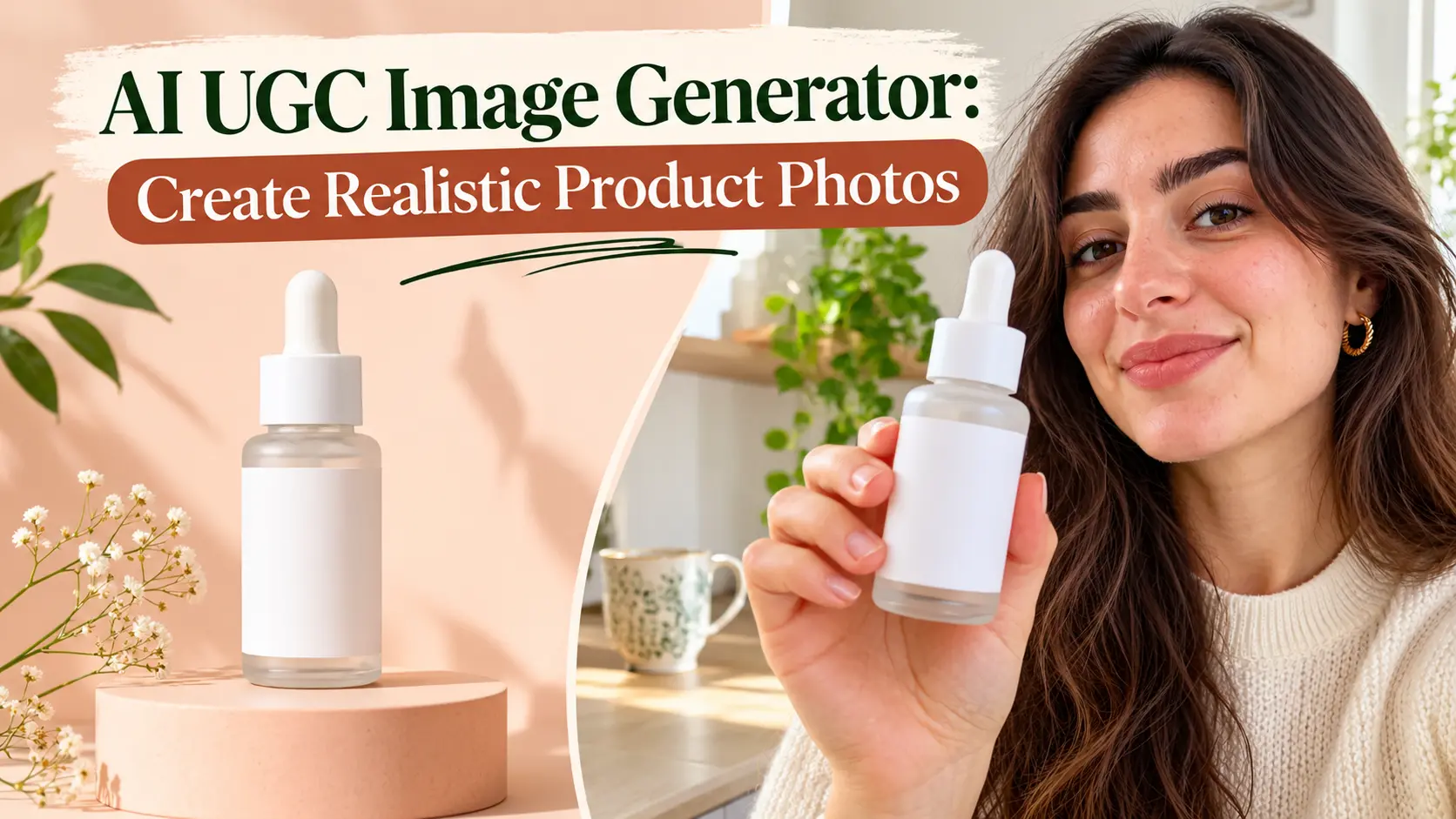
Studio product photos have a problem. They look like ads. Scroll any feed and the images that stop people are the ones that look like a friend took them: a product in someone's hand, on their desk, in their bathroom, in daylight that was not planned.
That is UGC-style product photography, and until recently the only way to get it was to ship the product to creators and wait. An AI UGC image generator changes that. You upload one packshot, describe the scene and the person, and get back a photo that looks like it came from a customer's phone.
This guide covers how to do it well: the four UGC photo types every brand needs, the exact prompts, the settings that matter, and the mistakes that make AI product photos look like AI.
What is an AI UGC image generator?
An AI UGC image generator makes still images in the style of user-generated content. Instead of a white-background render, it produces photos that look like a real person took them: a creator holding the product, the product on a kitchen counter, a mirror selfie with the bottle in frame.
It works from two inputs. A product image, so the label, shape and colour are exact. And either a creator image or a description of the person, so the face stays consistent across every photo. You describe the scene in plain words, and the generator places the real product into it.
The difference from a normal AI image tool is the product. A general image model will invent a bottle that looks roughly like yours. A UGC image generator uses your packshot as a reference, so the label is your label.
Why UGC-style photos outperform studio shots
Three reasons, and they hold across Meta, TikTok, Pinterest and product pages:
They do not look like ads. Feeds are full of polished product shots. A photo that looks like a customer took it gets the half-second of attention that a studio shot does not.
They show scale and context. A bottle in a hand tells the buyer how big it is. A bottle on a bathroom shelf tells her where it lives. A packshot tells her neither.
They match the platform. TikTok and Reels thumbnails, Pinterest pins, Instagram carousels and marketplace listing galleries all perform better with lifestyle images than with white-background renders.
The problem with real UGC photos is the same as with real UGC video: cost, time, and the fact that a creator sends you three usable images out of forty. AI fixes the volume problem. You get the three usable images without the forty.
The 4 UGC photo types every brand needs
Most brands need the same four images for every product. Make these first.
1. The hold
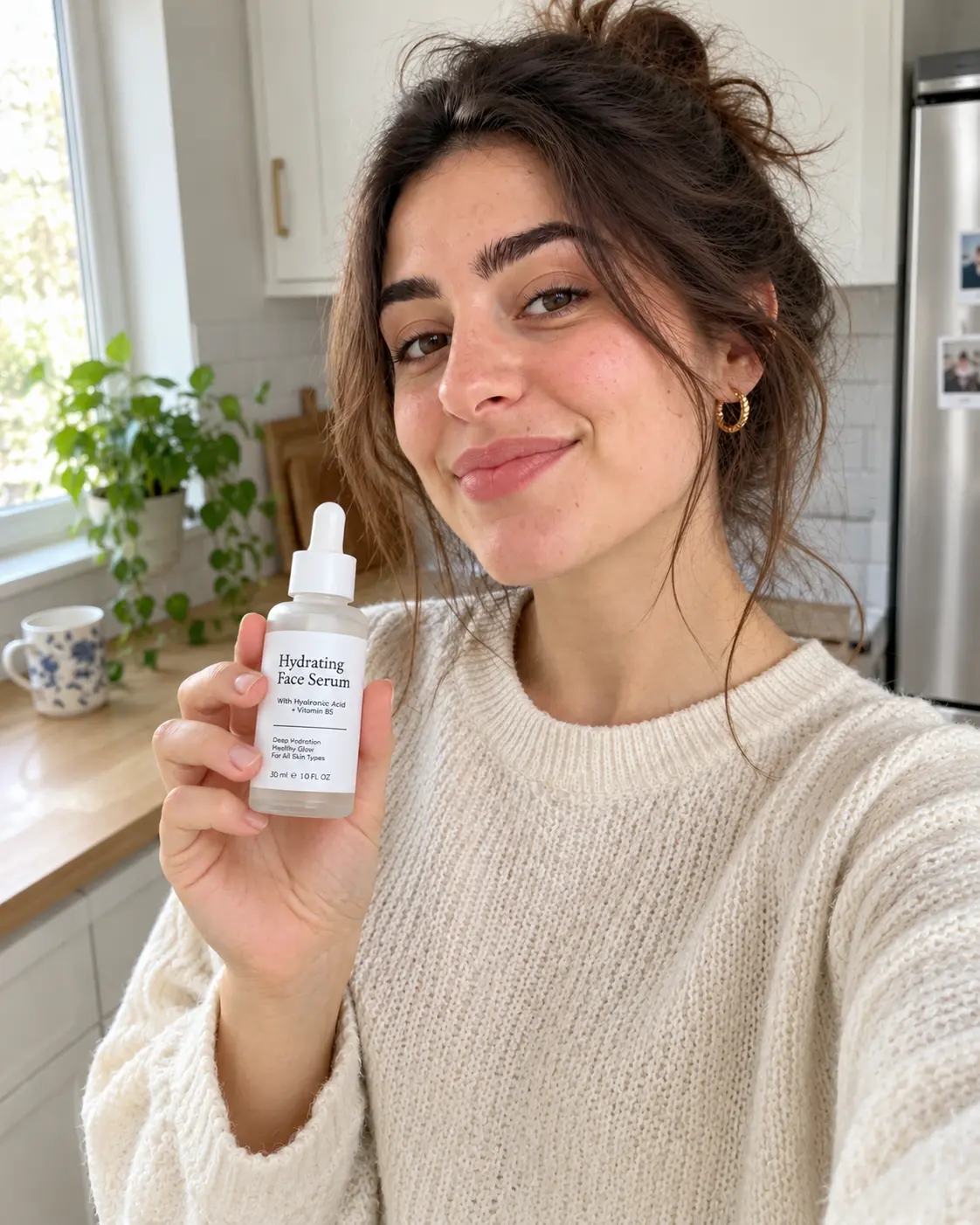
UGC-style hold shot, AI creator holding a skincare product with the label facing camera in a kitchen
A creator holding the product up to the camera, label readable, face in frame. This is the thumbnail, the pin, the first carousel slide. It tells the buyer what the product is and who uses it in one image.
Prompt for the hold shot:
@image1 holds @image2 at chest height with the label facing the
camera, standing in a bright kitchen, phone front camera, slightly
off centre, soft window light from the left. Natural skin texture,
small relaxed smile, hair slightly undone. Slight handheld tilt.
No studio lighting, no beauty smoothing, no perfect symmetry, not
a render, not a stock photo.
2. The in-use shot
The product being used. A hand applying cream to a cheek, a straw in a cup, headphones going on. Without a face if you want it to feel universal, with a face if you want it to feel like a specific creator.
Prompt for the in-use shot:
Close-up of @image1's hand applying product from @image2 to her
cheek, bathroom mirror slightly out of focus behind, morning window
light. Real skin texture, a little product visible on the fingertips,
phone camera depth of field. No beauty smoothing, no studio lighting,
not a render.
3. The flat lay
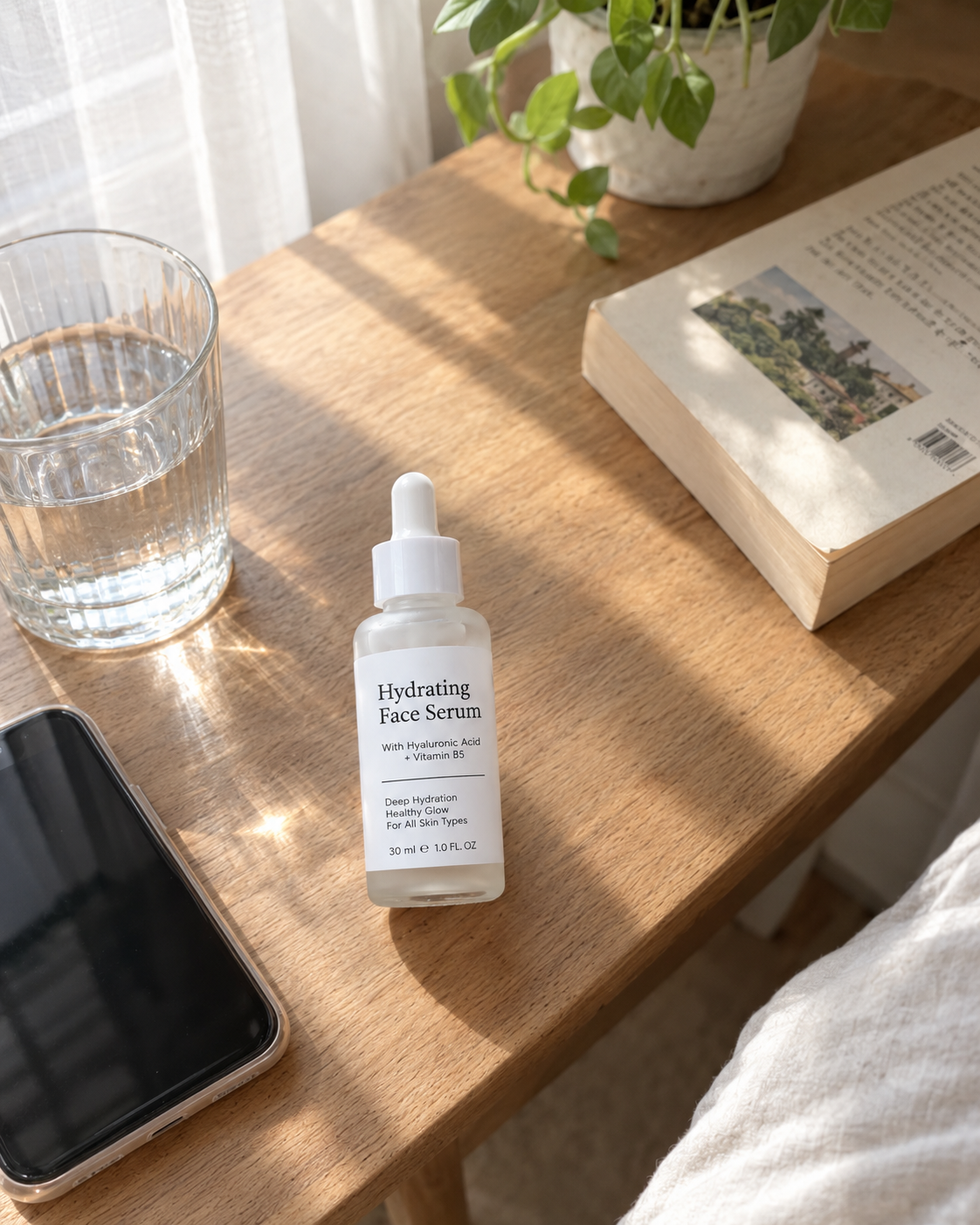
AI generated flat lay product photo of a serum bottle on a bedside table in morning light
The product in its natural habitat with no person. A serum on a bedside table next to a phone and a glass of water. A protein tub on a kitchen counter with a shaker. This is the product page gallery image and the Pinterest pin.
Prompt for the flat lay:
@image2 standing on a wooden bedside table next to a phone, a glass
of water and a folded book, morning light through sheer curtains,
slightly top-down phone camera angle, shallow depth of field. Lived-in
room, nothing styled, small shadow from the window frame across the
table. Not a product render, not a studio shot.
4. The mirror selfie
A creator photographing herself in a mirror with the product visible. The most "real" of the four, because it is the format people actually post. Works for fashion, beauty, fitness and anything carried.
Prompt for the mirror selfie:
@image1 taking a mirror selfie with her phone, holding @image2 in
her other hand at waist height, bedroom mirror with a lamp and
clothes rail visible, warm evening light, phone partly covering her
face. Natural pose, slightly blurred edges, real skin texture,
visible phone screen reflection. No studio lighting, no filter, not
a render.
Make all four for each product and you have a week of content and a complete product page gallery from one packshot.
How to make UGC product photos step by step
Step 1: Prepare the packshot. Clean product image, label readable, true colour, nothing touching the product. A white background is fine here because the generator will place the product into a scene. This becomes @image2.
Step 2: Set up the creator. Build one in the UGC character generator or pick one from the Community. Match her to the buyer, not to a model. Ask for natural skin texture, one soft light source, and a real room. Save the image. This becomes @image1, and it stays the same across every photo so the brand gets one recognisable face.
Step 3: Open the UGC image generator. Go to the UGC image generator, upload the creator as @image1 and the product as @image2, and describe the scene in one box: where she is, what she does with the product, the light, the camera.
Step 4: Generate and compare. Run three or four attempts per photo type. Compare them side by side and keep the one where the label is sharp and the skin looks like skin. Throw the rest away. Attempts are cheap; a wrong image on a product page is not.
Step 5: Reuse for video. The hold shot and the creator image are what you feed into the UGC ad generator when you want the same creator in a talking ad, and into the UGC video generator for short organic clips. One creator across photos and videos is how a brand builds a face people recognise.
Settings that matter
Aspect ratio. 4:5 for Instagram feed and carousels, 9:16 for Stories, Reels covers and Pinterest, 1:1 for marketplace galleries. Make the hold shot in 4:5 and 9:16 both; it is the one you will use everywhere.
Camera language in the prompt. "Phone front camera", "slightly off centre", "handheld tilt", "shallow depth of field" do more for realism than any resolution setting. The generator defaults to a tripod and a studio; you have to ask for a phone.
Light direction. Always name one source and one direction: "window light from the left", "lamp on the right". Two or more light sources is the fastest way to get a studio look.
The "no" list. End every prompt with what you do not want: no studio lighting, no beauty smoothing, no perfect symmetry, not a render, not a stock photo. Image models default to polished. You have to turn it off every time.
Mistakes that make AI product photos look fake
Glass skin. The number one giveaway. Ask for visible texture and a natural flush in every prompt with a face in it.
Perfect product placement. A bottle dead centre on a spotless counter is a render. Add a phone, a glass, and a cable. Let the product sit slightly off centre.
Two light sources. Studio photos have fill light. Phone photos do not. One window, one lamp, pick one.
Wrong hand size. If the product looks too big or too small in her hand, add the real size to the prompt: "a 30ml bottle, about the length of her palm".
Label drift. If the generator changes your label text, add "label exactly as in @image2, text sharp and readable" and retry. Never ship an image with the wrong label.
Same scene every time. Four photos in the same kitchen is a set. Move her: kitchen, bedroom, car, bathroom mirror, desk.
Regenerating the creator from text. The face drifts. Always start from the saved creator image.
Where to use UGC product photos
Product page gallery. Packshot first, then the hold, the in-use shot and the flat lay. Buyers who scroll to lifestyle images convert at a higher rate than buyers who only see the packshot.
Meta and TikTok ads. The hold shot as a static ad or as the first frame of a video ad. Test the hold against the in-use shot; the winner depends on the category.
Pinterest. The flat lay and the mirror selfie as 2:3 pins, with the product name in the pin title.
Instagram carousels. Hold, in-use, flat lay, mirror selfie, in that order. Four slides, one product, one creator.
Marketplace listings. Most marketplaces now rank listings with lifestyle images higher than packshot-only listings. The hold and the flat lay are the two to add.
Email. The flat lay as a header image with the product name as the subject line.
Frequently Asked Questions
What is an AI UGC image generator?
A tool that makes still photos in the style of user-generated content: a creator holding your product, the product in use, or the product in a real room. It uses your packshot as a reference so the label and colour are exact, and a saved creator image so the face is the same across every photo.
Can AI make product photos that look real?
Yes, if you prompt for realism. Ask for phone camera language, one light source, a lived-in room, and natural skin texture, and end the prompt with a "no" list: no studio lighting, no beauty smoothing, not a render. The polished look is the default, so you have to turn it off.
What product photos should a brand make first?
Four: the hold (creator holding the product, label to camera), the in-use shot, the flat lay (product in a real room, no person), and the mirror selfie. Together they cover the product page gallery, ads, Pinterest and carousels.
How do I keep the same creator across all my product photos?
Build the creator once, save the image, and upload it as the reference for every photo. Change only the product and the scene. Never regenerate the creator from a text prompt, because the face will drift.
How much do AI UGC product photos cost?
Each attempt is well under a dollar, and a usable image takes three or four attempts, so a full set of four photo types for one product costs a few dollars. A creator shoot for the same images is $150 to $500 plus product and shipping, with a one to two week turnaround.

Fatima Sheikh
Fatima Sheikh explores AI-powered apps at Templix, writing accessible guides that show everyday creators how to unlock powerful tools without any technical barriers.