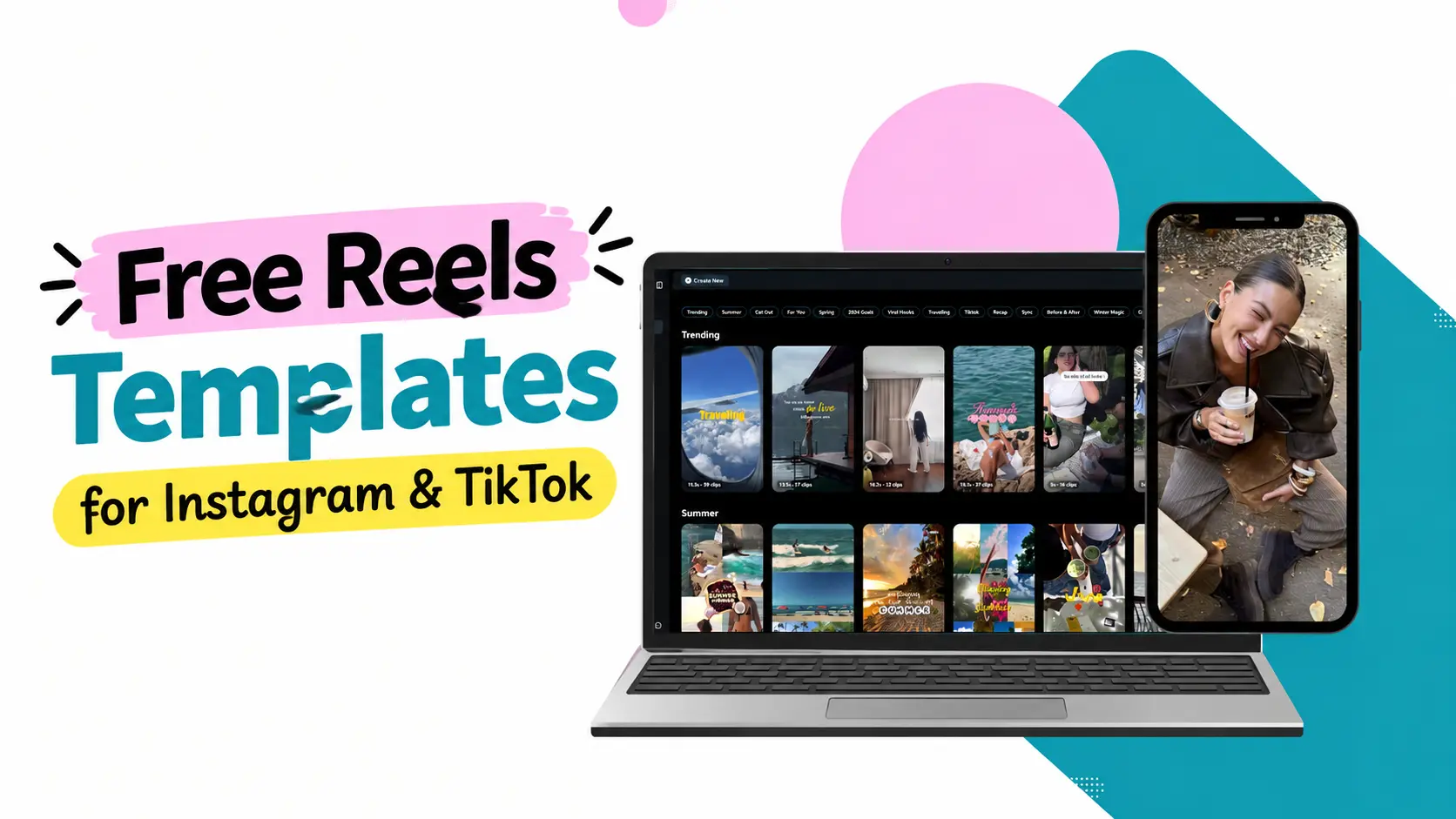
Short videos are the fastest way to get noticed online, but editing every clip from scratch takes time. That is where free reels templates help.
The best places to find free reels templates in 2026 are Templix, CapCut, Canva, InShot, Adobe's Premiere mobile app and KineMaster. Templix is a strong pick if you want ready-made templates plus AI magic effects in one place.
In this guide, you will learn what a reels template is, who should use one, how six popular tools compare, and how to make a reel with Templix in four simple steps.
What Is a Reels Template?
A reels template is a ready-made short video layout. It already has the timing, transitions, text styles and effects set up. You just swap in your own photos or clips, change the text, and export.
Think of it like a fill-in-the-blanks form for video. The hard creative work is done, so you can focus on your message.
Most reels templates follow the standard vertical format used by Instagram Reels, TikTok and YouTube Shorts:
Aspect ratio: 9:16 (vertical, full screen)
Resolution: 1080 x 1920 pixels
Length: usually 7 to 60 seconds, though each platform allows longer videos
Safe zone: keep key text away from the top and bottom edges, where captions and buttons appear
Using the right size matters. A video in the wrong ratio can get cropped or show black bars, which looks less professional.
Who Should Use Reels Templates?
Almost anyone who posts short videos can save time with templates. They are especially useful for:
Small businesses: Show products, share offers, or post behind-the-scenes clips without hiring an editor.
Influencers and creators: Jump on trends quickly and keep a steady posting schedule.
Educators and coaches: Turn tips, lessons and quick facts into easy-to-follow videos.
Personal brands: Keep the same fonts, colors and style across every post so people recognize you.
Storytellers: Share travel moments, birthdays, before-and-after reveals or day-in-my-life stories with smooth pacing.
If you are a beginner, templates are also a great way to learn. You can see how good reels are paced and copy that rhythm in your own edits later.
Top 6 Tools to Find and Use Free Reels Templates
Each tool below has a different strength. Pick the one that fits how you like to work.
1. Templix
Templix is an AI creative platform with a library of ready-to-use reels templates for Instagram Reels, TikTok videos and stories. It works on the web and has mobile apps for iOS and Android.
Best for: creators and businesses who want trending templates plus AI effects in one place.
Key features:
Reels templates in trending styles, made for vertical video
AI magic effects you can apply to your own photos and clips
AI Transition, which turns 2 to 4 photos into a smooth video transition, with a choice of camera movements
Ad Studio, where you upload a product, pick a template and generate a video ad
One limitation: Templix focuses on templates and AI effects, so it is not built for long, frame-by-frame timeline editing.
How to use it:
Open the reels templates page and browse styles.
Pick a template and upload your photos or clips.
Apply effects and export your reel.
2. CapCut
CapCut is a popular video editor from ByteDance, the company behind TikTok. It has a huge library of trend-based templates.
Best for: TikTok creators who follow trends closely.
Key features:
Large template library linked to trending sounds and formats
Auto captions and text-to-speech
Full timeline editor on mobile, desktop and web
One limitation: availability and some features can vary by country, and certain templates and tools need a paid plan.
How to use it:
Open the Templates tab and search for a style.
Tap "Use template" and select your clips.
Preview, adjust text, and export.
3. Canva
Canva is a design platform best known for graphics, but it also has many video and reels templates.
Best for: small businesses and marketers who want branded, text-heavy reels.
Key features:
Thousands of reels and story templates sorted by topic
Brand kit for saving logos, fonts and colors
Easy team sharing and collaboration
One limitation: its video editing tools are simpler than a dedicated video editor's.
How to use it:
Search "Instagram reel" or "TikTok video" in Canva.
Choose a template and replace the media and text.
Download as MP4 or share directly.
4. InShot
InShot is a mobile video editor for iPhone and Android that is easy for beginners.
Best for: quick edits on your phone.
Key features:
Simple trimming, cutting and speed controls
Music, stickers, filters and text
Canvas presets for 9:16 and other social sizes
One limitation: it is mobile-only, and its template collection is smaller than Canva's or CapCut's.
How to use it:
Create a new video and import your clips.
Set the canvas to 9:16 and add music, text or a template.
Save in high resolution and share.
5. Adobe Premiere Rush (now Premiere on mobile)
Adobe Premiere Rush was Adobe's cross-device editor for social video. Adobe has discontinued Premiere Rush and replaced it with the Premiere mobile app for iPhone and Android, plus Premiere on desktop. New users should start there.
Best for: creators who already use Adobe tools and want room to grow into pro editing.
Key features:
Clean timeline editing on your phone
Access to Adobe fonts and creative assets
Projects can move to Premiere on desktop for deeper edits
One limitation: it leans toward manual editing, so it offers fewer one-tap trend templates than CapCut or Templix.
How to use it:
Install Premiere on mobile and sign in with an Adobe account.
Start a 9:16 project and add your clips, titles and music.
Export and share to Instagram or TikTok.
6. KineMaster
KineMaster is a mobile video editor for iPhone and Android with multi-layer editing and a built-in asset store.
Best for: mobile users who want more control than a basic editor gives.
Key features:
Multiple video, image and text layers
Ready-made project templates you can edit
Effects, transitions, stickers and music from its asset store
One limitation: the free version adds a watermark to exports.
How to use it:
Open the app and choose a template or start a new 9:16 project.
Replace the media and edit text and layers.
Export and post.
Reels Templates Tools Compared
Tool | Best for | Platform |
Templix | Trending templates plus AI effects | Web, iOS, Android |
CapCut | TikTok trend templates | Web, desktop, iOS, Android |
Canva | Branded, text-led business reels | Web, desktop, iOS, Android |
InShot | Quick phone edits for beginners | iOS, Android |
Adobe Premiere (formerly Rush) | Adobe users moving toward pro editing | iOS, Android, desktop |
KineMaster | Multi-layer editing on mobile | iOS, Android |
How to Make a Reel With Templix in 4 Steps
You can go from idea to finished reel in a few minutes. Here is how.
Step 1: Browse the templates
Go to the Templix reels templates page. Use search or filters to find a style that fits your goal, such as a product promo, a travel recap or a trend.
Step 2: Pick a template
Preview a few options and choose the one whose pacing and mood match your content. A fast, punchy template suits a sale. A slower one suits a story or a tutorial.
Step 3: Upload your media and apply AI magic effects
Add your own photos or video clips. Then apply AI magic effects to make the visuals stand out. Want a smooth move between photos? Try AI Transition. Promoting a product? Ad Studio can turn a product image into a video ad.
Step 4: Export for Instagram and TikTok
Export in the vertical 9:16 format, then upload to Instagram Reels, TikTok or YouTube Shorts. Add a strong caption and a few relevant hashtags before you post.
Benefits of Using Reels Templates
Save time: Skip the blank screen. The layout, timing and effects are ready.
Look professional: Templates are built by designers, so even beginners get clean results.
Post more often: Faster editing makes it easier to stick to a regular schedule.
Follow trends quickly: Trending formats move fast, and templates help you keep up.
Stay consistent: Reusing the same styles builds a recognizable look for your brand.
Learn as you go: Studying good templates teaches you pacing, hooks and transitions.
Tips to Make Template Reels Look Unique
Thousands of people may use the same template. These tips help yours stand out:
Use your own footage. Real photos and clips feel more personal than stock media.
Hook viewers in the first second. Open with your boldest shot or a short question on screen.
Swap in your brand fonts and colors. Small style changes make a template feel like yours.
Rewrite the text. Never leave placeholder words. Speak in your own voice.
Add an AI effect or transition. A touch of motion, like an AI Transition, makes a common template look fresh.
Choose your own music. Pick a sound that fits your mood, and check that it is allowed for your account type.
End with a clear call to action. Tell viewers to follow, comment, save or visit your link.
Frequently Asked Questions
Are free reels templates really free to use?
Many tools offer free reels templates, but some premium designs or features may need an upgrade. Always check each tool's terms before you post, especially for business use.
What size should a reel be?
Use a 9:16 vertical ratio at 1080 x 1920 pixels. This fits Instagram Reels, TikTok and YouTube Shorts.
Can I use the same template for Instagram and TikTok?
Yes. Both use the same vertical format. Just adjust captions, hashtags and music for each platform's audience.
Do I need editing skills to use a reels templates app?
No. Templates are made for beginners. You mainly swap in your media, edit the text and export.
Can I make reels templates online without downloading an app?
Yes. Templix, Canva and CapCut all work in a web browser, so you can create short video templates on a laptop too.

Usman Khalid
Usman Khalid writes Templix's design and product content, covering API workflows and team collaboration to help developers and creators build smarter, faster experiences.