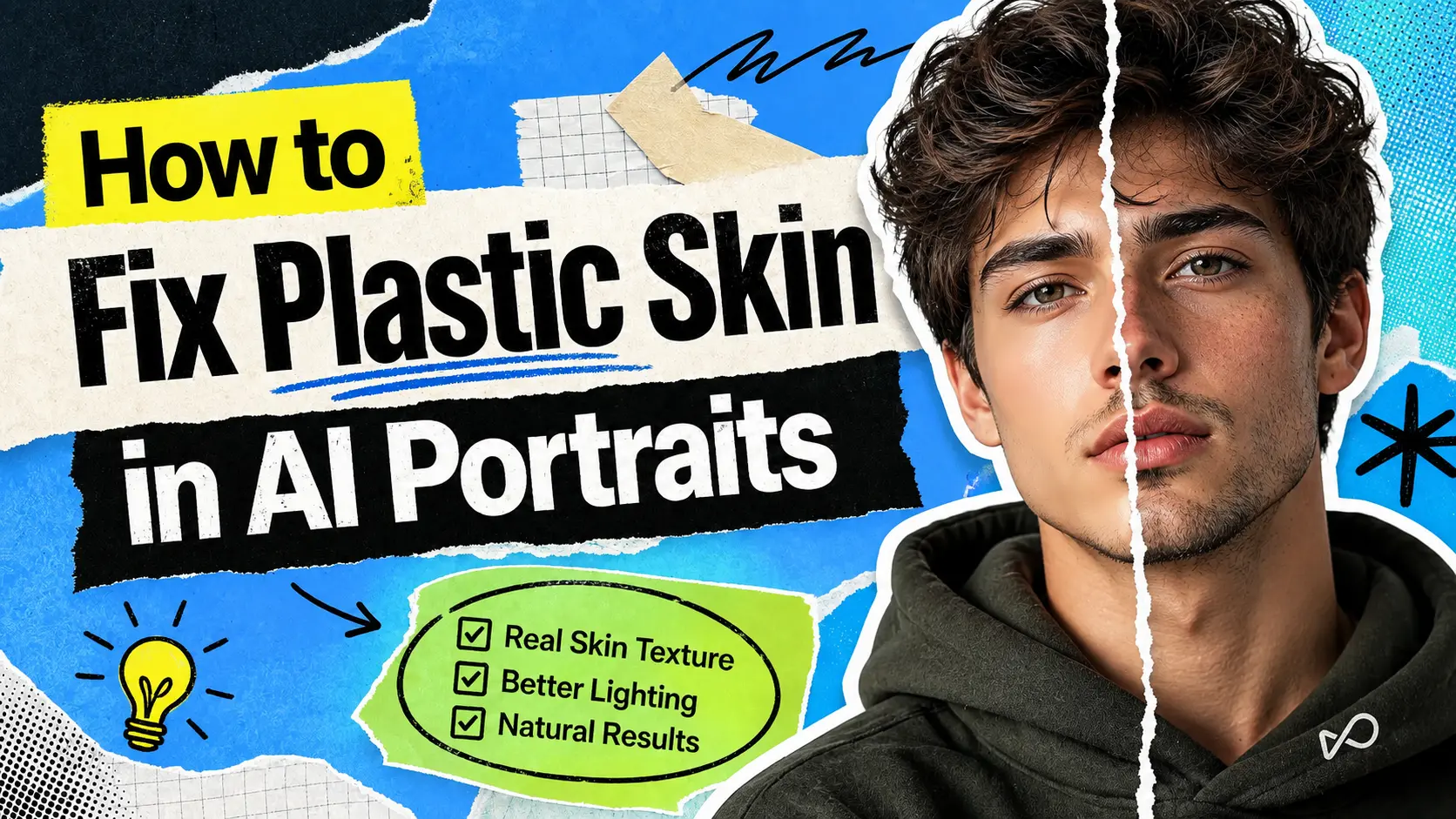
Plastic skin is the single most recognisable giveaway in AI-generated portraits. The face proportions can be perfectly correct, the lighting can read as convincing photography, and the composition can match everything the prompt described, but the moment a viewer zooms in and the skin reads as smooth, waxy, or evenly lit across every surface, the image stops passing as photography and starts reading as obvious AI output. For creators producing portraits for marketing campaigns, dating profiles, headshots, character art, UGC-style content, or any commercial deliverable where the portrait has to hold up at close viewing distance, this is a problem worth solving properly rather than hoping viewers do not look too closely.
The practical fix sits in two parts. The first is prevention: picking image models and prompt structures that produce realistic skin texture in the first generation rather than requiring heavy correction afterward. The second is correction: using Templix's dedicated skin and upscaling tools to rebuild texture detail on portraits where plastic skin shows up in the output despite good prompting. This guide covers both approaches with the specific Templix tools that handle each step.
What Plastic Skin Actually Looks Like
Plastic skin reads as a face that looks smoothed, waxy, or evenly lit across its full surface rather than carrying the natural variation that real skin shows at close viewing distance. The specific visual signals that give it away are consistent across almost every example.
Real skin surfaces reflect light unevenly because pores, fine lines, subtle colour variations, and surface imperfections scatter light in different directions depending on angle. Plastic skin produces an even reflective surface where light spreads smoothly across the whole face without the microscopic texture breaking it up. Cheeks look polished rather than naturally textured. Foreheads carry a subtle shine that reads as glossy rather than skin-like. Nose bridges and chins look smoothed over rather than carrying their natural pore structure.
Viewers rarely identify these signals consciously, but the pattern recognition still fires. A portrait with plastic skin produces an immediate uncanny impression that something is wrong even when the viewer cannot name what specifically triggered it. Commercial portraits that need to pass as actual photography require skin texture that holds up at close viewing distance.
Why AI Image Models Produce Smooth Skin
Four specific causes produce plastic skin in AI portrait output, and each has a different fix.
Model-level smoothing during generation: Some image models apply surface smoothing as part of their default output behaviour, which strips the fine texture variation that real skin carries. This is a model-selection problem more than a prompting problem, and the fix is picking models that handle skin texture better by default.
Insufficient resolution during generation: Image models producing output at lower resolutions have fewer pixels available to render the microscopic surface variation that real skin shows. A 512-pixel portrait has physically less space to hold pore detail than a 2048-pixel portrait does. Higher-resolution output or dedicated upscaling as a finishing step rebuilds the texture that lower-resolution generation flattens out.
Prompt direction skewing toward beauty aesthetics: Prompts asking for "beautiful", "flawless", "clean", or "polished" portraits often produce smoothed skin because those terms correlate in training data with retouched or filtered imagery rather than natural photography. Prompt language naming specific photography styles (documentary, editorial, candid) produces more texture-realistic output than beauty-aesthetic language does.
Iteration drifts across multiple edit passes: Portrait images run through multiple editing or regeneration cycles lose fine texture detail at each pass. A face that looked fine after the first generation can end up plastic after three or four edit rounds as cumulative smoothing stacks up.
Prevention: Pick Image Models That Handle Skin Well From the Start
The most efficient fix is preventing plastic skin in the first generation rather than correcting it afterward. Templix's image model catalog includes 6+ image models with meaningfully different performance on skin texture rendering.
For photoreal portrait work specifically, Nano Banana Pro produces strong skin texture across most portrait prompts and holds up well at full-resolution viewing. GPT Image 2 and GPT Image 2.5 both handle photoreal skin detail competently with the specific advantage of strong in-image text rendering when portraits need to carry readable text elements. Flux 2 Pro fits editorial and lifestyle portrait direction where the aesthetic target is naturalistic rather than overtly stylised.
For creators who want to build stronger prompt discipline specifically around photoreal portrait output, our AI image prompt guide covers the three-layer prompt framework that produces more consistent output across image models including portrait work specifically. For deeper prompt technique on Templix's flagship general-purpose model, our Nano Banana 2 prompt guide covers the prompting patterns that produce cleaner output across creative use cases including portrait generation.
Prompt language that supports realistic skin specifically includes photography-style vocabulary (documentary portrait, editorial headshot, candid natural lighting), specific lighting direction (soft side light from camera-left, natural window light, overcast daylight), and explicit texture language (visible skin texture, natural pore detail, realistic surface variation). Prompts that avoid beauty-aesthetic language (flawless, perfect, polished, retouched) produce meaningfully more realistic texture rendering.
Correction: Fix Existing Portraits With Templix's Skin and Upscaling Tools
For portraits that already exist and need fixing rather than regenerating from scratch, Templix provides two dedicated tools covering the correction workflow.
The Templix Skin Retouch app is purpose-built for restoring natural skin texture on portraits where the output comes out too smooth. The tool works directly on existing portrait images without requiring the whole image to be regenerated from scratch, which preserves everything else that worked about the original (composition, lighting direction, expression, subject identity) while specifically addressing the skin texture layer. For portraits that are otherwise strong but suffer from the plastic skin problem specifically, Skin Retouch is the most efficient fix because it targets only the layer that needs correction.
The Templix Image Upscaler handles the resolution side of the problem. Portraits generated at standard resolution often lack the pixel-level density to carry convincing skin texture at larger viewing sizes. The Image Upscaler rebuilds detail during the resolution increase, which particularly helps portraits intended for print delivery, large-format display, or any context where the viewer will see the image at close distance. Running Skin Retouch and Image Upscaler in sequence on the same portrait handles both the texture and resolution dimensions of the plastic skin problem.
For portraits requiring recurring subject identity across many images (brand characters, consistent influencers, campaign series), the Templix UGC Character Generator locks character identity across unlimited generations. Combined with Skin Retouch and Image Upscaler as finishing steps, the full workflow produces consistent recognisable characters with realistic skin texture across every image in the series regardless of scene direction, lighting condition, or specific pose variation across the content library.
For creators building portrait-driven content around recurring subjects where facial identity has to hold reliably across many images, our character consistency guide covers the reference-locking techniques that extend naturally into portrait production workflows and keep subject identity stable across every generation in a portrait series.
The Complete Templix Workflow for Realistic Portrait Skin
Five steps covering generation through finishing cover the complete workflow from blank prompt to delivered portrait.
Step 1: Choose a photoreal image model from the Templix catalog: For most portrait work, Nano Banana Pro, GPT Image 2, GPT Image 2.5, or Flux 2 Pro produce stronger skin texture than models not specifically tuned for photoreal output.
Step 2: Write the prompt with texture-realistic language: Specific photography style (documentary, editorial, candid), explicit lighting direction, and texture-supportive language ("visible skin texture", "natural pore detail") produce meaningfully more realistic output than beauty-aesthetic language does.
Step 3: Generate at the highest resolution the model supports: Higher-resolution output provides more pixel-level space for the model to render fine texture detail that lower-resolution output loses.
Step 4: Run the output through Skin Retouch if plastic skin shows up: The Templix Skin Retouch app targets the texture layer specifically without affecting composition, lighting, or subject identity.
Step 5: Upscale for the required delivery resolution: The Templix Image Upscaler rebuilds additional detail during resolution increase, which particularly matters for portraits headed to print, large-format display, or any close-viewing context.
For recurring character work across a portrait series, add the Character Generator setup at Step 1 to lock subject identity across every subsequent portrait in the campaign.
Tips That Make the Workflow Work Better
Four practical patterns improve results across every portrait production session.
Start with the highest-resolution source image available: More source detail gives any correction tool more material to work with. A 512-pixel portrait has physically less texture information to preserve or rebuild than a 2048-pixel portrait does.
Skip beauty filters applied before Templix correction: Filters applied to portraits before running them through Skin Retouch or Image Upscaler strip out the fine detail those tools rebuild from. Order of operations matters: run Templix finishing first, apply any beauty treatment afterward if the final use case needs it.
Review the output at full resolution: Plastic skin problems that look fine at thumbnail sizes become visible when the portrait is viewed at full resolution. Final review has to happen at the resolution the viewer will actually see the image at, not at the thumbnail size the gallery shows.
Compare the corrected version against the source: Keep the original visible alongside the corrected version to confirm the correction improved skin texture without drifting the subject's identity. The goal is better texture on the same person, not a different person with better texture.
Why Realistic Skin Matters for Commercial Portrait Work
Skin texture is the specific detail that separates portraits usable for commercial delivery from portraits that look convincingly like AI output. A portrait with realistic texture holds up at full-size viewing on retina displays, in print catalogues, on large-format signage, and in any context where the viewer looks closely at the final deliverable. A portrait with plastic skin loses credibility at those same viewing conditions, which particularly matters for brand campaigns, product marketing featuring human spokespersons, dating or professional profile imagery, and portrait-based content requiring viewer trust in the authenticity of the subject.
For creators producing portrait-driven content commercially, this step is not optional polish. It is the specific detail that determines whether the portrait reads as professional photography or as obvious AI generation, and the decision between the two directly affects audience response to the content built around the portrait.
Frequently Asked Questions
What is plastic skin in AI portraits?
Plastic skin is the smooth, waxy, or glossy appearance that AI-generated faces often have at close viewing distance. Real skin reflects light unevenly because pores, fine lines, and surface variation scatter light in different directions. Plastic skin produces an even reflective surface without that microscopic variation, which reads as obvious AI output even when the face proportions and composition are correct.
How do I fix plastic skin on an existing AI portrait?
Run the portrait through the Templix Skin Retouch app, which is purpose-built for restoring natural skin texture on existing portraits without regenerating the whole image from scratch. For portraits that also need higher delivery resolution, follow up with the Templix Image Upscaler, which rebuilds additional detail during the resolution increase. Running both tools in sequence covers both the texture and resolution dimensions of the plastic skin problem.
Which Templix image models produce the most realistic skin texture?
Nano Banana Pro, GPT Image 2, GPT Image 2.5, and Flux 2 Pro all produce strong skin texture on photoreal portraits across most prompt directions. The specific best choice depends on the project: Nano Banana Pro for premium hero portraits, GPT Image 2 or GPT Image 2.5 for portraits requiring in-image text alongside photoreal skin, and Flux 2 Pro for editorial and lifestyle portrait direction.
Can I prevent plastic skin instead of correcting it afterward?
Yes, and prevention is more efficient than correction. Pick an image model known for strong skin texture rendering, write prompts with photography-style vocabulary rather than beauty-aesthetic terms, and generate at the highest resolution the model supports. Prompts naming documentary, editorial, or candid photography styles produce more texture-realistic output than prompts asking for "flawless" or "polished" portraits do.
Why do AI portraits produce plastic skin in the first place?
Four main causes: model-level smoothing during generation that strips fine texture, insufficient resolution during generation that leaves no space for pore detail, prompt language skewing toward beauty aesthetics that correlate with retouched imagery in training data, and iteration drift across multiple edit passes that compounds smoothing cumulatively. Each cause has a different fix at the production level.
Does the starting portrait resolution matter for the correction workflow?
Yes significantly. The Templix Skin Retouch app and Image Upscaler produce better results on higher-resolution source images because more pixel-level detail exists for the tools to preserve and rebuild from. A 512-pixel portrait provides much less material to work with than a 2048-pixel portrait. Starting with the highest resolution the generation model supports produces measurably better final output.
Should I apply beauty filters before or after Templix skin correction?
After, if at all. Beauty filters applied to portraits before running them through Skin Retouch or Image Upscaler strip out the fine texture detail those tools rebuild from. The correct order is Templix finishing first, any beauty treatment afterward if the specific delivery context genuinely requires it. For commercial portraits intended to pass as real photography, skipping the beauty filter stage entirely usually produces more credible output.
Does Templix work for consistent portrait characters across a series?
Yes. The Templix UGC Character Generator locks character identity across unlimited portraits in a campaign or content series. Combined with Skin Retouch and Image Upscaler as finishing steps, the complete workflow produces recognisable recurring characters with realistic skin texture across every image. For deeper character consistency technique, our character consistency guide covers the reference-locking patterns that hold subject identity stable across generations.
Will Templix Skin Retouch change the person's identity or just fix the skin?
The Skin Retouch app is built to target the skin texture layer specifically without altering the subject's underlying facial identity, which is the main advantage of using it rather than regenerating the portrait from scratch. Running Skin Retouch preserves composition, lighting direction, expression, and recognisable identity while rebuilding the natural pore detail and surface variation that plastic skin lacks. For portraits where identity preservation matters, like brand spokespersons, recurring characters, or any portrait a client has already approved on composition, this targeted approach beats regeneration because it fixes only the skin layer without risking drift on anything else that already worked about the original.
Can I use fixed portraits commercially from Templix?
Yes at paid subscription tiers. Content generated and corrected on Templix at paid tiers is available for commercial use across brand campaigns, paid advertising, client work, product marketing, and other commercial applications. This covers portraits run through Skin Retouch and Image Upscaler as finishing steps alongside the original generation output.

Fatima Sheikh
Fatima Sheikh explores AI-powered apps at Templix, writing accessible guides that show everyday creators how to unlock powerful tools without any technical barriers.