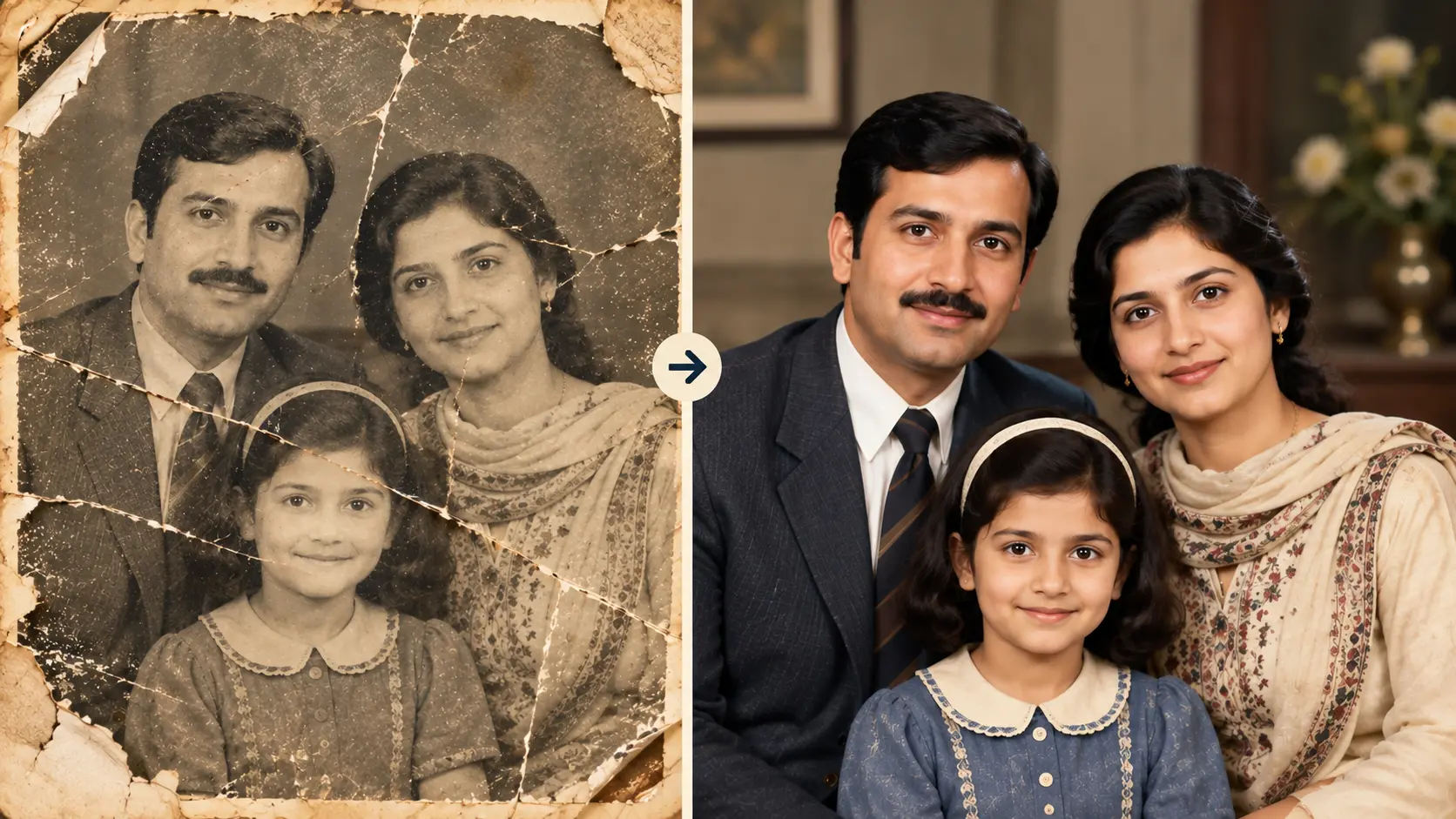
Restoring damaged photos used to require either a professional retoucher billing by the hour or hours of manual work in editing software cloning out scratches, correcting yellowed colour casts, and sharpening soft focus one region at a time. AI has closed most of that gap. A photo pulled out of a shoebox after thirty years, a low-resolution phone scan of an old family portrait, or a wedding photo with a crease running through it can now be restored in a single pass through the right tool, with the original person's identity, expression, and composition preserved throughout.
This guide walks through the complete photo restoration workflow on Templix, starting with the dedicated Photo Restoration app as the primary tool and covering the supporting Templix tools that handle specific restoration needs the base app does not cover on its own. Every workflow uses only features included in the standard Templix subscription, which starts at $14.99 monthly on Basic and includes free credits on signup so the full workflow can be tested before committing to a paid plan.
What AI Photo Restoration Actually Fixes
AI photo restoration targets the specific damage that accumulates on photos over time and returns clarity without changing who or what is in the frame. The distinction matters: restoration works from what is actually present in the source photo and removes the accumulated damage sitting on top of it, rather than generating new content or filling gaps with plausible-looking inventions. That is what makes the result still look like the same photo, the same person, the same moment, without the physical and visual damage that decades of storage or handling introduced.
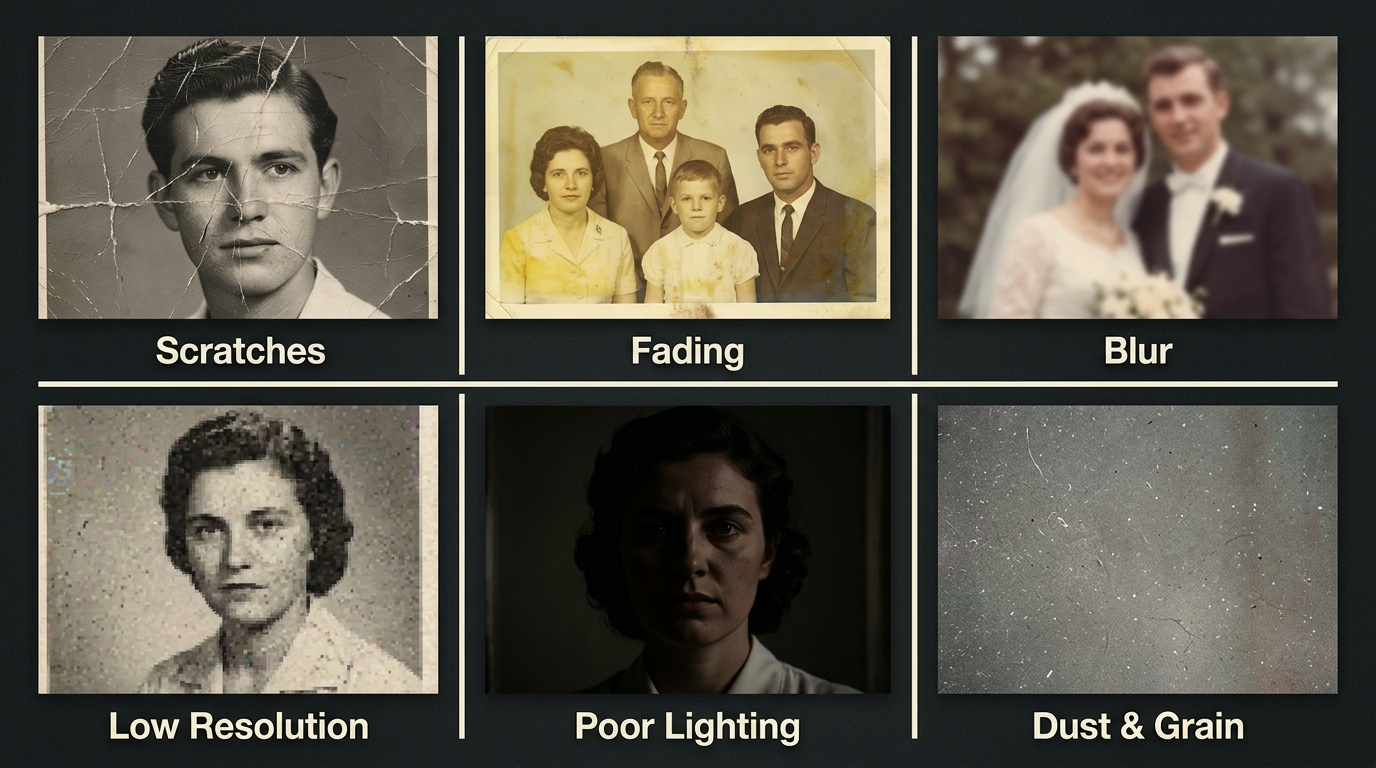
Six photo damage types AI restoration fixes on Templix
Damage type | What AI restoration does |
Scratches, creases, tears | Removes physical damage from prints or scans |
Faded or yellowed colour | Restores colour balance and natural saturation |
Blur or soft focus | Sharpens facial detail without introducing artifacts |
Low resolution | Upscales the image to 2K or 4K output |
Poor lighting or exposure | Adjusts brightness, contrast, and light balance |
Dust and grain from scanning | Cleans up scan artifacts and paper texture noise |
Skin flaws and age spots | Optional refinement for portrait-focused restoration |
Damage rarely exists in isolation on old photos. A photo pulled from long storage is usually faded and creased and slightly soft from the original camera plus the scan, which is why running one comprehensive restoration pass handling several issues at once produces meaningfully better results than solving one problem at a time across multiple tools.
How Templix Handles Photo Restoration
Templix organises photo restoration around one primary app plus specialised supporting tools that handle specific restoration needs. The dedicated Photo Restoration app is the starting point for most restoration work: upload the damaged photo, review the automated restoration output, and export the finished image in your chosen resolution and format. The app handles the common combination of scratch removal, colour correction, and general clarity improvement in a single automated pass, which covers the majority of restoration needs without requiring manual configuration for each step.
For restoration needs the base app does not cover on its own, Templix's broader tool suite handles specific problems more precisely:
Image Upscaler (/apps/image-upscaler): for resolution boost on small source images that need to hold up at print size or on high-DPI displays
HDR Enhancement app: for lighting balance on photos where exposure or colour temperature is the primary issue rather than physical damage
Skin Retouch app: for portrait-focused refinement where facial detail needs additional attention
Nano Banana Pro: the highest-fidelity image model for prompt-based restoration where the base app needs manual creative direction
GPT Image 1.5: reference-based image generation for restoration work needing multi-reference inputs
Every generation shows its exact coin cost on the button before running, so budgeting per photo stays predictable across a full restoration session. Free credits on signup cover the full workflow at no upfront cost.
Step-by-Step: The Complete Restoration Workflow on Templix
Six steps cover the full workflow from damaged source photo to publication-ready restored output.
Step 1.
Prepare the source photo file: Digitise the physical print at the highest resolution your scanner supports (300 DPI minimum, 600 DPI or higher for photos smaller than 4x6 inches). For photos already in digital format, work from the original file rather than a compressed version that has been shared through messaging apps or downloaded from social media. Higher-quality source files produce meaningfully better restoration results because the AI has more genuine detail to work from.
Step 2.
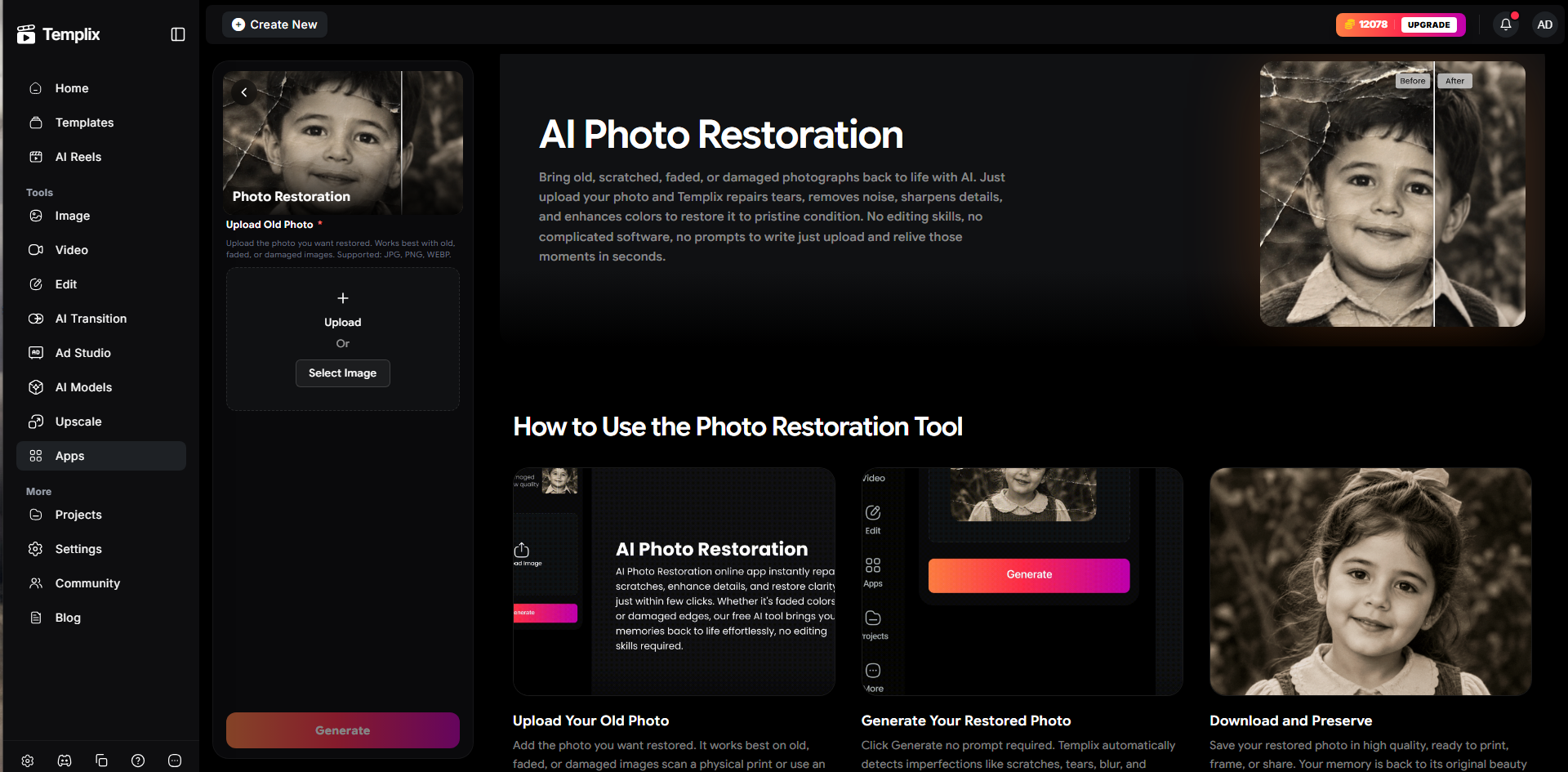
Upload to the Photo Restoration app: Head to the Photo Restoration app and upload your source photo. The app handles standard image formats including JPEG, PNG, and WebP. For scans coming directly from a scanner in TIFF format, convert to PNG or high-quality JPEG before upload.
Step 3.
Review the initial restoration: The Photo Restoration app produces its first pass automatically. Review the output against the source photo for identity preservation (the person still looks like the same person), composition preservation (the framing and background match the original), and damage removal (the specific issues you needed fixed are actually addressed). If the initial pass looks correct, proceed to Step 4. If specific problems remain, move to Step 5 for targeted supplementary restoration.
Step 4.
Enhance resolution and finish for delivery:for photos intended for print, framed display, or high-DPI screen viewing, run the restored image through the Image Upscaler to boost resolution to 2K or 4K. This is particularly important for photos that will print at 8x10 or larger, where lower-resolution output reads as soft or pixelated on paper.
Step 5:
Handle remaining specific issues with supporting tools. If the base restoration missed certain problems, use the specialised Templix tools for targeted fixes. Use HDR Enhancement for lingering lighting or exposure issues. Use Nano Banana Pro or GPT Image 1.5 with a restoration-specific prompt for damage the base app did not fully remove. Use Skin Retouch for portrait-focused refinement where facial detail needs additional attention beyond the general restoration pass.
Step 6:
Export and archive: Export the finished restoration in the format matching your delivery context (JPEG for social sharing and print, PNG for archival storage, WebP for web display). Save both the restored version and the original source photo, since keeping the untouched source lets you re-run restoration later as AI tools continue improving without losing access to the starting point.
Prompt-Based Restoration for Complex Damage
The base Photo Restoration app handles most restoration work automatically without needing prompt input. For photos with damage that the automated pass does not fully resolve, Templix's Nano Banana Pro and GPT Image 1.5 models handle restoration through a prompt-driven workflow that gives you more control over exactly what gets corrected. A well-structured restoration prompt typically covers four elements: what damage to remove, what to preserve about the original, what to enhance in the output, and what to specifically avoid changing.
An example structure that works across most complex restoration jobs:
Restore this vintage photograph while fully preserving the original person's face, expression, clothing, and pose. Remove physical damage including scratches, creases, tears, dust, and stains. Correct faded colours toward natural balance without oversaturating. Sharpen facial detail in the eyes and skin without introducing artificial artifacts. Preserve the original composition, background, lighting direction, and vintage character. Do not add or invent facial features that are not clearly present in the source photo.
For deeper prompt technique on Nano Banana Pro specifically, our Nano Banana 2 prompt guide covers the specific prompting patterns that produce clean output. For an overview of GPT Image 1.5's capabilities on Templix including reference-based generation for restoration workflows, our GPT Image 1.5 overview covers how the model handles image editing and multi-reference work.
Who Restores Photos with AI
Photo restoration through AI is not a niche use case. The practical demand for it comes from several distinct groups.
Families preserving memories: Wedding portraits, baby photos, snapshots of relatives who have passed, holiday photos from decades ago that families want printed, framed, shared with siblings, or included in memorial content. This is the largest volume of practical restoration work by far.
Genealogists and family historians: Restoring faded portraits, damaged documents, and old newspaper photos as part of building a family history archive that will be shared across generations.
Local archivists and community historians: Working through community photo collections, historical society archives, and civic history projects where damaged prints need digitisation and restoration for the archive to remain accessible.
Photographers and professional retouchers: Working through client estate collections, wedding archives that need historical photos included alongside contemporary content, and volume commercial work where AI-assisted restoration handles the base workload before manual finishing.
Ecommerce sellers and content creators: Restoring vintage product photos for auction listings, sourcing historical imagery for editorial content, and refreshing brand archive photos for reuse in modern campaigns.
Best Practices for Consistent Restoration Results
Five specific habits produce meaningfully better restoration output across most photo types.
Scan at the highest resolution your source hardware supports: Restoration quality is limited by the quality of the source file. A 300 DPI scan of a small photo has meaningfully less detail than a 600 DPI scan of the same photo, and the AI restoration can only work with the detail actually present in the file. Higher input resolution consistently produces better output resolution.
Restore before upscaling, not after: Run the Photo Restoration app first to fix damage, then run Image Upscaler on the restored output. Upscaling first amplifies scratches, colour casts, and damage before restoration removes them, which typically produces worse output than restoring first and upscaling the clean result.
Compare against the source at every stage: Restoration should preserve identity and composition. Review each intermediate output against the original source photo to confirm the person still looks like the same person, the framing has not shifted, and no facial features have been invented. If any of these fail, regenerate with adjusted parameters rather than shipping approximate matches.
Keep the original scan permanently: Save both the restored version and the untouched original scan for every photo. AI restoration continues improving, and keeping the source lets you re-restore the same photo later on newer tools without needing to re-scan the physical original.
Use the right tool for the specific damage: The Photo Restoration app handles combined general damage automatically. HDR Enhancement handles lighting issues specifically. Image Upscaler handles resolution specifically. Skin Retouch handles portrait facial detail specifically. Matching the specific tool to the specific problem produces better output than trying to fix everything through one general-purpose pass.
Bringing Old Photos Back to Life
AI photo restoration compresses what used to require professional retouching or hours of manual editing into a single upload and, for most photos, a single automated pass. The Templix Photo Restoration app handles the base workflow, and the supporting Templix tools (Image Upscaler, HDR Enhancement, Skin Retouch, Nano Banana Pro, GPT Image 1.5) cover the specific restoration needs that fall outside the base app's automated scope.
The same tools apply beyond decades-old prints. Blurry recent phone photos, low-resolution images that have been compressed too many times in messaging apps, and older digital files that never had strong resolution to begin with all benefit from the same restoration workflow. What matters is identifying the specific damage on the source photo and applying the right tool to fix it, without changing the actual content of what the photo shows.
Frequently Asked Questions
Can AI really restore an old photo without changing how the person looks?
Yes, that is the core purpose of AI restoration. Restoration tools work from the source photo and remove damage that sits on top of the actual image content, rather than generating new content or inventing details that were not present in the original. Facial features, expression, clothing, composition, and background all preserve through a properly-configured restoration pass. If a restoration output changes how the person actually looks, the restoration parameters need adjustment or the output should be regenerated.
What is the Templix Photo Restoration app?
The Photo Restoration app is Templix's dedicated tool for restoring damaged, faded, or degraded photos. It handles the common combination of scratch removal, colour correction, and general clarity improvement in a single automated pass. The app accepts standard image formats and produces publication-ready restored output that can then be enhanced further through Templix's supporting tools like the Image Upscaler for resolution or HDR Enhancement for lighting.
How much does it cost to restore a photo on Templix?
Templix subscriptions start at $14.99 monthly on Basic with 5,000 coins, $29.99 monthly on Standard with 15,000 coins, and $74.99 monthly on Ultimate with 30,000 coins, with annual billing cutting 20 to 27 percent depending on tier. The exact coin cost of each restoration displays on the button before running, so budgeting per photo stays predictable. Free credits on signup cover restoration testing at no upfront cost.
What kind of damage can AI photo restoration fix?
The most common damage types AI restoration handles: scratches and creases from physical handling, tears and paper damage, fading and yellowing from sun or age exposure, blur and soft focus, low resolution, dust and grain from scanning, poor lighting or exposure on the original, and skin flaws that need targeted portrait refinement. Most old photos carry several of these issues at once, which is why a comprehensive restoration pass typically outperforms fixing one problem at a time.
What resolution should I scan my old photos at?
Scan at the highest resolution your scanner supports. For prints larger than 4x6 inches, 300 DPI is a minimum. For smaller prints or photos you plan to print at large sizes after restoration, 600 DPI or higher is meaningfully better. Higher scan resolution gives the AI restoration more genuine detail to work from, which consistently produces better output than trying to restore a lower-resolution scan.
Can I restore just one damaged area of a photo instead of the whole image?
For targeted damage, Templix's supporting image models (Nano Banana Pro, GPT Image 1.5) accept prompt-driven restoration that can focus on specific areas rather than the whole image. This works well for damage that only affects one part of the photo (a tear in the corner, a scratch across the background, a stain on one edge) where the rest of the image is intact and does not need general restoration.
Do I need to write a prompt to use the Photo Restoration app?
The base Photo Restoration app handles most restoration automatically without prompt input. Upload the damaged photo and the app produces its first restoration pass without requiring specific instructions. For complex damage that the automated pass does not fully resolve, Templix's Nano Banana Pro and GPT Image 1.5 models offer prompt-based restoration that gives you additional control over specific problem areas.
Can I use restored photos commercially on Templix?
Yes. Content processed through Templix at paid subscription tiers is available for commercial use across editorial content, brand marketing, ecommerce listings, and any other commercial application. This applies to restored photos alongside all other Templix output. Verify current commercial-use terms in the Templix subscription documentation for specific high-visibility client work.
Will restoration work on recent blurry phone photos too?
Yes. AI restoration tools do not distinguish by photo age. Any photo with damage that the tool can address (blur, low resolution, poor exposure, unwanted artifacts) benefits from restoration regardless of whether the source is a decades-old print or a recent phone photo that came out badly. What matters is the specific damage on the source, not how old the photo is.
How long does it take to restore a photo on Templix?
Restoration generation typically runs in seconds to a couple of minutes per photo depending on the tool, source resolution, and output resolution selected. The Photo Restoration app for single-pass restoration is the fastest option. Prompt-based restoration through Nano Banana Pro or GPT Image 1.5 takes slightly longer per generation but offers additional control. Batch restoration across many photos scales with the total generation count rather than becoming meaningfully slower per photo at volume.

Fatima Sheikh
Fatima Sheikh explores AI-powered apps at Templix, writing accessible guides that show everyday creators how to unlock powerful tools without any technical barriers.