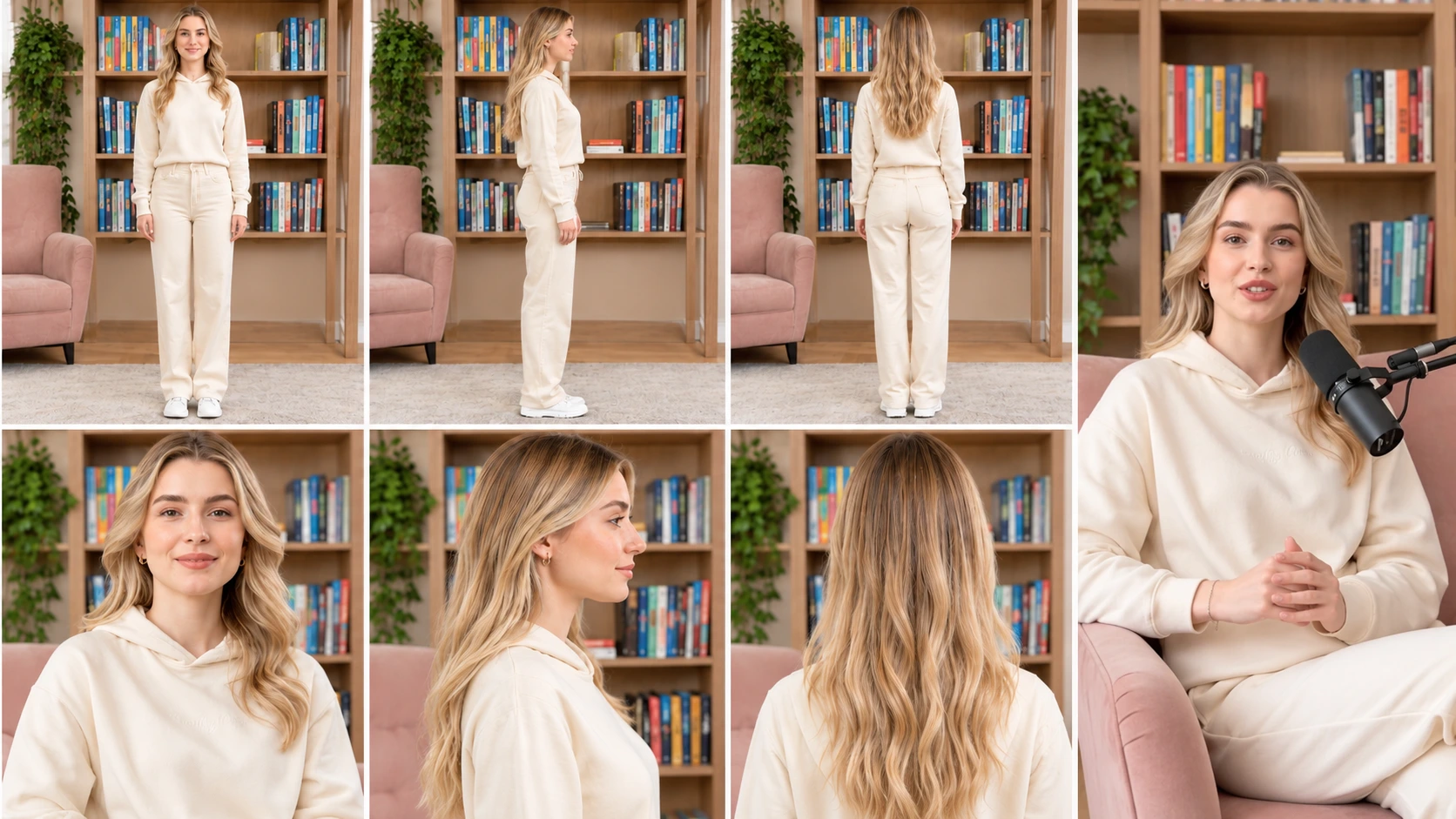
The woman in the video above does not exist. She was built from a text description, turned into a six-view character sheet, and then placed in a living room with a podcast microphone to present to the camera. She can present again tomorrow with a different script and the same face.
That is what an AI avatar video is: a video presenter who is generated rather than filmed, and who stays consistent across every video you make. Brands use them for explainers, social ads, onboarding and course content.
The hard part is not talking. It is getting the same character back every time so viewers recognise her. This guide covers the full pipeline, from a blank prompt to a talking spokesperson, with the exact steps behind the video above.
What Is an AI Avatar Video?
An AI avatar video is a video in which a generated person presents, explains or sells to the camera. Her face, clothes and setting come from an AI model; her speech and lip movement come from a script.
There are three types, and the words get used loosely:
AI talking avatar. A head and shoulders presenter who speaks a script. The simplest form, used for explainers, training and announcements.
AI spokesperson video. A talking avatar with a brand role: she presents a product, a service or a company, usually with a consistent look across many videos.
AI UGC avatar. A spokesperson styled as a creator rather than a presenter: casual room, phone-camera framing, holding a product. Used for ads on TikTok, Reels and Meta.
The pipeline is the same for all three: build a consistent character, then give her a script and a scene.
Why Use an AI Avatar Instead of Hiring Talent?
No shoot. A presenter video needs a presenter, a set, lighting, a camera operator and a day. An AI avatar video needs a script.
Unlimited retakes. Change one line and regenerate. No reshoot, no day rate, no scheduling.
One face, forever. A hired presenter leaves, changes her hair or raises her rate. A consistent AI character is the same in video one and video one hundred.
Every language. The same avatar can present in English, Urdu, Arabic or Spanish without a second presenter.
Every format. A 9:16 UGC clip for TikTok and a 16:9 explainer for a landing page from the same character in the same afternoon.
The Problem: AI Characters Drift
AI image and video models do not remember. Every generation starts from zero. When you type "blonde woman, late 20s, cream hoodie, living room" the model produces one of millions of faces that match. Run the same prompt again and you get a different one of those millions. Same description, different person.
A brand that generates its avatar from text each time ends up with a rotating cast of similar strangers, and never gets a face.
The fix is a reference image. A face held in an image can be reused; a face described in text cannot. Everything that follows is about producing that reference properly and never leaving it.
How to Create a Consistent AI Character
Step 1: Write the identity brief
Before any tool, write one paragraph that defines her. This is what you check every future output against.
Cover who she is for (the audience she needs to look credible to), her exact age, hair colour and length and how she wears it, skin tone, eye colour, one or two distinctive features (a mole, freckles, a particular brow shape), two or three outfits, the rooms she appears in, and her energy in three words.
The brief for the character in this guide: "Elena, 27. Long blonde hair with soft waves, centre parted. Fair skin with natural texture, light brows, grey-green eyes, small gold hoop earrings. Cream hoodie and cream wide-leg trousers, white trainers. Warm living room with a wooden bookshelf, a pink armchair and plants. Calm, friendly, clear."
The distinctive features are what make a face recognisable and what you check for when drift happens.
Step 2: Generate the character
Open the UGC character generator and turn the brief into a prompt. Every line of the brief becomes a line of the prompt.
Woman, 27, long blonde hair with soft waves, centre parted, fair skin
with natural texture and a light flush, light brows, grey-green eyes,
small gold hoop earrings, calm friendly expression with a small smile.
Cream hoodie, cream wide-leg trousers, white trainers. Standing in a
warm living room, wooden bookshelf with colourful books behind her,
pink armchair to the side, trailing plants, soft daylight. Full body,
front facing, 3:2.
No heavy retouching, no plastic skin, no perfect symmetry, no glossy
filter, not a 3D render.
Generate six to ten versions, pick the one that matches the brief most exactly, and save it. That is the master reference.
Step 3: Build the character sheet
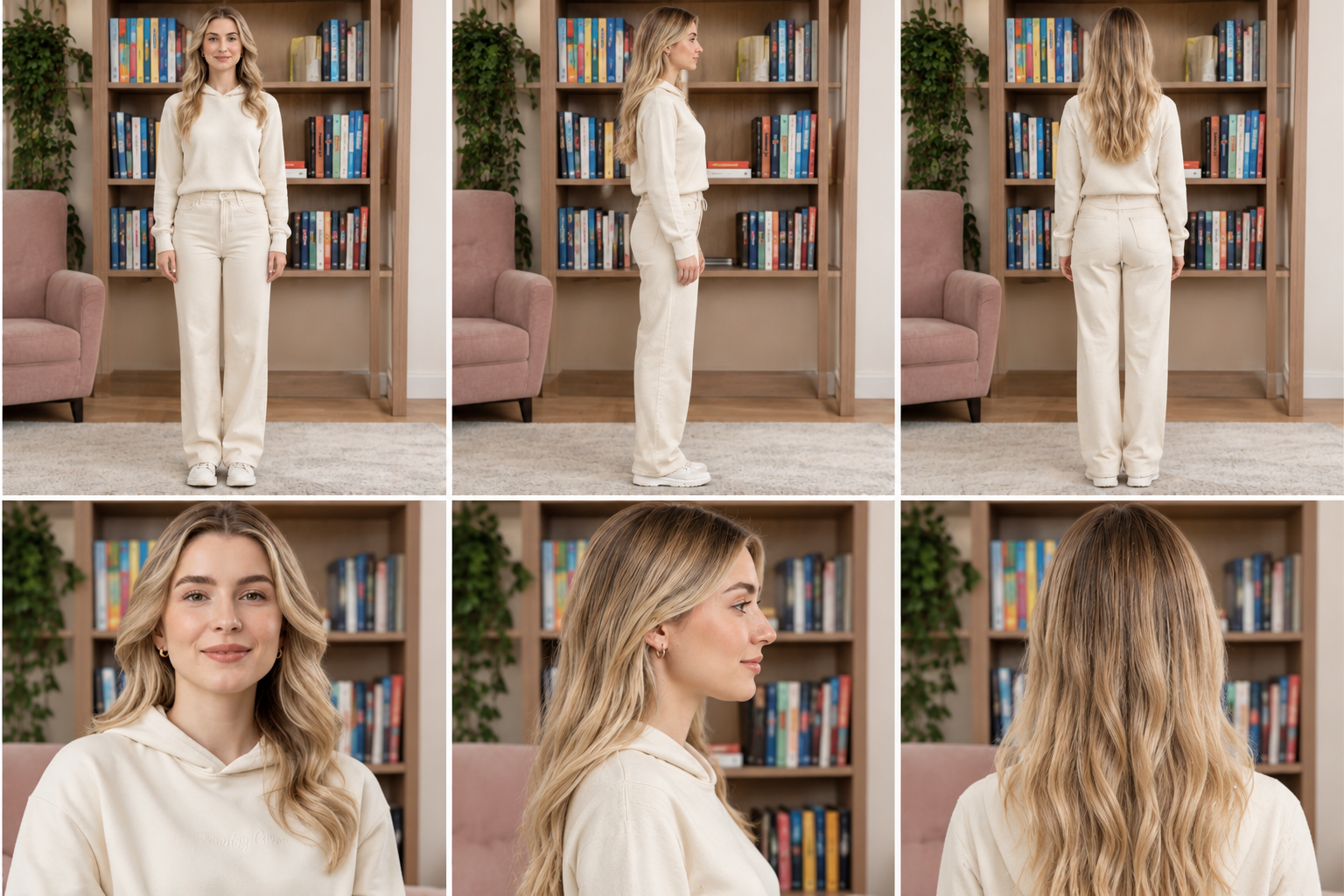
A single front-facing image is enough for stills, not for video. Video turns the head and shows the profile, and a model that has only seen the front invents the rest differently every time.
A character sheet solves this. It is the same character from several angles in one image: full body front, side and back, and headshot front, side and back. The sheet above is the one behind the video in this guide.
To make one, attach the master reference and prompt for the views:
Character sheet of @image1, six panels in a 3x2 grid. Top row: full
body front view, full body side profile facing right, full body back
view. Bottom row: headshot front, headshot side profile facing right,
headshot back of head. Same woman in every panel, same cream hoodie,
cream trousers and white trainers, same hair, same gold hoops, same
living room with bookshelf and pink armchair, same soft daylight.
Neutral standing pose, arms relaxed. Natural skin texture, no
retouching, not a render.
Check every panel against the master: hair length, parting, earrings, face shape in profile. If one panel is off, regenerate the whole sheet; one wrong panel teaches the video model a wrong angle.
Save the sheet next to the master. From now on the sheet is the reference for video and the master is the reference for stills. For the full method on keeping a face stable across every scene, see how to create consistent AI UGC characters.
Step 4: Lock the face
One rule: never generate her from text again.
Every image and video starts with the master or the sheet attached. Keep one folder per character: brief, master, sheet, prompt. Never save an output as a new reference; chaining generations walks the face away.
How to Turn the Character into a Talking Spokesperson
Step 5: Write the script like speech
A spokesperson script is speech, not website copy. Short sentences, one idea each, contractions, under ten words per line so lip sync stays tight.
The script behind the video in this guide, nine seconds:
Hi, I'm Elena.
I'm going to walk you through this in under a minute.
Let's start with the part everyone gets wrong.
For a product spokesperson the structure is problem, product, one benefit, result. For an explainer, hook, three points, close. Read it aloud once before generating.
Step 6: Set the scene
Decide where she presents and how she is framed. For the video above: seated in the pink armchair, bookshelf behind, podcast microphone on a boom arm in frame, hands resting together, 9:16, waist up.
The microphone signals "presenter" without a studio and gives her a reason to sit still. For a UGC-style avatar, drop the mic and use phone-camera framing. For a corporate explainer, go 16:9 with a desk. The character does not change; the scene does.
Step 7: Generate the video
Open the UGC video generator. Attach the character sheet as @image1. Describe the scene, the framing and the script in one box. The prompt behind the video:
@image1 sits in a pink armchair in her living room, wooden bookshelf
with colourful books behind her, plant to the left. A black podcast
microphone on a boom arm enters the frame from the right, near her
face. Waist-up framing, 9:16, camera at eye level, soft daylight from
the left. She looks at the camera, hands resting together, and says:
"Hi, I'm Elena. I'm going to walk you through this in under a minute.
Let's start with the part everyone gets wrong." Small natural head
movements, a smile on the first line, a slight lean forward on the
last. Same face, same hair, same earrings as the sheet. Natural skin
texture, no beauty smoothing, no studio lighting, no fast cuts.
Settings: 9:16 for social or 16:9 for web, 720P or 1080P, 10 to 15 seconds per clip. Run two or three attempts and keep the one where the face matches the sheet in profile as well as front-on; the head turn is where avatars drift most.
"Same face, same hair, same earrings as the sheet" at the end of the prompt is the consistency anchor. It costs nothing and catches the generations that would otherwise slide.
Step 8: Check, then chain the clips
Put a frame of each clip next to the master and check the distinctive features. If any has changed, reject the clip. Close enough compounds.
Longer videos are chained from 10 to 15 second clips, same sheet, same scene, cut together. Long single takes give the model time to wander.
Real Example: From Character Sheet to Spokesperson Video
The video at the top and the sheet in Step 3 are the same character, and the pipeline between them is the eight steps above.
The scene. Seated, pink armchair, bookshelf, boom-arm microphone, waist up, 9:16.
The clip. Nine seconds, three lines. She smiles on the greeting, settles into a neutral presenter expression, leans slightly into the last line. Her hands stay together. The light comes from the left. The hair, the hoops and the hoodie match the sheet in every frame.
What makes it work? Small movements, one light, no smoothing, and because the sheet showed the model her profile, the head turns do not change her face. That is the difference between an avatar and a random AI person.
Styling the Same Avatar for Different Jobs
Same sheet, different scene and script.
Spokesperson explainer (the video above). Armchair, mic, bookshelf, 9:16 or 16:9. For product walkthroughs, announcements, course intros.
UGC ad. Phone-camera framing, slightly off centre, a product in her hand, casual script. Made in the UGC ad generator with the sheet as @image1 and the product as @image2. For TikTok, Reels and Meta.
Stills. Thumbnails, carousel slides, landing page headers, made in the UGC image generator from the master.
Social presence. Organic clips between campaigns so the same face shows up in the feed, not only in ads.
If you do not want to build from scratch, the Community gallery has characters already built with sheets. Pick one, save her master and sheet, and start from Step 5.
Best Prompts for AI Avatar Videos
Three reusable scene prompts. Attach the character sheet as @image1 in each.
The seated presenter. "@image1 seated in [chair] with [background], [mic or no mic], waist-up, eye level, soft daylight from [side]. Looks at the camera and says: [script]. Small head movements, hands resting. Same face, same hair as the sheet. Natural skin, no studio lighting."
The standing explainer. "@image1 standing in [room], 16:9, mid-shot, slight angle, gesturing with one hand while speaking: [script]. Same face, same hair as the sheet. Natural skin texture, one light source."
The UGC creator. "@image1 close to a phone front camera, slightly off centre, [room], holding [product] at chest height, says: [script], small smile at the end. Same face, same hair as the sheet. Handheld feel, natural skin, no beauty smoothing."
Common Mistakes to Avoid
Generating the avatar from text each time. The single biggest cause of drift. Build once, save, reference forever.
Skipping the character sheet. One front view is not enough for video. Profiles and the back of the head need a reference or the model invents them.
Long single takes. Faces wander over 20 seconds. Chain 10 to 15 second clips.
Big expressions and fast gestures. Wide smiles and sweeping hands stretch the face away from the reference. Keep movement small.
Conflicting descriptions. "Short hair" in the prompt against long hair in the sheet makes the model split the difference. Describe the scene, not the face; the sheet carries the face.
Glass skin. Presenters get retouched by default. Ask for texture in every prompt or the avatar looks animated.
Website copy as script. Nobody says "our innovative solution" out loud. Write a speech.
Frequently Asked Questions
What is an AI avatar video?
A video in which a generated person presents, explains or sells to the camera. The avatar's face, clothes and setting are produced by AI, and her speech and lip movement are generated from a script you write. Used for explainers, spokesperson videos, training and social ads.
How do I create a consistent AI character?
Write an identity brief with distinctive features, generate the character once, save the best output as a master reference, then build a multi-view character sheet from it. Attach the master or the sheet to every future image and video and never regenerate the character from text.
Can I make an AI avatar video without hiring talent?
Yes. The presenter is built in a character generator from a description, so there is no casting, no shoot, no day rate and no usage rights. You write the script, set the scene and generate the clip.
What is a character sheet and why does video need one?
A single image showing the same character from several angles: front, side and back, body and head. Video turns the head and shows angles a front-only reference never covered, so without a sheet the model invents those angles differently each time and the face drifts.
How long should an AI avatar clip be?
Ten to fifteen seconds per generated clip. Longer videos are made by chaining clips with the same sheet and scene. Long single takes give the model time to drift.
Can the same AI avatar be used as a spokesperson and in UGC ads?
Yes. The character stays fixed and only the scene, framing and script change: armchair and microphone for a spokesperson, phone-camera framing and a product in hand for a UGC ad.
What is the best AI spokesperson video generator?
Look for a tool that lets you build a character, make a multi-view sheet, and attach that sheet as the reference for video and stills in one place. Templix UGC Studio does all three, which is what the pipeline in this guide uses.

Eman Raza
Eman Raza is Templix's prompt engineering expert, writing practical guides on image and video generation that help users turn ideas into striking visuals