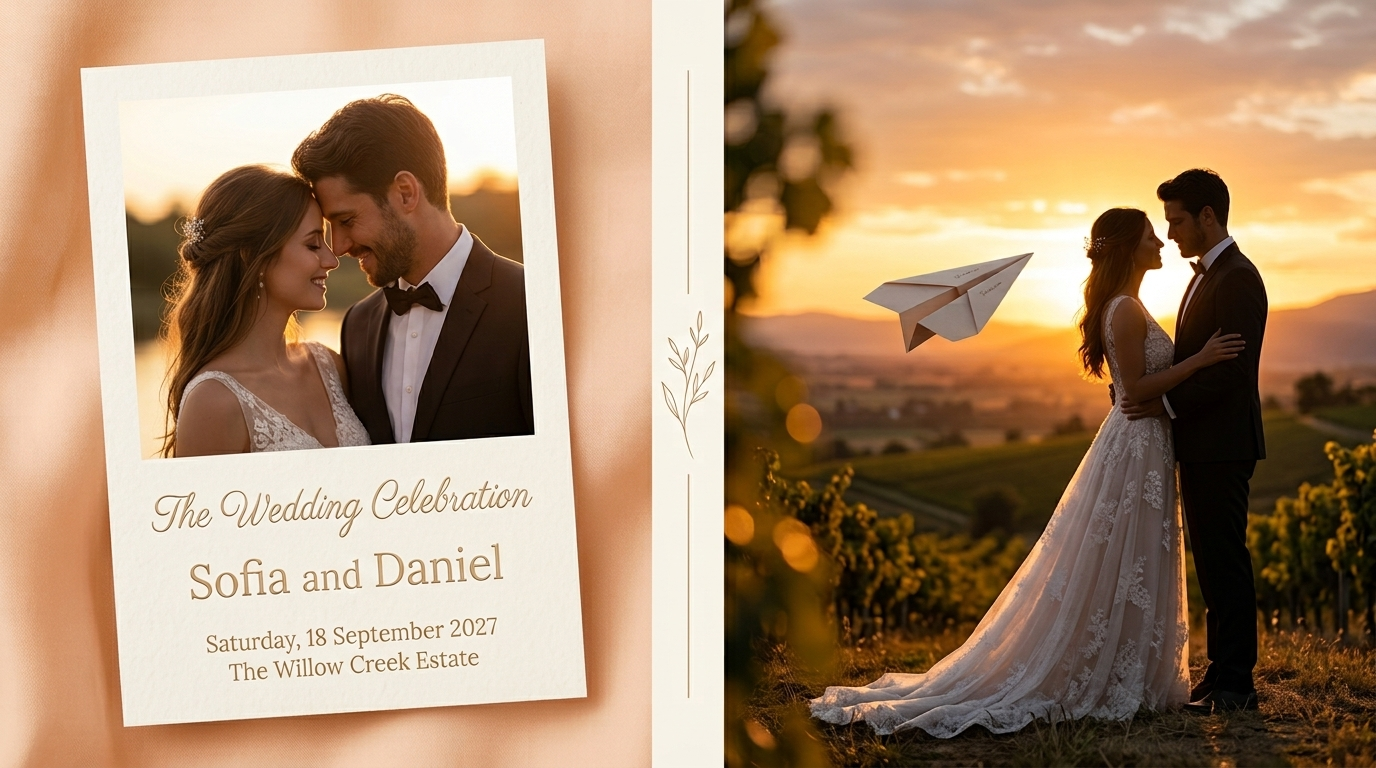
Wedding invitations have moved a long way from the printed card sent by post. Digital invitations, dedicated wedding websites, save-the-date videos posted to social feeds, and personalised announcements sent through messaging apps have all become standard formats over the past few years. What all of them still share is the visual production work: a couple needs images and video that carry the emotional weight of the moment, look consistent across every asset, and hold up whether they end up on a printed card, a social Reel, or a projection screen at the reception.
AI generation platforms have started to close the gap between the wedding photographer's budget and what individual couples can produce themselves. This guide walks through the complete pipeline for creating an AI wedding invitation on Templix: both a photo announcement and a 30-second invitation video, built from photos the couple already has. Every step covers the specific Templix models and apps that handle each stage of the workflow, using only features and pricing that are genuinely part of the platform.
What You Need to Start
Before opening any AI tool, gather the practical inputs. Every part of the workflow that follows assumes these are in hand.
Recent photos of both partners: several clear shots at different angles, ideally including at least one full-body shot each. These become the reference anchors that hold each person's identity across every generation.
The invitation details: names, wedding date, venue, dress code, RSVP method, timing of the day.
A basic story concept: a rough idea of the emotional arc the video should carry (formal, playful, cinematic, nostalgic). Step 2 refines it further.
Optional visual references: the real wedding outfits if they are already selected, photos of a favourite location, an object or symbol meaningful to the couple.
A visual direction: the palette or overall mood, locked in Step 3 before generating any key frames.
The pipeline that follows uses different Templix models and apps for different stages of the work:
Stage | Templix models / apps | What it handles |
Reference character work | Reference images in image models | Anchors each partner's identity across generations |
Key frame generation | Nano Banana 2, Nano Banana Pro, Ideogram v4, Flux 2 Pro | Produces styled still images of the couple and props |
Outfit and visual planning | Reference-based generation | Tries wedding outfits and matches location aesthetics |
Video generation | Seedance 2.5, MiniMax H3, Kling 3.0, Google Veo 3.1 | Turns the frames into a cinematic 30-second invitation film |
Post-production refinement | /apps/motion-control, /apps/face-swap, /apps/image-upscaler | Fixes specific moments without regenerating full clips |
Step 1: Gather Photos and Prepare References
Start by uploading recent, clear photos of both partners to your reference library. Multiple angles per person produce meaningfully better output than a single reference shot: front, three-quarter, and profile views give the image models enough visual information to hold each face consistent across generations.
For the strongest identity preservation across many generations, use the same reference images in every generation throughout the project. Consistency in the reference set is what keeps the same face reading correctly on the tenth frame as on the first. For creators wanting the specific reference-locking techniques and canonical prompt patterns that keep characters consistent across long series of generations, our character consistency guide covers the discipline that separates a coherent invitation from one where the couple looks slightly different in every shot.
If the real wedding outfits are already chosen, add photos of the outfits to your reference set alongside the couple photos. Referenced outfits produce more accurate representation of what the couple will actually wear on the day than trying to describe the outfit in text on every generation.
Step 2: Write the Timed Scenario
Write the story before generating any images. A wedding invitation video that lands emotionally usually needs a clear emotional arc rather than a montage of pretty shots. Split the runtime into arcs with specific timing so the scenario translates cleanly into the eventual video prompt.
A standard structure for a 25 to 30 second invitation video:
Opening (2-4 seconds): introduce the couple or a central symbol through one strong close-up
Development (8-12 seconds): movement across two or three settings, a small narrative like a chase or a countdown
Pause (3-4 seconds): quiet moments, intimate close-ups, hands or looks or small gestures
Emotional peak (4-5 seconds): the couple together in the peak moment of the story
Finale (5-6 seconds): the spoken invitation line to camera, then the save-the-date card
A worked example built on this structure:
0:00-0:03 close-up of the bride's hand releasing a paper airplane invitation from a garden trellis
0:03-0:07 the airplane drifts through a sunlit courtyard, camera tracking alongside
0:07-0:11 parallel cut: the groom looks up from a rooftop and spots the airplane
0:11-0:15 quick cuts through a park, a fountain, a stone archway
0:15-0:18 quiet inserts: intertwined hands, a shared look, one small laugh
0:18-0:22 they meet at a lakeside pier at golden hour and catch the airplane together
0:22-0:25 stillness: opening the invitation, close-ups of eyes reading the message
0:25-0:28 they turn to camera and deliver the spoken invitation line
To adapt this to your story, swap the paper airplane for your own meaningful object (a bouquet, a ring box, a written letter, a candle) and change the locations to places significant to the couple. This timed script becomes the direct blueprint for the video prompt in Step 6.
Step 3: Lock the Visual Style
Consistency across every image and the eventual video depends on locking the visual style before generation begins. Two places anchor style: the prompts themselves, and the settings on the video model.
Write a style block as a fixed phrase you append to every image prompt. The style block covers the palette, the lighting quality, the texture reference, and the overall mood. For example: warm palette of cream, blush pink, and champagne gold with muted sage accents, natural directional golden hour light, 35mm film grain, romantic editorial mood. Written once, this style block carries the visual direction across every generation and keeps the set of frames reading as one cohesive project.
Save the reference for any recurring object separately (the paper airplane, the bouquet, the ring box) and reference it in every generation where it appears. Consistent object references matter as much as consistent character references. A prop that reads differently in every shot pulls the viewer out of the emotional flow of the film.
For creators wanting the specific cinematographic vocabulary that produces predictable results across wedding shot styles, our camera movements guide covers 18 named techniques including the specific push-ins, orbits, and tracking shots that carry romantic and cinematic wedding content particularly well.
Step 4: Generate the Key Frames on Templix Image Models
The scenario from Step 2 defines the key frames: one still image per beat of the story. These approved frames become the visual references that guide the video generation in Step 6, and one of them becomes the photo invitation itself. Because still-image generations cost meaningfully less than video generations, all creative iteration should happen here at the image stage, not later at the video stage.
Templix's image model library covers six different image models under one subscription, each with distinct strengths for wedding invitation work:
Templix image model | Strength for wedding invitations |
Nano Banana 2 | Photoreal composition with in-image text rendering for cards and signage |
Nano Banana Pro | Higher-fidelity variant for hero images and premium invitation cards |
Ideogram v4 | Design-focused work with precise typography for save-the-date lettering |
Flux 2 Pro | Editorial-grade portrait work for close-up intimate frames |
Seedream 5.0 lite | Fast iteration for testing many compositional variations |
GPT Image 1.5 | Reference-based generation with strong multi-reference support |
For creators wanting deeper prompt technique on Nano Banana 2 specifically (Templix's strongest general-purpose image model for wedding photography style), our Nano Banana 2 prompt guide covers the specific prompting patterns that consistently produce clean output.
Generate each key frame in your chosen image model, including reference images for both partners and any recurring object, ending every prompt with your style block from Step 3. Regenerate until each frame lands correctly before moving to the next one. The coin cost for each image generation displays on the button before the run, so budgeting per frame stays predictable.
Step 5: Create the Save-the-Date Lettering
Generate the wedding invitation lettering as a separate asset in an image model with strong text rendering (Nano Banana 2 or Ideogram v4). Write the exact wording in quotes so the model renders the specific text faithfully, describe the typeface explicitly (naming a widely recognised typeface if a specific style is important), and generate against a plain neutral background so the lettering overlays cleanly onto the chosen key frame later:
Elegant serif calligraphy text "Save the Date" with "Sofia and Daniel, 12 June 2027" below, warm gold lettering on a soft cream background, centered composition, classic wedding invitation typography, no other visual elements in the frame
Combine the lettering with the strongest key frame in a second image generation using both as references, or overlay in any standard design editor. For the card that appears inside the video, generate the background frame without any embedded text and add the typography as a separate finishing step after the video generation, since text rendered inside video regenerates differently on every pass and stays cleaner as a separate overlay layer.
The Photo Invitation Path
If you only need the photo invitation and not the video, the workflow ends here. Three assets complete the photo invitation: one chosen key frame from Step 4, the lettering asset from Step 5, and their combination in one generation or in an editor. The finished photo invitation works as a digital announcement sent through messaging apps, a printed card, a social Reel cover, or a Stories post. Steps 6 and 7 continue only for creators producing the video invitation as well.
Step 6: Generate the Wedding Film on Templix Video Models
Templix's video model catalog covers 40+ video models across 10+ families under one subscription. Different models handle different aspects of wedding invitation video work particularly well:
Seedance 2.5 for longer single-pass cinematic sequences up to 30 seconds
Google Veo 3.1 for premium cinematic hero shots with the highest visual fidelity
Kling 3.0 for motion-heavy sequences with strong character continuity
MiniMax H3 for shorter clips where synchronised audio (spoken lines, music) generates in the same pass as the video
Wan 2.5 for versatile mid-tier cinematic content
LUMA RAY2 for realistic camera movement and light physics
Select the model that fits your final production requirements. Upload the approved key frames from Step 4 as reference images, and turn the timed scenario from Step 2 into the video prompt. Every beat becomes a segment in the prompt with its time range, the specific action, the camera direction, the lighting continuity, and any spoken dialogue for models that generate native audio.
An example video prompt built directly from the Step 2 timeline:
A 28-second wedding invitation film in one continuous edit. 0-3s: close-up of the bride's hand releasing a paper airplane from a garden trellis, soft golden light. 3-7s: the airplane drifts through a sunlit courtyard, camera tracks alongside. 7-11s: parallel cut, the groom on a rooftop spots the airplane and starts to run. 11-15s: quick rhythmic cuts through a park, past a fountain, under a stone archway. 15-18s: quiet inserts, intertwined hands, a shared look. 18-22s: the couple meets at a lakeside pier at sunset and catches the airplane together, camera orbits them. 22-25: they open the invitation, close-ups of eyes reading. 25-28s: they turn to the camera and say "Save the date. We can't wait to see you." Music builds from light acoustic guitar to warm strings, then softens for the final spoken line.
The generation returns a full clip with synchronised music, ambient sound, and the spoken invitation line included in the same pass-on models that support native audio.
Step 7: Refine and Finalize Using Templix Apps
If one moment of the film needs adjustment, use Templix's specialised apps instead of regenerating the whole clip.
Motion Control transfers motion from a reference clip onto generated characters, useful if you want the couple's actual first-dance movement driving a specific moment in the invitation film
Face Swap adjusts faces in individual frames or clips where the identity needs refinement, useful with the consent of the person whose face is being applied
Image Upscaler upscales the final photo invitation to 4K for print-ready delivery on physical cards or large-format display
HDR Enhancement balances lighting and colour on any still frame that needs post-generation polish before delivery
Once the video is right, overlay the lettering asset from Step 5 on the closing frames, or append the save-the-date card as a final still. Export the finished film in 16:9 for landscape delivery or 9:16 for direct-to-social sharing on Reels or Stories.
Frequently Asked Questions
Can I really create a full wedding invitation with AI?
Yes. AI image and video generation has advanced enough over the past year to produce wedding invitation content that reads professionally at delivery quality. Both photo announcements and 30-second invitation videos are practical to produce entirely from AI generation, using photos the couple already has as references for character consistency across the output.
Do I need to be technically skilled to make an AI wedding invitation on Templix?
No. Templix runs entirely through a browser interface plus native iOS and Android mobile apps. The workflow is upload references, write a prompt, select a model, generate. No coding, no complex editing software, and no professional design background required. The main skill that improves output is prompt writing, which the guide above covers step by step.
How long does it take to create a full AI wedding invitation?
Generation time itself varies by model, typically 30 seconds to 2 minutes per image generation and 1 to 5 minutes per video generation. The complete workflow for a full invitation including scenario writing, key frame generation, refinement, and video production usually takes 4 to 8 hours across one or two production sessions. Photo-only invitations are meaningfully faster, usually 1 to 3 hours end to end.
How much does it cost to create an AI wedding invitation on Templix?
Cost varies by model choice, image count, video duration, and resolution. Templix subscriptions start at $14.99 monthly on Basic (5,000 coins), $29.99 on Standard (15,000 coins), and $74.99 on Ultimate (30,000 coins). The exact coin cost of each generation displays on the button before running, so budgeting stays predictable throughout the production. Free credits on signup let you test the full workflow before committing to a paid plan.
Which Templix image model works best for wedding invitations?
Depends on the specific shot type. Nano Banana 2 handles photoreal composition with strong in-image text rendering for cards. Nano Banana Pro is the higher-fidelity variant for hero images. Ideogram v4 excels at typography-heavy save-the-date designs with precise text placement. Flux 2 Pro handles editorial portrait work particularly well. Most wedding invitations benefit from using different models for different shots rather than committing to one across the whole project.
Which Templix video model works best for wedding invitation films?
Seedance 2.5 for longer cinematic sequences up to 30 seconds. Google Veo 3.1 for premium hero shots with the highest visual fidelity. MiniMax H3 when synchronised audio (spoken invitation lines, music) matters in the same generation pass. Kling 3.0 for motion-heavy sequences with strong character continuity across the shots.
How do I keep the couple's faces consistent across multiple generations?
Use the same reference images in every generation throughout the project. Multiple angles per person (front, three-quarter, profile) produce meaningfully more consistent output than a single reference. Templix supports reference-based generation across most image models, and using the same set of reference photos consistently across every generation is the single most effective technique for keeping the same face reading correctly across a long series of frames.
Can I use AI-generated wedding invitations commercially or for professional weddings?
Yes. Content generated on Templix at paid subscription tiers is available for commercial use, which covers wedding invitations sent to guests, printed cards produced by third-party printers, wedding website content, and any other invitation-related application. Wedding planning agencies producing AI invitations for clients as a service should verify current commercial-use terms on the Templix platform.
Can I include a spoken invitation line in the video?
Yes on video models that support native audio generation. MiniMax H3 and Google Veo 3.1 generate spoken dialogue, ambient sound, and music in the same pass as the video, which means the spoken invitation line to camera lands as part of the single generation without requiring separate voice work. Other Templix video models produce video only, with audio added separately.
What if part of the video generation fails or needs adjustment?
Use Templix's specialised apps for targeted fixes rather than regenerating the entire video. Motion Control transfers movement from reference clips, Face Swap adjusts identity in specific frames, Image Upscaler prepares stills for print delivery, and HDR Enhancement balances lighting on individual frames. Full regeneration should be the last resort, since it consumes credits and often introduces new issues in other parts of the clip while fixing the target moment.
Fatima Sheikh
Fatima Sheikh explores AI-powered apps at Templix, writing accessible guides that show everyday creators how to unlock powerful tools without any technical barriers.