What Makes a UGC Ad Work
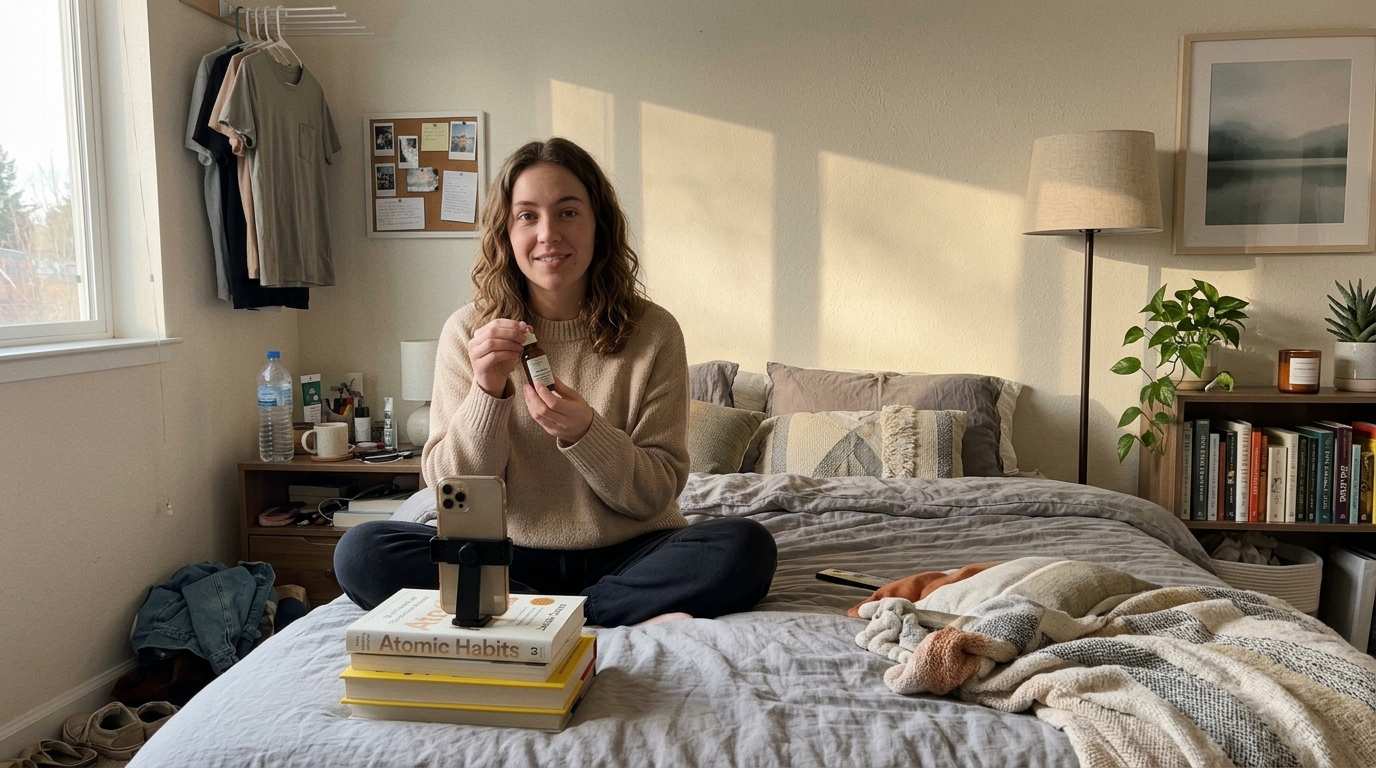
A UGC ad is built to look like content, not advertising. The person on screen talks like a friend recommending something, the camera is a phone, the lighting is whatever the room had, and the product shows up the way it would in real life: pulled out of a box, held up to the lens, used on a counter. The viewer's guard stays down because nothing about the frame signals "this is a commercial."
That is the opposite of a polished brand ad. A brand ad sells through control: perfect lighting, locked-off camera, colour-graded footage, a product floating on a clean background. It works for awareness and for premium positioning, but on a feed full of creator content it reads as an interruption. UGC reads as part of the feed.
Three things do most of the work in a UGC ad:
A person, not a product, opens the video. The first frame is a face or a hand, and the product enters through them.
The script sounds spoken, not written. Short sentences, filler words, a reaction before an explanation.
The visuals are imperfect on purpose. Slight handheld movement, mixed lighting, a real-looking background.
The most common UGC formats are unboxing (the first-contact moment), creator review (a person talking through what they think), and tutorial-and-review (showing how it is used, then giving a verdict). Ad Studio has a template for each, and a full UGC ad often chains two or three of them together.
If you have already built a product-first ad on Templix, the food product video ad workflow covers the polished side of Ad Studio. This guide covers the creator's side.
What to Prepare Before You Open Ad Studio
Ad Studio does the generation, but the quality of the output is decided by what you bring into it. Three assets are worth getting right before you touch a template.
1. A clean product photo
The product photo is what Ad Studio references when it places your product in the creator's hands. Use a straight-on or three-quarter shot with the label readable, even lighting, and no heavy shadows. A plain background is fine here even though the final ad will not be clean, because the model needs to see the packaging clearly. If you only have lifestyle shots, pick the one where the product is largest in frame and least obstructed.
Save this product inside Ad Studio so you can tag it with @ later instead of re-uploading it for every clip.
2. A short spoken script
Write the script the way the creator would say it, not the way a copywriter would write it. For a 15 to 30 second ad, that is usually three beats:
Hook (0 to 3 seconds): a reaction or a problem. "Okay I did not expect this to actually work."
Body (3 to 20 seconds): what the product is, what happened when they used it, one specific detail.
Close (last 5 seconds): a soft recommendation and where to get it.
Keep sentences under ten words where possible. Read it out loud once. If it sounds like a paragraph, cut it again.
3. A saved character reference
This is the piece that makes a multi-clip UGC ad feel like one creator rather than three strangers. Create or upload the character you want as your on-screen creator, save it in Ad Studio, and reuse that same reference in every clip through the @ tag. Face, hair, outfit, and skin tone stay locked across the unboxing, the review, and the tutorial shot.
If you are new to keeping a face stable across generations, read the character consistency guide first. The same principles apply inside Ad Studio.
Step-by-Step: Building the UGC Ad in Templix Ad Studio
With the product photo, script, and character saved, the actual build is short. Here is the workflow from template to finished clip.
Step 1: Choose the right template
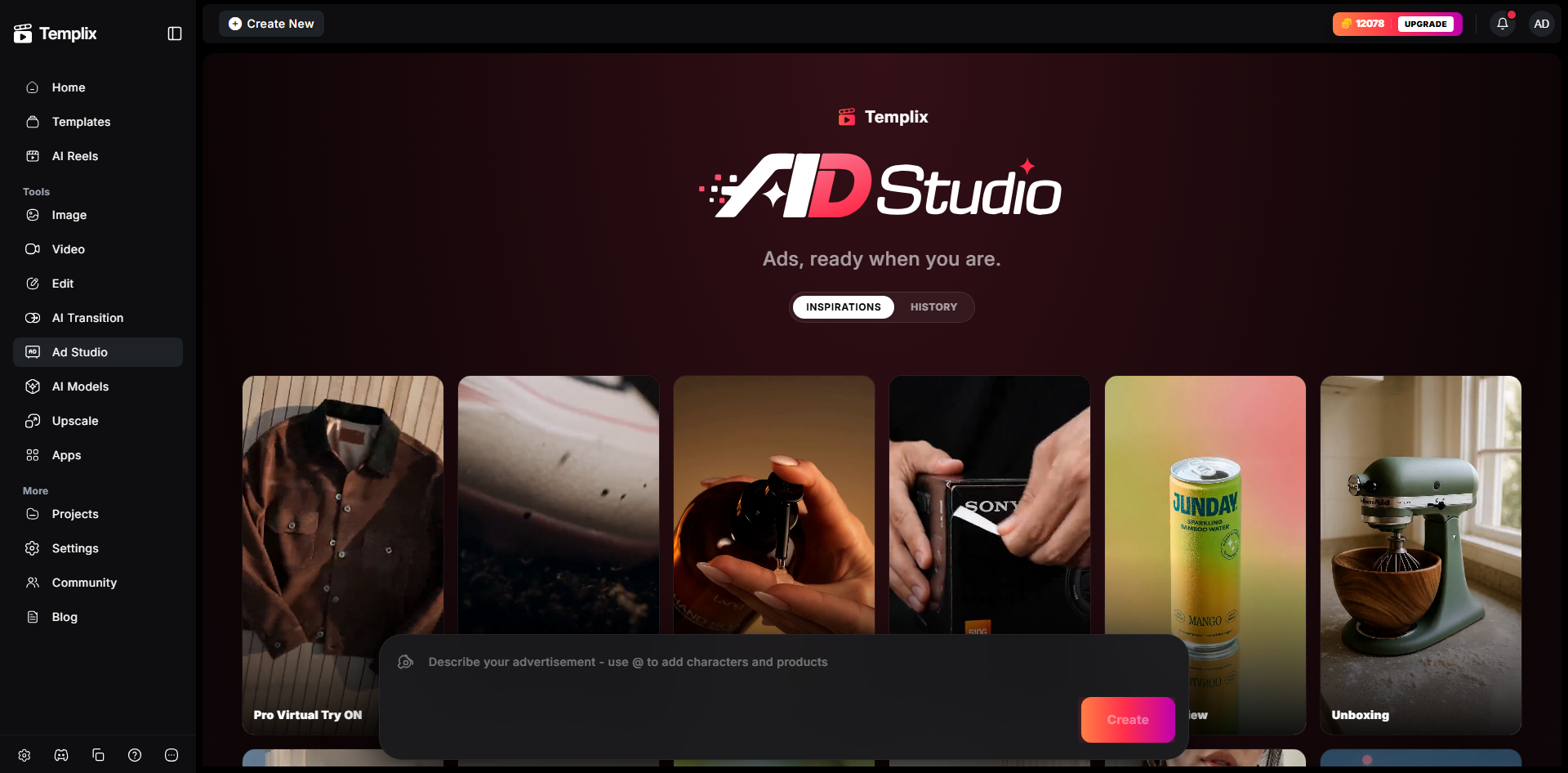
Ad Studio's templates each produce a different kind of shot. For a UGC ad, these are the ones that matter:
Creator Review – a person on camera talking about the product. This is the backbone of most UGC ads and the best starting template if you are only making one clip.
Unboxing – the product being opened and revealed for the first time. Works as the hook clip in a longer ad.
Tutorial And Review – the product being used step by step, followed by a verdict. Ideal for anything where "how it works" is the selling point: skincare, tools, gadgets, kitchen products.
Virtual Try On – the character wearing or trying the product. Use this for apparel, accessories, and cosmetics instead of Creator Review.
Hyper-Motion Product Ad – fast, dynamic product motion. This one is not UGC-style on its own, but a two-second Hyper-Motion cut of the product between talking clips gives the ad a beat change without breaking the creator feel.
For a complete ad, a strong sequence is Unboxing (hook) → Creator Review (body) → Tutorial And Review (proof and close). You can also run any single template on its own for a shorter cut.
Step 2: Tag your character and product with @
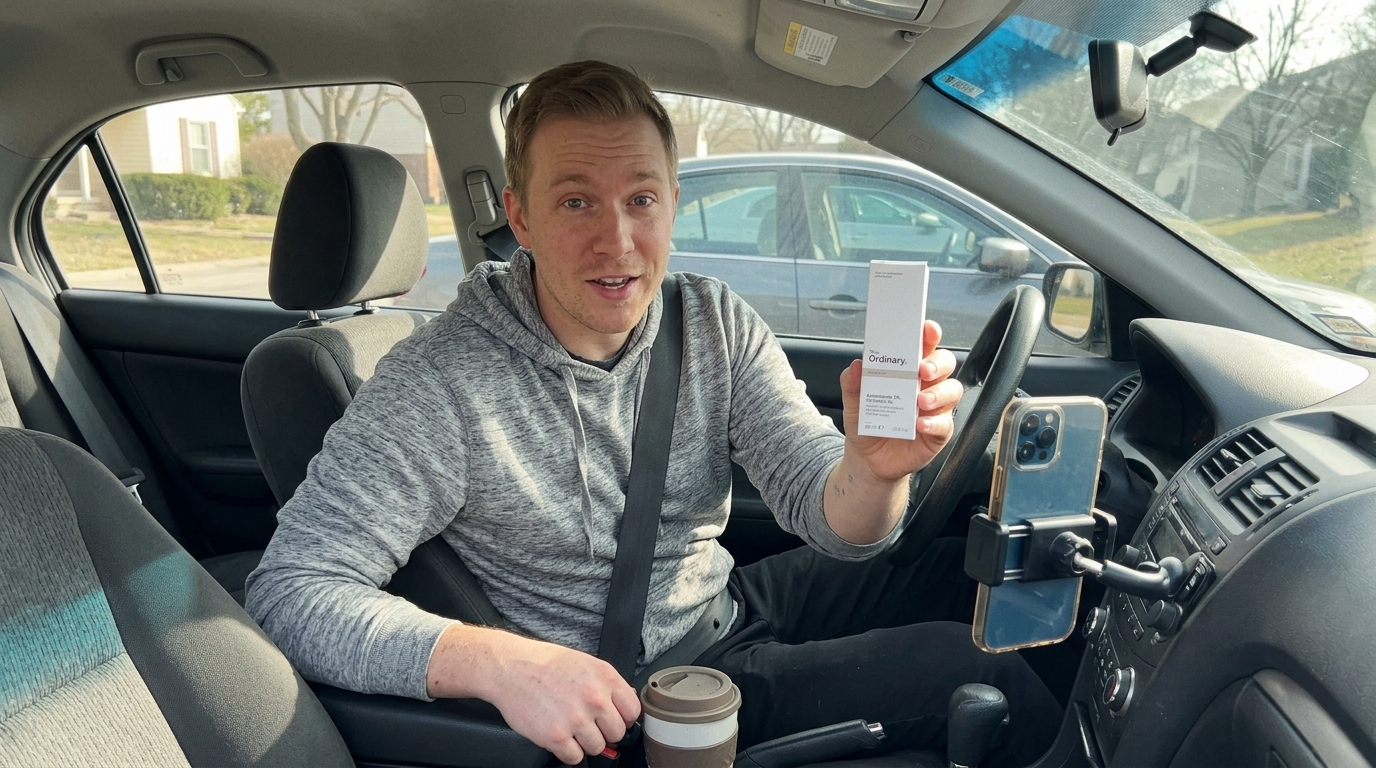
In the Ad Studio prompt box, typing @ opens your saved characters and products. Select the character you saved earlier, then select the product. Both appear as tags in the prompt, and the generation is anchored to those exact references rather than to a text description.
A Creator Review prompt with tags looks like this:
@Maya sits on the edge of her bed, holding @GlowSerum up to a phone camera, talking casually about how her skin felt after a week. Soft window light from the left, slightly grainy phone footage, handheld.
The @ tags carry the visual identity. The rest of the prompt carries the scene, the mood, and the camera. Do not re-describe the character's face or the product's label in words; the tag already handles that, and extra description can pull the model away from the reference.
Tag the same character and product in every clip of the ad. That is what keeps the unboxing, the review, and the tutorial reading as one continuous creator.
Step 3: Write the scene around the script
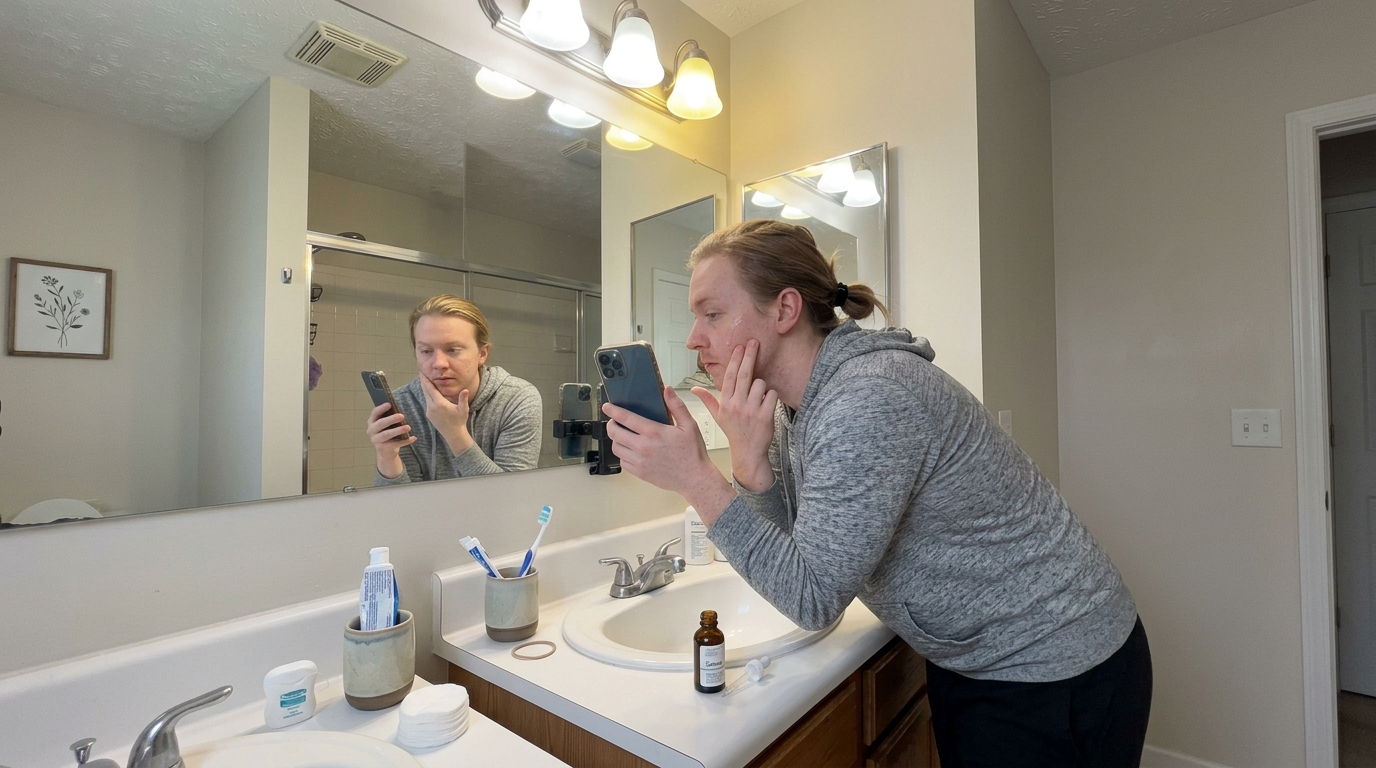
The prompt should describe what the viewer sees while the script is being delivered, not restate the script. Include:
Setting: bedroom, kitchen counter, car, desk. Somewhere a real person would film.
Action: what the character does with the product during the clip. Open it, hold it, apply it, point at it.
Camera: phone-style framing and movement. More on this in the prompting section below.
Light: window light, lamp light, overhead kitchen light. Name the source.
For the Unboxing clip, keep the action simple and front-loaded: the box comes into frame, the character opens it, the product comes out, the character reacts. For Tutorial And Review, describe the use in order: apply, wait, show result.
Step 4: Generate and review the output
Run the generation and watch the clip at least twice. The first pass is for the big failures: does the character match the reference, is the product label legible, is the framing vertical and phone-like. The second pass is for the UGC feel: does it look too clean, is the lighting too even, does the character move like a person or like a mannequin.
Common fixes:
Product drifted from the reference: re-run with the product tag moved earlier in the prompt and fewer competing objects in the scene.
Character face changed: confirm the same saved character is tagged, and remove any face description from the prompt text.
Looks like a studio ad: add handheld and lighting language from the tips section below.
Once each clip passes, generate the next template in the sequence with the same @ tags.
Start your UGC ad in Ad Studio
Step 5: Assemble the sequence
Generate the three clips in order (Unboxing, Creator Review, Tutorial And Review), review each against the checklist, and export. Because every clip uses the same tagged character and product, they cut together without a visible jump. Add the Hyper-Motion Product Ad clip as a one to two second insert if the ad needs a pace change before the close.
Prompting Tips for UGC-Style Output
The templates set the format, but the prompt sets the feel. Most "this looks like AI" complaints about UGC output come down to a prompt that describes a commercial instead of a video someone filmed at home. These are the adjustments that matter most.
Write the tone into the prompt
Words like "casual," "unscripted," "talking to the camera like a friend," and "mid-sentence" push the character's body language toward reality. Words like "confident spokesperson" or "presenting the product" push it toward an infomercial. Pick the first set.
Name a real light source
"Studio lighting" and "soft box" are the fastest way to get a polished look. Instead, name where the light would actually come from in the room: "afternoon window light from the left," "warm lamp on the desk," "slightly blown-out overhead kitchen light." Uneven light is a feature here, not a bug.
Use phone and handheld camera language
Describe the camera the way a creator would hold it: "front-facing phone camera," "handheld, slight sway," "propped against a mug on the counter," "arm's length selfie framing." Small, unmotivated movement reads as human. A slow cinematic push-in reads as a brand ad. If you want to understand which movements signal which feel, the camera movements guide breaks down each one and how to prompt it.
Add a little imperfection
"Slightly grainy," "phone video compression," "natural skin texture," "a few things in the background out of place." These phrases keep the model from over-cleaning the frame. Avoid "4K," "ultra-detailed," "cinematic," and "professional" in a UGC prompt; every one of them pulls toward polish.
Keep the product in the character's hands
A product sitting on a surface looks staged. A product being held, turned, opened, or used looks like content. Write the action, and keep it continuous across the clip rather than a single pose.
A before-and-after example
Over-polished prompt:
Beautiful woman presents @GlowSerum in a bright studio, professional lighting, 4K, cinematic slow zoom.
UGC-style prompt:
@Maya on her couch, front-facing phone camera at arm's length, holding @GlowSerum and talking casually mid-sentence. Late afternoon window light, slightly grainy, handheld sway, laundry basket visible in the background.
Same character, same product, completely different ad.
Which Templix Video Models Fit Best for UGC Talking and Motion Content
Templix runs multiple video models under one account, and the right one for UGC depends on whether the clip is talking-heavy or motion-heavy. If you generate UGC clips through the Templix AI video generator alongside Ad Studio, these are the models to reach for.
Google Veo 3.1 is the strongest choice for talking clips. It generates dialogue with matching lip movement natively, and its handling of facial micro-expressions makes a creator-review delivery look spoken rather than dubbed. Start here for Creator Review and Tutorial And Review style content.
Kling 3.0 Pro is the best fit for motion-heavy UGC: unboxing hands, product being applied, the character moving through a space. Its character consistency across shots is strong, which matters when the same creator appears in three clips. Use it for Unboxing and Virtual Try On style content.
Seedance 2.0 handles fast, natural body motion and casual scenes well, and is a good option for shorter reaction-style clips where the energy matters more than the dialogue.
A practical approach: generate the talking clips with Veo 3.1, the hands-on product clips with Kling 3.0 Pro, and keep the same saved character tagged across both so the cuts stay consistent. You can compare outputs from more than one model on the same prompt from the Templix AI models page and keep the version that looks most like real footage.
Ready to Make Your First AI UGC Ad?
The full workflow is shorter than it looks: one product photo, one spoken script, one saved character, three templates, and the same @ tags in every prompt. Most of the quality comes from the preparation and the prompt language, not from the number of generations you run.
Pick a product, save it and your creator in Templix Ad Studio, start with the Creator Review template, and build outward from there.
Create your AI UGC ad in Templix Ad Studio
Frequently Asked Questions
What is an AI UGC ad?
An AI UGC ad is a user-generated-content style advertisement, such as an unboxing, creator review, or tutorial, where the on-screen creator, the scene, and the product footage are generated with AI rather than filmed. The goal is the same as a filmed UGC ad: it should look like a real person recommending a product on their phone.
Which Ad Studio template should I start with for a UGC ad?
Creator Review. It produces the core "person talking about the product" shot that most UGC ads are built around. Once that clip looks right, add Unboxing as the hook and Tutorial And Review as the proof and close.
How does the @ tagging system work in Ad Studio?
Typing @ in the Ad Studio prompt box opens your saved characters and products. Selecting one inserts it as a tag, and the generation is anchored to that saved reference. Tagging the same character and product in every clip keeps the creator's face and the product's packaging consistent across the whole ad.
Do I need a real person to make a UGC ad on Templix?
No. You create or upload a character reference, save it in Ad Studio, and tag it with @ in each prompt. If you use a real person's likeness, make sure you have their consent and the rights to use it in advertising.
Why does my UGC ad look too polished?
Usually because the prompt describes a commercial. Remove words like "studio lighting," "cinematic," "4K," and "professional," and replace them with a named light source, phone camera framing, handheld movement, and small imperfections such as grain or a cluttered background.
Can I use one character across unboxing, review, and tutorial clips?
Yes. That is what the saved character and @ tag are for. Tag the same character in each template's prompt, keep face descriptions out of the prompt text, and the character stays consistent across all three clips.
What aspect ratio should a UGC ad be?
9:16 vertical for TikTok, Reels, and Shorts, which is where UGC ads perform best. Use 1:1 or 4:5 only if the placement is a static feed post, and 16:9 only for YouTube or landing page use.
Which video model is best for a talking creator clip?
Google Veo 3.1 on Templix, because it generates dialogue with matching lip movement and natural facial expressions. For hands-on product motion such as unboxing or applying a product, Kling 3.0 Pro is the stronger choice.

Fatima Sheikh
Fatima Sheikh explores AI-powered apps at Templix, writing accessible guides that show everyday creators how to unlock powerful tools without any technical barriers.