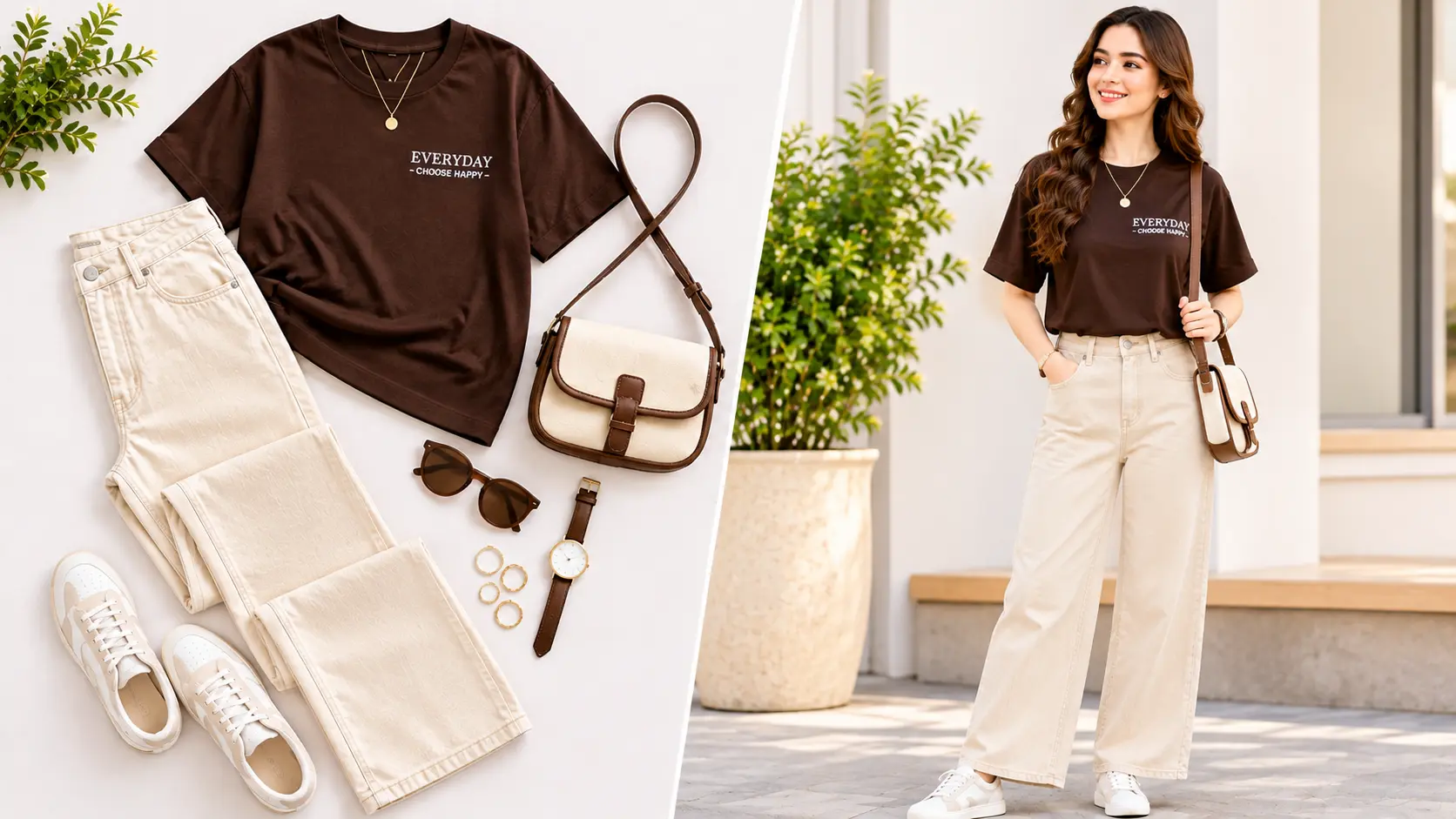
Every online store has the same problem. Shoppers can't touch your products, so your photos have to do the selling, and good photos are expensive. A fashion shoot with a photographer, a model, a studio and a stylist can cost more than a small brand earns in a month, and you need new photos every time you launch something.
AI product photos fix that. You upload a simple product photo, even one taken on your phone, choose a model and a background, and an AI product photo generator creates a clean studio shot or a lifestyle photo with a model wearing your product. This guide covers the step-by-step process, copy-ready prompts, AI model photos for clothing brands, tools and tips. The examples use Templix AI Product Photoshoot, but the steps work in most tools.
Key Takeaways
Start with a sharp, evenly lit product photo on a plain background. The better the source photo, the better the result.
Build every prompt in the same order: product, model and pose, setting, light and style, and format.
Pick your format before you generate: 1:1 for marketplaces, 4:5 for Instagram, 9:16 for Stories and Reels, and 16:9 for banners.
Compare every AI image with the real product before you publish. Wrong colors lead to returns.
When a result is close, change one detail at a time instead of rewriting the whole prompt.
What Is AI Product Photography?
AI product photography means using artificial intelligence to create or improve product images. Instead of setting up lights, backdrops and cameras, you upload a photo of your product and the AI builds a finished image around it: a new background, a styled scene, better lighting or a model wearing your clothes.
Basic tools cut the product out and paste it onto a new background. Better tools render the whole image from scratch, so light and shadows fall naturally on the product. For clothing, that's the difference between a shirt that looks flat and one that shows natural folds and drape.
Traditional vs AI Product Photography
Traditional Photoshoot | AI Product Photography | |
|---|---|---|
Cost | Photographer, studio, models, styling and editing | Pay per image with credits or coins |
Time | Days or weeks from planning to final edits | Seconds to minutes per image |
Models | Book and pay each model | Built-in AI models or your own model photo |
Backgrounds | One location per shoot | Many scenes from one product photo |
Changes later | Often means a reshoot | Edit the prompt and generate again |
For everyday ecommerce product photography, AI wins on speed and cost.
Why Ecommerce Businesses Need AI Product Photography
Lower photoshoot costs. Photographer fees, studio rent, models, makeup and editing add up fast. With AI, you pay credits or coins only for the images you create.
Professional product images. A blurry, badly lit photo makes a good product look cheap. AI generated product images give you consistent lighting and clean backgrounds across your catalog.
Less time and effort. A traditional shoot can take days or weeks. An AI product photoshoot gives you a finished image in seconds or minutes.
Many backgrounds and styles from one photo. Show the same dress on a beach, a city street and a studio backdrop, then test which scene gets more clicks. You can also match each sales channel. Amazon's image guidelines for clothing ask for a pure white background on the main image, while Instagram usually looks better with a lifestyle scene.
What You Need Before You Start
You only need four things:
A clear product photo. Sharp, evenly lit, on a plain background, with the whole product visible.
A model. For AI clothing photography, use a built-in AI model or a full-body photo of your own model.
A prompt. Any prompt from this guide, with the details in square brackets swapped for your own.
A Templix account. New accounts get free coins with no credit card needed.
How to Create AI Product Photos Step by Step
Here is the full process in Templix AI Product Photoshoot:
Upload a product image. Add up to 5 product images in one generation, so you can style a full outfit. Upload each piece as its own image. Flat lays, ghost mannequin shots and on-model photos all work.
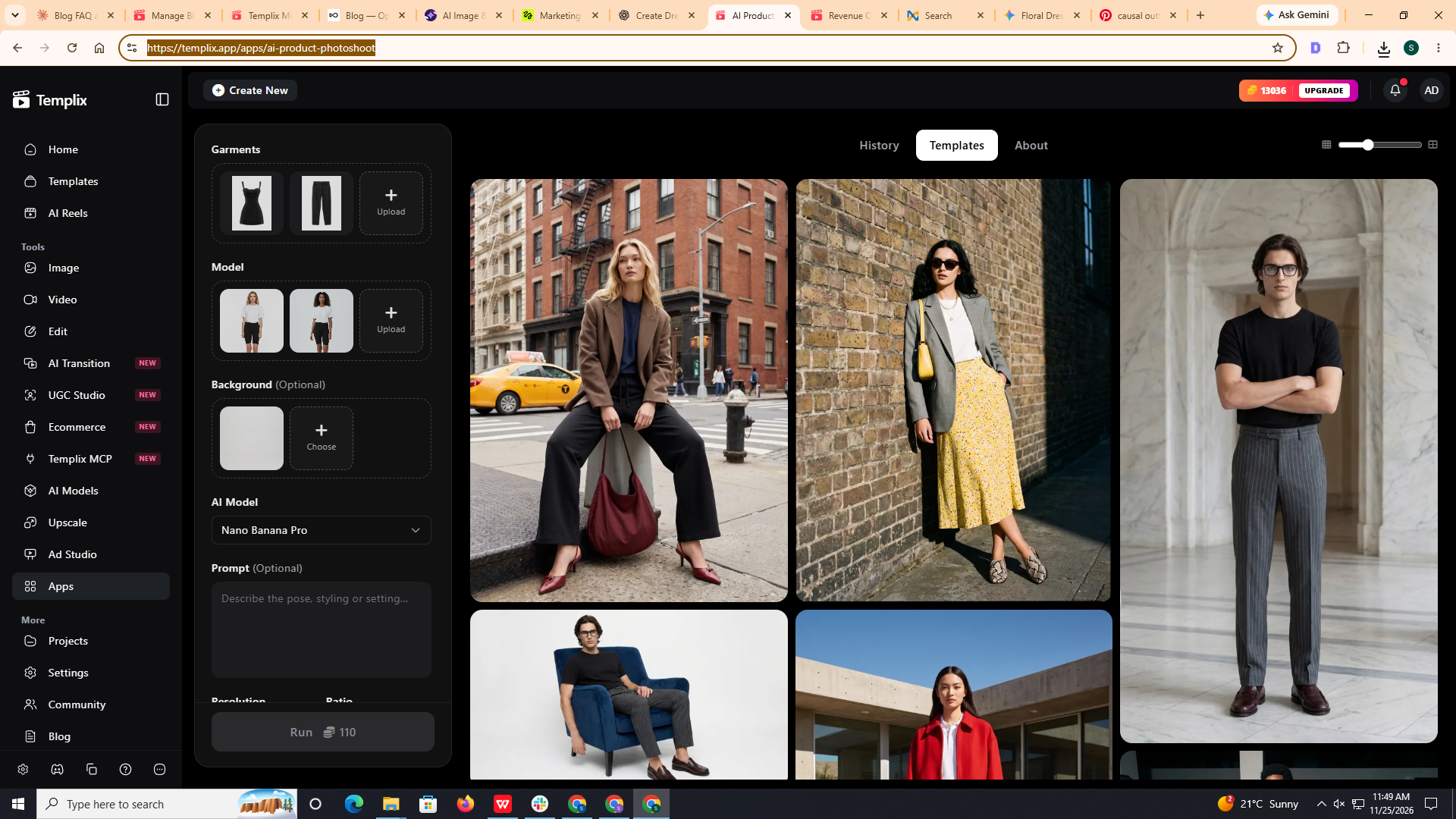
Select an AI fashion model. Pick a built-in model or upload your own photo of one person, head to toe, facing the camera. Built-in models cover a range of looks, body types and ages, and they are not real people.
Choose a background. Pick from 28 optional backgrounds across Studio, Architecture and interiors, Outdoor and resort, and City. Skip it and you get a clean, light studio backdrop. To swap the background on an existing photo, use the AI Background Changer.
Write a suitable AI prompt. The prompt is optional. Use it to set the location, lighting, pose and style. The prompt controls the scene, not the product.
Select resolution and aspect ratio. Choose an engine: Nano Banana Pro for the highest detail at 1K, 2K or 4K, Nano Banana 2 Edit for up to 4K with the widest choice of aspect ratios, or GPT Image 2 with Low, Medium or High quality. The Run button shows the coin cost first.
Generate and review. Click Run. Each generation creates one image, saved to your History, usually within seconds, and you can run up to 4 at once. Check color, prints and logos. If something is off, change one line of the prompt, or use Product Fixer to bring the image closer to your real product.
Tip: To save coins, draft at a lower setting, then rerun your favorite result on Nano Banana Pro at a higher resolution.
The AI Product Photo Prompt Formula
Every prompt in this guide follows the same five-part structure:
Product: name the uploaded item, such as "Model wearing the uploaded [black denim jacket]." For products that aren't worn, use "Keep the uploaded product exactly the same."
Model and pose: standing, walking forward, three-quarter turn or seated.
Setting: where the scene takes place.
Light and style: the light source and the photo style, such as ecommerce catalog or editorial.
Format: the framing and aspect ratio.
Writing prompts in this order keeps the product at the top, where the AI weighs it most. If the location is wrong, you only change the setting part.
Best AI Product Photography Prompts
Copy these prompts and replace anything in square brackets with your own product. They work in Templix AI Product Photoshoot and most other AI product photography generators.
Clothing and Fashion Prompts
1. Clean Studio Catalog Shot
"Model wearing the uploaded [white linen shirt] and [beige trousers],
standing straight and facing the camera. Seamless white studio
background, soft even studio light. Clean ecommerce catalog style,
full body in frame. Square 1:1 format."
Best for: Product pages and marketplace listings.
2. Summer Dress in a Palm Garden
"Model wearing the uploaded [floral midi dress], three-quarter turn,
standing in a palm garden. Soft natural daylight, light breeze moving
the hem. Editorial fashion style, full body. Vertical 4:5 format."
Best for: Instagram posts and summer lookbooks.
3. Streetwear City Shot
"Model wearing the uploaded [oversized hoodie] and [cargo pants], hand
in pocket, in an industrial alley with brick walls. Soft overcast
light, streetwear editorial style. Vertical 9:16 format."
Best for: TikTok and Reels ads.
Shoes Prompts
4. Sneakers on Concrete Steps
"Model wearing the uploaded [white running sneakers], walking forward
on concrete steps. Low camera angle focused on the shoes, bright
morning light. Clean sporty ad style. Vertical 4:5 format."
Best for: Footwear ads where the shoes need to be the hero.
Handbags and Accessories Prompts
5. Handbag on a Paris Street
"Model holding the uploaded [tan leather handbag] at hip level, walking
on a Paris street. Golden hour light, bag in sharp focus and clearly
visible. Luxury editorial style. Vertical 4:5 format."
Best for: Premium accessory brands.
6. Jewelry and Sunglasses Close-Up
"Model wearing the uploaded [gold hoop earrings] and [tortoiseshell
sunglasses], over-the-shoulder pose, rooftop city at sunset. Warm
light on the metal, framed from the chest up. Fashion campaign style.
Vertical 4:5 format."
Best for: Small accessories that get lost in full-body shots. For more ideas, see our AI jewelry prompts for product photos, ads, and design.
Beauty Product Prompts
7. Skincare on Marble
"Keep the uploaded [vitamin C serum bottle] exactly the same, including
its shape, colors and label. Place it on a light marble surface with
fresh orange slices and green leaves beside it. Soft diffused
daylight, gentle shadow, clean minimal beauty style. Square 1:1
format, no text."
Best for: Shop listings and beauty brand feeds.
8. Banner With Space for Text
"Keep the uploaded [lipstick] exactly the same. Place it on the right
side of the frame on soft pink silk fabric. Keep the left side of the
frame empty for text. Bright, clean studio light. Wide 16:9 format, no
text."
Best for: Website banners and email headers. Add your headline in a design tool afterward.
For products that aren't worn, Templix's Product Staging tool places a single product into a styled scene.
How to Create AI Model Photos for Clothing Brands
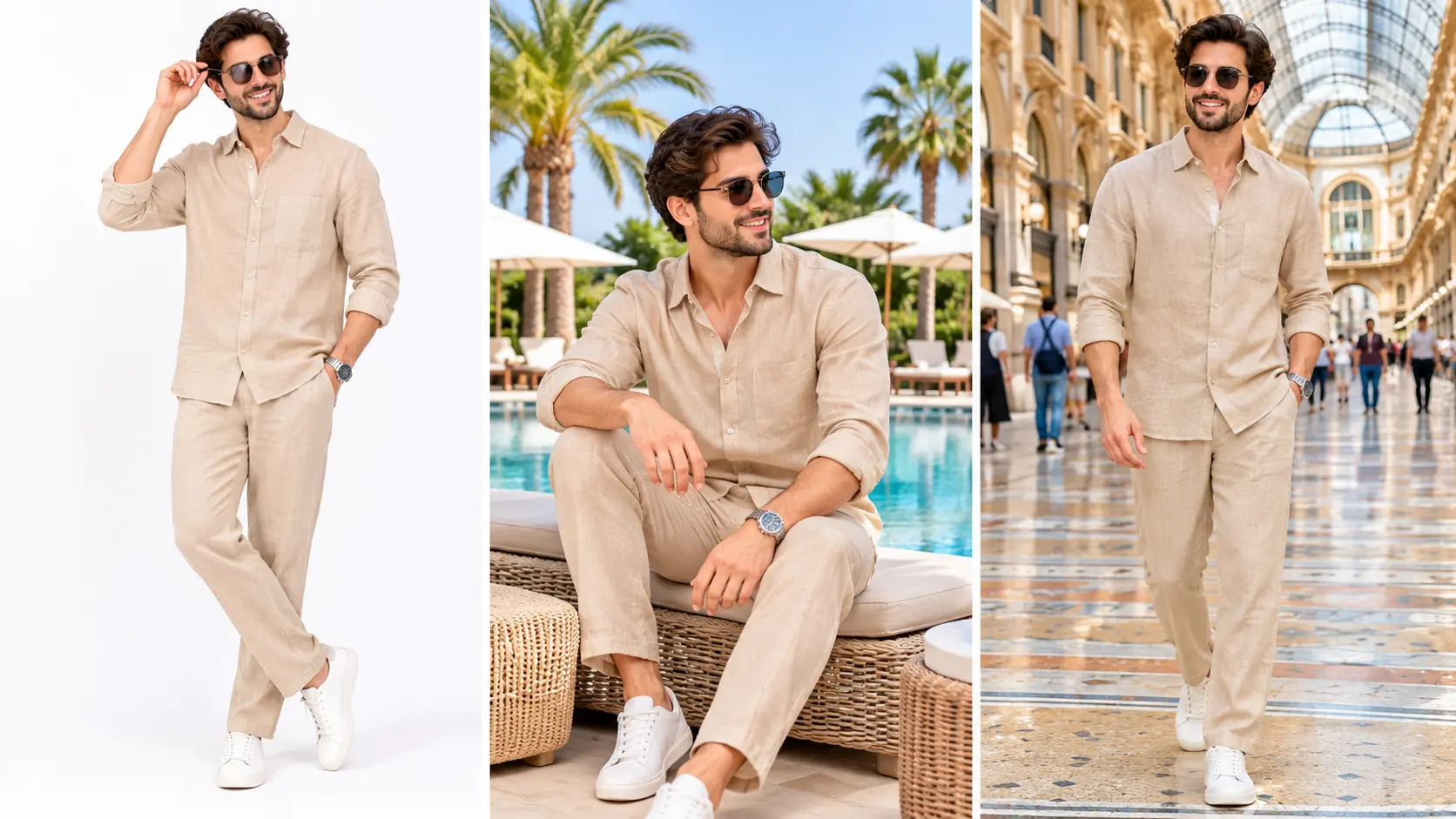
AI model photography solves the biggest headache for clothing brands: showing clothes on real-looking people without booking models.
Convert flat-lay photos into model images. Upload a flat lay, pick a model and you get an on-model photo. Because Templix renders the full image, texture, folds, stitching and prints are regenerated to suit the material and pose. A boutique selling cotton kurtas can photograph each piece on a table and get studio model shots for every product page. Need the opposite? The Flat Lay tool turns clothing photos into flat-lay shots.
Create ghost mannequin-style images. Ghost mannequin images show clothing as if an invisible person is wearing it, so shoppers see fit and shape without a model stealing attention. Templix's Ghost Mannequin tool removes the model or mannequin from a clothing photo. Run wrinkled items through Ironing first.
Show clothing on different AI models. Shoppers want to see clothes on someone like them. Use the built-in models in AI Product Photoshoot, or create a consistent catalog model with the AI Model Generator, which builds a model photo from a preset, a background and a pose such as Standing, Walking Forward or Seated Casual.
Create lifestyle fashion photos. Lifestyle AI fashion photography helps shoppers imagine wearing the product. A linen set suits Poolside or Santorini, while a wool coat suits London Townhouse. Use these for social media and ads, and keep a studio shot as your main product image.
Create Your First AI Product Photo
Best AI Product Photography Tools for Ecommerce
The right product photography AI tool depends on what you sell and the images you need.
Templix AI Product Photoshoot. Best for on-model fashion and accessory photos. Upload up to 5 products per generation, choose a built-in model or your own photo, pick from 28 backgrounds and create images up to 4K. Outputs can be used commercially without extra licensing. It sits inside a wider ecommerce toolkit with the AI Background Remover and Ad Studio for product video ads. There's no bulk uploader, so large catalogs are handled by queueing generations.
Photoroom. Best for quick everyday edits. Popular with mobile-first sellers for background removal, retouching and AI backgrounds.
Best for large catalogs. It's an ecommerce photo editing suite often chosen by bigger teams that process many SKUs through API automation.
Pebblely. Best for simple lifestyle backgrounds. Upload a product shot, pick a theme and get styled backgrounds for small catalogs and social content.
Flair AI. Often recommended for styled product scenes and on-model fashion content.
Test the same product in two or three tools with free credits before you commit.
Which Format Should You Use?
Pick the format before you generate to avoid awkward crops later:
Where It Will Be Used | Format | Resolution |
|---|---|---|
Marketplace listing, product card | 1:1 square | 2K |
Instagram feed post, lookbook | 4:5 vertical | 2K |
Stories, Reels, TikTok | 9:16 vertical | 1K or 2K |
Website banner, email header | 16:9 wide | 2K |
Print, billboard, campaign hero | Any | 4 |
Tips for Creating Realistic AI Product Photos
Upload high-quality product images. The AI can only keep the detail that is in your photo. If your only photo is small or soft, the AI Image Upscaler can sharpen it first.
Maintain original product colors and details. AI can sometimes change small details, like a shade, a button or a print. Compare every result with the real product before you publish.
Choose suitable backgrounds. The background should support the product, not compete with it. White sneakers can disappear on Seamless White, so Warm Sand or Editorial Grey may work better.
Use the right image resolution. Use 1K for drafts, 2K for product pages and ads, and 4K for print.
Review AI-generated results. Check hands and edges where the product meets the body, logos and printed text, and the background for odd objects. If a product looks like it's floating, can add a realistic shadow.
Common Mistakes to Avoid
Using a wrinkled or dark product photo. Harsh shadows can be read as part of the fabric, and folds hide the cut.
Uploading the wrong model photo. Headshots, cropped shots and group photos don't work well. Use one person, head to toe, facing the camera.
Asking for too much at once. Change too much in one prompt and results get harder to control. Start simple, then add details.
Choosing the wrong format. A wide image cropped into a vertical Story often cuts off the product. Pick your format first.
Making the product look better than it is. If the photo doesn't match what arrives at the customer's door, you'll pay for it in returns and bad reviews.
Make Your AI Product Photos on Templix
Templix gives you the whole workflow in one place. AI Product Photoshoot creates on-model images, while Ghost Mannequin, Flat Lay, Product Staging and the Image Upscaler cover the rest of your catalog. When you're ready to move beyond still photos, our guide on how to generate high-converting video ads with AI on Templix shows how to turn product images into short promo clips.
Start with one bestseller and one prompt, compare the result with your current photo, then roll out what works.
Final Thoughts
AI product photos have made professional images possible for stores of every size. With a clear product photo, the right prompt and a careful review, you can create catalog shots, on-model photos and lifestyle ad images from a single upload. Use these prompts as templates, and always check that the final image matches what your customer will receive.
Frequently Asked Questions
Can I create product photos with AI for free?
Yes, to start. Templix gives new accounts free coins with no credit card required, which is enough to try AI Product Photoshoot on your own products. After that, each generation uses coins, and the cost depends on the AI model and resolution you choose. The Run button shows the exact cost before you generate.
Can AI put clothes on a model?
Yes. In Templix AI Product Photoshoot, you upload up to 5 product images, such as flat lays or ghost mannequin shots, choose a built-in AI model or your own model photo, and the AI renders the full image, including folds, texture and stitching. To change the outfit on an existing photo of a person, you can also use the AI Clothes Changer.
Which AI tool is best for product photography?
It depends on your products. For on-model fashion, shoes and accessories, Templix AI Product Photoshoot is built for that job. Photoroom is popular for quick background edits, suits large catalogs that need API automation, and Pebblely is a simple option for lifestyle backgrounds. Test the same product in two or three tools and compare.
Can I use AI product photos for Shopify?
Yes. Images you create with Templix can be used on product pages, marketplaces, social media, ads and print without extra licensing. The built-in models are not real people. If you upload a photo of a real person, that person's usage permissions apply. A 1:1 or 4:5 image at 2K works well for most Shopify product pages.
Can AI replace traditional product photography?
For many everyday needs, yes. AI handles catalog images, lifestyle variations, social posts and ad testing faster and at a lower cost. But luxury products, items where texture is the main selling point and big brand campaigns often still benefit from a real shoot. Many brands now mix both.
Which product photo works best for AI?
A sharp, evenly lit photo on a plain background with the whole product visible. Upload each piece as its own image, avoid harsh shadows and don't fold garments. A clean phone photo taken near a window is often enough.
Will the AI photo look exactly like my product?
Templix keeps the product as you uploaded it and uses the prompt only for the scene, but AI can still change small details like a shade or a print. Always compare the result with the real item, and use Product Fixer or regenerate if something is off.
Can I use my own model in AI product photos?
Yes. Upload a photo of one person, head to toe, facing the camera. The model's face, hair, skin tone and body shape are kept, and the pose only changes if you ask for a new one in the prompt.
Mahnoor Asad
Mahnoor Asad blends design sensibility with AI video expertise at Templix, crafting content on visual creativity, motion generation, and high-converting ad concepts.